The Yaesu FT-620 (and its updated version, the FT-620B) is a vintage amateur radio transceiver designed specifically for the 6-meter band (50–54 MHz). Produced in the 1970s, it…
Overview The Anytone AT-778UV is a dual-band VHF/UHF mobile transceiver designed for amateur radio operators. It operates on the 136–174 MHz (VHF) and…
The Baofeng UV-5R Mini handheld radio is a popular and affordable dual-band amateur radio transceiver widely used by beginners and experienced ham radio…
The 2m band has always been an interesting one for me. It used to be swamped with pager interference, but it actually is a great band. Inversion allows your signal to travel long distances at times, especially on SSB.
This video is about the Yaesu FT-225R 2m all band radio. While the radio is huge, it is a beautiful radio any collector would love to have.
If you want to look at the manual, you can look at it here. I love these old manuals, where they state every component in them as well as circuit diagrams.
According to all reports, I sounded excellent on receive and I loved the sound from it on revive at my end also. You can plug in an external speaker, but I was happy with what it had.
Special thanks to Michael VK3CMC who let me use the radio so I could access the 2m SSB net.
The FT-225R
The two metre band probably should be used more than it is, but it is a good fun band.
Hopefully we can make contact with each other on that band one day!
If you enjoyed that, here is some more you may be interested in.
The Yaesu FT-620 (and its updated version, the FT-620B) is a vintage amateur radio transceiver designed specifically for the 6-meter band (50–54 MHz). Produced in the 1970s, it…
Overview The Anytone AT-778UV is a dual-band VHF/UHF mobile transceiver designed for amateur radio operators. It operates on the 136–174 MHz (VHF) and…
The Baofeng UV-5R Mini handheld radio is a popular and affordable dual-band amateur radio transceiver widely used by beginners and experienced ham radio…
I’ve always wanted to take the radio with me while on holidays and I always do. However I’ve always been limited to 2m and 70cm including local repeaters and digital work.
Our family enjoy holidays all over Australia into some of the most remote places without water, power or any mobile signal. Sometimes this can last week’s at a time.
If your keen to learn more about our travels around Australia and learn more, please let me know.
Most of these remote locations means limited activity on 2m or 70cm as there are no repeaters for days!
Because of this remoteness, there are several outback radio networks we can join or listen to. They make quite interesting listening.
However, when on holidays, we amateurs don’t want to just listen, we want to be part of the action! And HF is the next best thing.
I’m currently on holiday in the Victorian high country, also known as “The Man from Snowy River” country. It is rugged, beautiful and high. So up here I can actually can receive several 2m and 70cm repeaters, but this is a good test for HF work.
High up on Mount Buffalo
With me, I brought a battery pack, that has a 12 volt lithium battery which we run our camping fridge off. I now run my HF gear off it!
I also brought my new QT-80 radio, which is small in size yet puts out 80 watts. I have placed a video below on this radio if you are not familiar with it.
I used a magnet mount antenna base as the car I was using is not mine. This mount sticks to the car like glue, but also comes off on demand so you can adjust the antenna as required.
I brought two antennas to test. The first one was the HF-008 antenna that covers more bands than the QT80. I have a video on both these below for you if you are not familiar with it.
I also brought the new CBL-561 HF antenna so I could compare the two antennas. This antenna can be used while mobile unlike the HF-008 antenna. I have another video for you to show you that antenna below:
Before leaving home, I went to the hardware store and bought two lengths of pipe with caps that could safely store each antenna. I could then almost throw them in the boot of the car and not be worried about them being damaged or caught on something as I pulled them out of the boot.
Hot Tip
The funny thing was, while on holidays, I forgot to bring a measuring tape to adjust the antenna. Fortunately one of my children had a ruler with them so I was able to mark measurements down the side of the tube with a sharpie.
I also wrote down next to the measurements the lengths Radioddity recommended and then as I tuned in the antenna myself with the lowest SWR, I marked the pipe to my best measurements which were very close to the same as Radioddity.
This Tip I am sure will be very useful going forward when I’m out in the Australian outback or somewhere that I have no ruler!
Results
Both antennas fitted the same magnetic base which made this setup work well.
On testing both antennas using the same frequency to the same long distance contact, I and they couldn’t tell the difference between us. I found both antennas easy to tune in and get the SWA right down before making any contacts.
I then tried again from the top of Mount Buffalo, one of our highest mountains and got the same results where both myself and the contacts I spoke to didn’t know I had even changed the antenna.
There are differences between the antennas though which may help you decide which antenna is right for you.
Compare Antennas
HF-008
This antenna covers a lot of HF bands, as covered in the video above. However it cannot be used while mobile, mainly due to the jumper cable. It is a great antenna and can be used with a radio that puts out a lot more watts than the small QT-80 radio I used.
CBL-561
The CBL-561R antenna does not cover as many HF bands as the HF-008 does, but if you are using the bands it does cover, then this antenna might be good for you. One big advantage to this antenna is that it can be used while mobile, not just stationary.
Both antennas will need adjusting if you switch bands or switch from one end of the band to another. So setting the antenna to a permanent mount on the car on the top of the roof where it ends up out of reach, then you may want to rethink this. I found the magnet mount ideal, as you can still have it on the highest point of the car and access it easily.
Another option I also use is a bull bar mount that I use on my 4×4.
I’d encourage you to watch my video below as it explains what I discovered.
Remember the old saying Hight is Might and going portable gives you an opportunity to test this theory.
Hope you enjoyed this read. Below are some other interesting articles I have also written that you may enjoy.
HF radio and lightning storms are closely connected because lightning creates strong radio frequency interference that affects HF radio communication (3–30 MHz).…
Amateur radio operators use many different antenna types, each designed for specific bands, space limits, and operating goals. Here’s a clear overview…
Interference in Amateur Radio refers to unwanted signals that disrupt radio communication. This interference can reduce signal clarity, make contacts difficult, or…
Repeater-START is a multi-platform app designed for ham radio and radio-operator enthusiasts who need fast access to repeater information. The app provides…
The Yaesu FT-620 (and its updated version, the FT-620B) is a vintage amateur radio transceiver designed specifically for the 6-meter band (50–54 MHz). Produced in the 1970s,…
The first thing I noticed after receiving the radio was the size of the radio. It is small yet not to small that it is hard to use. It fits comfortably in your hand.
Not only is it physically small, the price is amazingly small also. How I would have loved to have this radio when I started in the hobby 35 years ago!
Saying that, I see this as a great entry level budget radio. Or a small radio for camping or in the car rather than putting an expensive radio in.
The GT-5R PRO is an enhanced version of the classic GT-5R, capable of receiving a wider range of frequency bands including UHF, VHF, FM, NOAA, Airband, 1.25M, and 1M.
I was easily able to program the radio via the keypad putting in my local repeaters with the required offset and tone squelch. But it was even easier to program it via Chirp Next and I have a video on how to do that.
It is a 5 watt radio complete with VOX if you want to go hands free.
The GT-5R PRO is fully compatible with the UV-5R’s accessories. Such as the car charger, speaker mic, ear piece, antennas plus more.
The GT-5R Pro comes in a standard single-unit version as well as a kit version that includes a long antenna and programming cable. I got the kit version, so be shore when purchasing you know if you want the kit or the single unit version.
Contents • Radio • Fast desktop charger • Antenna • Long antenna • Li-lon battery pack • Wall adapter • Belt clip
It supports UHF VHF dual band transmission and a wide range of reception frequency bands, including 136-174MHz, 400-520MHz, 76-108MHz, 108-136MHz, 200-260MHz, 350-390MHz, and NOAA weather channels.
Receiver Frequency: FM 76-108 MHz; AM 108-136 MHz; VHF 136-174 MHz, 220-260 MHz; UHF 350-390 MHz, 400-520 MHz
Transmission Frequency (US version): 144-148 & 420-450 MHz Transmission Frequency (EU version): 144-146 & 430-440 MHz
It has 128 memory channels and I love how when you program them from the radio, you can see what has already been used.
50 CTCSS tones and 210 DCS codes
SOS Emergency function
FM radio receiver (87.5-108MHz)
Channel or frequency mode selection
TOT (Time out timer)
Reverse function
CTCSS and DCS codes research
Busy Channel Lockout function (BCL)
Frequency step: 2.5/5/6.25/10/12.5/25KHZ
Repeater shift
VOICE: vocal indication of the function selected
Li-lon battery pack
VHF and UHF bands and channel name displayed
Squelch adjustable in 9 levels
1750Hz tone for repeaters
LCD display with backlight adjustable in 3 colours
VOX, Scan, Dual Watch functions
Power Save
DTMF function
Alarm function
Setting and storing of channel names
High/low power selection
Frequency offset (adjustable): 0-69.990MHz
2pin Kenwood accessory jack
Keypad lock
Battery allows direct charging from the DC port
Testing
I quickly made some contacts on both 2m and 70cm and both said my audio was great. I swapped antennas halfway though a conversation and found the small antenna better but that was just for one repeater. I plan on doing more tests in the coming weeks.
Programming Tip
Did you know you can program these radios via Chirp? Here is a great tip you may like with chirp.
Summary
When I received the radio, I was stunned at the price and thought I can’t really go wrong here. I didn’t check the hypnotics but everything else I checked worked well.
There are lots of duel band antennas available, but most required extra mounting brackets. These brackets often restrict you as to where you can mount…
The Daiwa CN-460M is a small cross-needle meter displays both forward and reflected power for 2m and 70cm. It measures in ranges of 15/150 watts forward and…
A good friend of mine, Mike VK5ZC, put the information below together and asked me to put it on my web site. He has spent a lot of time putting it together with pictures and videos, so I encourage you to have a good read.…
A good friend of mine, Mike VK5ZC, put the information below together and asked me to put it on my web site. He has spent a lot of time putting it together with pictures and videos, so I encourage you to have a good read.…
I found it hard to find useful information on how to run the OpenGD-77 hotpot mode with Windows 10. At the time of writing this, there is a lot about this topic using a pistar and even android or ISO, but not much with Windows 10. This is my experence with BlueDV and Open GD-77 using a Windows 10 PC.…
An unusual name, but a catchy name no less, just like Peanut that was written by the same person, David PA7LIM. If you like Peanut, then you will like this project also. This project, like Peanut, includes some amazing coding and thinking.…
I’ve been using EchoLink well before smartphones where the only way I knew how to connect to a different station was via the radio. The internet wasn’t as extensive as it is now and you had to dial the node you wanted via the radio. You can still do this today but I don’t think anywhere near as many do it.
I always felt EchoLink was well ahead of its time. Started well before any digital radio was thought of. Connecting the world via the internet.
It was great to be able to talk to the UK or States while mobile on the way to work just using a small whip antenna on the car.
Given I’m in Australia, it can be difficult to remember when overseas nets are on, or what part of the world is awake and up for a chat and which ones are not. But EchoLink has a CQ feature.
Calling CQ
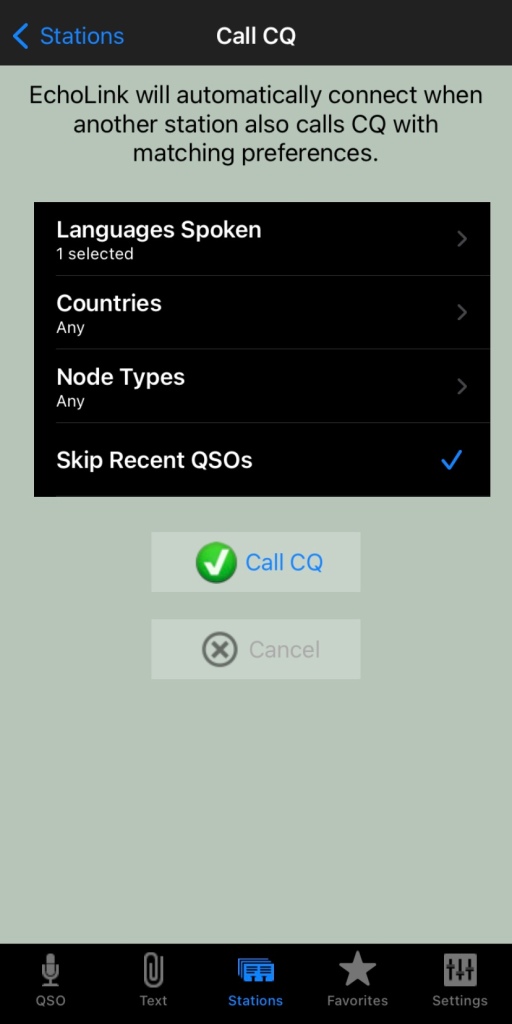
EchoLink had a CQ feature where you can call CQ and it will automatically connect to someone who is calling CQ also.
From the Stations screen select call CQ.
Then select your language.
Select the country, if you leave it as any, you will not limit your connection options
Select the node type, again, leave as any to start with
And you can skip recent if you want to.
Then press Call CQ
It will call CQ for a while searching for a connection that matches your settings. I find that sometimes it tries to connect to another node but can fail. This is perhaps because the connection drops out for whatever reason. Just try again.
The good thing about this option is you will get someone who is wanting to talk to someone just like you do!
What is your experience with EchoLink? What is your favourite nodes? Why don’t you put it in the comments below so we can all learn from your experiences.
Maximum Usable Frequency (MUF) is an important concept in HF radio propagation and amateur radio communications. It refers to the highest frequency that can be used for reliable communication between two locations by reflecting off…
World Amateur Radio Day is celebrated every year on April 18, marking the founding of the International Amateur Radio Union (IARU) in 1925. The organisation was established in Paris when amateur radio societies from around…
Amateur Radio Television (ATV), often called “ham TV,” is a niche part of amateur television where licensed radio operators transmit live video and audio over radio frequencies instead of traditional broadcast networks. It is essentially…
The Baofeng UV-5R Mini handheld radio is a popular and affordable dual-band amateur radio transceiver widely used by beginners and experienced ham radio operators. Designed as a compact version of the original UV-5R, this small…
HF radio and lightning storms are closely connected because lightning creates strong radio frequency interference that affects HF radio communication (3–30 MHz). High Frequency radio is commonly used for amateur radio (ham radio), marine radio,…
OpenHamClock is an open-source amateur radio dashboard designed as a modern successor to the original HamClock used by radio amateurs worldwide. It provides a real-time visual display of essential ham radio propagation data, world clocks,…
The Radtel P8 PoC radio is a Push-to-Talk over Cellular (PoC) device that looks like a traditional walkie-talkie but communicates using 4G/LTE mobile networks instead of UHF/VHF radio frequencies. This means its effective range is…
An antenna coupler (also called an antenna tuner or matching network) is a device used in radio systems to ensure impedance matching between a transmitter and an antenna. Most transmitters are designed for a specific…
Amateur radio operators use many different antenna types, each designed for specific bands, space limits, and operating goals. Here’s a clear overview of the most common ones and why hams choose them. Wire Antennas These…
A dipole antenna is a basic radio antenna made of two conductive elements fed at the center. It is typically a half-wavelength long and is widely used as a reference antenna in antenna theory and…
A simple tip that you may always use after reading this.
Often our shacks end up with cables everywhere. It can be a little hard to remember what cable goes where after a few years. It all starts well but as the equipment grows, so do the cables. I have trouble with the power cords in the power boards and what each plug is!
My shack originally only had one cable that went out that hole, “I’ll remember what it is” we all say years later. But sometimes we might upgrade an antenna or radio. In doing so, it is far easier to use the same cable if it is ok, especially if it goes down a wall or through a small hole. After a few changes, the whole thing can become a bit of a mess (not that anyone else needs to know).
Power cables are easier to manage, as I stick a sticker on each plug at the power board to remind me what they go to. So, if I need to change the power board, I know exactly which plug I am pulling out.
But antenna cables are a bit harder. I started writing on a post it notes what this cable was for and taped it to the cable near the plug, but if you swap it to something else, you must change the note. Maybe you forgot last time you changed something or ran out of time. Perhaps after the testing you got so excited about the positive test you never did update the note on your cable.
So, I now have a new system. I colour code each cable at each end with electrical tape as shown below in the photo.
Using the same colour code on each end, I can now be sure which cable goes to which end. One of my cables has two of the same colour, which is fine, whatever works for you.
If you do this just before the plug at each end, then you can see which antenna the cable goes into and which radio. You could also do it again at the bottom of the tower or window so you know halfway along the cable.
I then have a list of yellow 1 strip = HF 6m and Red = VHF/UHF etc. if I swap the antennas, I just must change the list. I can double check by going outside to see what the same colour code ends up. The electrical tape will stay the same and will last a lot longer than handwritten notes.
So, what do you do to keep your station in order? Do you just remember? Do you have a system? Why not share it in the comments below so we can all learn from you.
Maximum Usable Frequency (MUF) is an important concept in HF radio propagation and amateur radio communications. It refers to the highest frequency that can be used for reliable communication between two locations by reflecting off the ionosphere. If a radio…
World Amateur Radio Day is celebrated every year on April 18, marking the founding of the International Amateur Radio Union (IARU) in 1925. The organisation was established in Paris when amateur radio societies from around the world joined together to…
Amateur Radio Television (ATV), often called “ham TV,” is a niche part of amateur television where licensed radio operators transmit live video and audio over radio frequencies instead of traditional broadcast networks. It is essentially an extension of amateur (ham)…
The Baofeng UV-5R Mini handheld radio is a popular and affordable dual-band amateur radio transceiver widely used by beginners and experienced ham radio operators. Designed as a compact version of the original UV-5R, this small and lightweight VHF/UHF walkie talkie…
HF radio and lightning storms are closely connected because lightning creates strong radio frequency interference that affects HF radio communication (3–30 MHz). High Frequency radio is commonly used for amateur radio (ham radio), marine radio, aviation HF communication, emergency communications,…
OpenHamClock is an open-source amateur radio dashboard designed as a modern successor to the original HamClock used by radio amateurs worldwide. It provides a real-time visual display of essential ham radio propagation data, world clocks, DX activity, and space weather…
An antenna coupler (also called an antenna tuner or matching network) is a device used in radio systems to ensure impedance matching between a transmitter and an antenna. Most transmitters are designed for a specific impedance, commonly 50 ohms, while…
Amateur radio operators use many different antenna types, each designed for specific bands, space limits, and operating goals. Here’s a clear overview of the most common ones and why hams choose them. Wire Antennas These are some of the simplest…
A dipole antenna is a basic radio antenna made of two conductive elements fed at the center. It is typically a half-wavelength long and is widely used as a reference antenna in antenna theory and practice. Dipole antennas work by…
Interference in Amateur Radio refers to unwanted signals that disrupt radio communication. This interference can reduce signal clarity, make contacts difficult, or completely block communication between amateur radio operators. Radio Frequency Interference (RFI) is one of the most common problems…
I have been using my Radioddity now for some years and love it. Though upgrading this to the OpenGD77 opened a whole new world and it gets better all the time.
One issue I had for a period was not being able to connect to it via my PC. For some time, it worked, then it stopped. It was most frustrating as I could not run the radio as a local repeater anymore. I almost never update the codeplug now and update the firmware every few weeks, but I could not do any of this without my PC connection.
After checking I had the latest community programming software, I was stumped.
Roger, who is behind all the programming of this radio and who lives nearby, kindly gave me some advice over email. He suggested it was a Com-Port issue. And he was correct. So, I have put this together to help others who may have the same problem as I did.
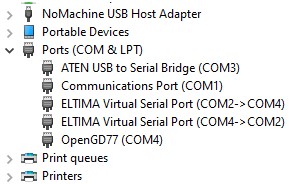
From windows 10, type in the search box Device Manager. Then you will get a box like the following.
If you expand out the Ports section, you can see the issue I had straight away, I had the OpenGD77 on com port 4, and an Eltima Virtual Serial Port on com port 2-4 also.
I disabled the Eltima com ports listed by right clicking on them and nothing seemed to stop working, so then I uninstalled them both. And straight away the com port worked through to the radio like it used to.
Great to have my GD77 back in action! Hopefully this has helped you, if it has, please let me know.
There are some more interesting reads below that you may enjoy also.
OpenHamClock is an open-source amateur radio dashboard designed as a modern successor to the original HamClock used by radio amateurs worldwide. It provides a real-time visual…
An unusual name, but a catchy name no less, just like Peanut that was written by the same person, David PA7LIM. If you like Peanut, then you will like this project also. This project, like Peanut, includes some amazing coding and thinking.…
I found it hard to find useful information on how to run the OpenGD-77 hotpot mode with Windows 10. At the time of writing this, there is a lot about this topic using a pistar and even android or ISO, but not much with Windows 10. This is my experence with BlueDV and Open GD-77 using a Windows 10 PC.…
I recently started using ProScan after years of using FreeScan. I have always enjoyed using FreeScan as it is easy to setup, I can download outputs from the software, and the main reason “it works”. However ProScan seems to be more graphical and has different features also.…
I recently started using ProScan after years of using FreeScan. I have always enjoyed using FreeScan as it is easy to setup, I can download outputs from the software, and the main reason “it works”. However ProScan seems to be more graphical and has different features also.…
There are lots of duel band antennas available, but most required extra mounting brackets. These brackets often restrict you as to where you can mount the antenna…
One of the most underutilised by very cool feature that comes with some digital networks is the ability to send and receive SMS messages. You can send…
I found it hard to find useful information on how to run the OpenGD-77 hotpot mode with Windows 10. At the time of writing this, there is a lot about this topic using a pistar and even android or ISO, but not much with Windows 10. This is my experence with BlueDV and Open GD-77 using a Windows 10 PC.…
This page is just a help to friends I have spoke to who are interested in upgrading the Radioditty GD-77 to the OpenGD77 software. This is not my work, however I really do appreciate Roger and his team have done to put this together. I claim no responsibility if it breaks your radio, however I have not hear this happen now in some time. I am not an expert at all with OpenGD77, I have just put this together to help people who have asked me how to do it.…
Updating the firmware on the GD-77 can be daunting, as you can easily “brick” your radio. So be extremely careful. Make sure you understand why you are…
I found it hard to find useful information on how to run the OpenGD-77 hotpot mode with Windows 10. At the time of writing this, there is a lot about this topic using a pistar and even android or ISO, but not much with Windows 10. This is my experence with BlueDV and Open GD-77 using a Windows 10 PC.
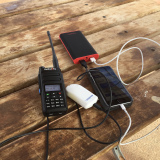
Someone once asked me after reading this page, why would you want to do this? So I have added this paragraph to try and explain. One reason is to extend your hotspot range. For example, if you use a normal regular hotspot, it will only have a small range around or in the house. If you want to go for a walk or dig in the garden, you either have to take a battery pack to plug your hotspot in and your mobile plus your radio. This is something I have done many time, especially while camping and in outback Australia – I have added a photo of it below. However if you have a spare digital radio, then you can plug in your GD77 into an external antenna and via BlueDV as explained below, and then almost run your own 5W repeater into the talk group you want. I have done this and been able to walk several kms from home and still have full access yet only taking my GD77 radio with me. The other reason you can do this is because you can. To make your own repeater is a bit of fun.
Before you read on, it should be noted that the Open GD-77 firmware and software is changing all the time, so some of the steps below may change. I will do my best to keep this page up to date, however please message me or leave a comment if you have any suggestions.
Then once complete, make sure your GD77 is plugged into your USB on your PC. Then type in Device manager in the Windows 10 search box to open the Device Manager. Go to Ports and there you should see OpenGD77 followed by a COM number. If you do not, then you need to install the Comm Driver again. Take note of this Com number.
Now open the GD-77 CPS Community Edition and once loaded make sure it has an Extras menu between the View and Language menus. Click on the Extras menu and select OpenGD77 support. Click on Read codeplug and make sure that works. Obviously you need the radio plugged in and turned on to do this.
Now download the latest BlueDV install file from the following web site. Make sure you select the Windows version. There may be beta versions available if you want to try them.
Download and then install the msi file inside the zip file.
Keep the radio plugged into the USB port on your PC. Turn on the radio and press the green button to go into the OpenGD77 menu. Scroll down to options and then go up to Hotspot and when on hotspot press the right button until it changes to BlueDv. Press the green button to save.
Next open BlueDV and once opened, click on Menu then Setup. Put in your callsign, then change the serial port radio to the Com port noted earlier. Tick on RX/TX Colors, enter in the Frequency you wish to use, enter your DMR ID in both boxes, then select the Brandmeister DMR Master server you want to connect to and put in your password. Select Save to save these settings and close the setup box.
Now turn on Serial (top left under menu) by pressing the slide switch to the left, and DMR in the BlueDV interface. If you can not turn on DMR then you have the same problem I did, then you have not turned your radio on correctly or turned the hotspot mode on. If you have not turned on the hotspot, see two paragraphs above. Then, make sure the radio is in VFO mode by pressing the red button, you should see two lines of frequencies. Make sure they are both the frequency you are using in BlueDV. Turn your radio off, connect the cable and plug it into the PC, then hold down the small black button above the blue button and PTT button, and while holding the button, turn the radio on. The radio should say Hotspot along the top of the screen.
It should now work. Adjust your power level on this radio and plug into a nice antenna, then you can use another DMR radio on the same frequency and you now have your own hotspot that will cover an area that your GD77 will cover.
If you put in the DStar or Fusion settings, you can cross mode across to these networks also if you use the latest BlueDV version.
For more information, here is a video I found that got me going with this project. If you look at this video from 6:34 you can see how to do it without BlueDV and using MMDVMHost instead.
I hope you have found this useful. Please see below some other similar articles I have written that might be of interest. Please leave me some feedback if this has been of some help.
I found it hard to find useful information on how to run the OpenGD-77 hotpot mode with Windows 10. At the time of writing this, there is a lot about this topic using a pistar and even android or ISO, but not much with Windows 10. This is my experence with BlueDV and Open GD-77 using a Windows 10 PC.…
This page is just a help to friends I have spoke to who are interested in upgrading the Radioditty GD-77 to the OpenGD77 software. This is not my work, however I really do appreciate Roger and his team have done to put this together. I claim no responsibility if it breaks your radio, however I have not hear this happen now in some time. I am not an expert at all with OpenGD77, I have just put this together to help people who have asked me how to do it.…
A good friend of mine, Mike VK5ZC, put the information below together and asked me to put it on my web site. He has spent a lot of time putting it together with pictures and videos, so I encourage you to have a good read.
Amateur Radio Television (ATV), often called “ham TV,” is a niche part of amateur television where licensed radio operators transmit live video and audio over…
Amateur radio operators use many different antenna types, each designed for specific bands, space limits, and operating goals. Here’s a clear overview of the most…
Overview The Anytone AT-778UV is a dual-band VHF/UHF mobile transceiver designed for amateur radio operators. It operates on the 136–174 MHz (VHF) and 400–490 MHz…
The Baofeng UV-5R Mini handheld radio is a popular and affordable dual-band amateur radio transceiver widely used by beginners and experienced ham radio operators. Designed…
A good friend of mine, Mike VK5ZC, put the information below together and asked me to put it on my web site. He has spent a lot of time putting it together with pictures and videos, so I encourage you to have a good read.…
I found it hard to find useful information on how to run the OpenGD-77 hotpot mode with Windows 10. At the time of writing this, there is a lot about this topic using a pistar and even android or ISO, but not much with Windows 10. This is my experence with BlueDV and Open GD-77 using a Windows 10 PC.…
The Daiwa CN-460M is a small cross-needle meter displays both forward and reflected power for 2m and 70cm. It measures in ranges of 15/150 watts forward and…
Interference in Amateur Radio refers to unwanted signals that disrupt radio communication. This interference can reduce signal clarity, make contacts difficult, or completely block communication…
HF radio and lightning storms are closely connected because lightning creates strong radio frequency interference that affects HF radio communication (3–30 MHz). High Frequency radio…
Maximum Usable Frequency (MUF) is an important concept in HF radio propagation and amateur radio communications. It refers to the highest frequency that can be…
I bought this wireless keyboard/mouse which was very cheap. It does not come with batteries, but come with a USB dongle. It has a fantastic range since it is 2.4GHz RF. The back also has good grip which apparently isn’t common on all models. You can select what colour you want the plastic to be also.…
OpenHamClock is an open-source amateur radio dashboard designed as a modern successor to the original HamClock used by radio amateurs worldwide. It provides a real-time…
I recently started using ProScan after years of using FreeScan. I have always enjoyed using FreeScan as it is easy to setup, I can download outputs from the software, and the main reason “it works”. However ProScan seems to be more graphical and has different features also.…
I recently started using ProScan after years of using FreeScan. I have always enjoyed using FreeScan as it is easy to setup, I can download outputs from the software, and the main reason “it works”. However ProScan seems to be more graphical and has different features also.…
There are lots of duel band antennas available, but most required extra mounting brackets. These brackets often restrict you as to where you can mount…
The Radtel P8 PoC radio is a Push-to-Talk over Cellular (PoC) device that looks like a traditional walkie-talkie but communicates using 4G/LTE mobile networks instead…
Repeater-START is a multi-platform app designed for ham radio and radio-operator enthusiasts who need fast access to repeater information. The app provides a detailed repeater…
A good friend of mine, Mike VK5ZC, put the information below together and asked me to put it on my web site. He has spent a lot of time putting it together with pictures and videos, so I encourage you to have a good read.…
An unusual name, but a catchy name no less, just like Peanut that was written by the same person, David PA7LIM. If you like Peanut, then you will like this project also. This project, like Peanut, includes some amazing coding and thinking.…
This page is just a help to friends I have spoke to who are interested in upgrading the Radioditty GD-77 to the OpenGD77 software. This is not my work, however I really do appreciate Roger and his team have done to put this together. I claim no responsibility if it breaks your radio, however I have not hear this happen now in some time. I am not an expert at all with OpenGD77, I have just put this together to help people who have asked me how to do it.…
An antenna coupler (also called an antenna tuner or matching network) is a device used in radio systems to ensure impedance matching between a transmitter…
World Amateur Radio Day is celebrated every year on April 18, marking the founding of the International Amateur Radio Union (IARU) in 1925. The organisation…
The Yaesu FT-620 (and its updated version, the FT-620B) is a vintage amateur radio transceiver designed specifically for the 6-meter band (50–54 MHz). Produced in the 1970s, it offers support…


 The Retevis RT73 and Kydera CDR300UV are identical radios. They are a DMR/FM duel band radio for Amateur radio use. This is great,…
 I recently got my hands on a new Baofeng UV-17R Plus Series radio. It didn’t take long at all to arrive and was…
 As per the Yaesu FT-710 manual, the Digital Noise Reduction (DNR) system is designed to reduce the level of ambient noise found on…
 I recently got the Radioddity M916 Heavy duty antenna magnetic mound with the Radioditty HF-008 all band portable antenna. I had always wanted…
 The first thing I noticed after receiving the radio was the size of the radio. It is small yet not to small that…
 The new QT80 radio by Radioddity is a fantastic radio and I have a lot of contacts on it already. QT60 Vs QT80…
 CBL-561 Review The new CBL-561 antenna is strong and light that is fit for mobile work, camping or remote radio use. I plan…
 There are lots of duel band antennas available, but most required extra mounting brackets. These brackets often restrict you as to where you…
 Why does a radio need a cup holder? I agree it’s a bit odd. But this isn’t a product that involves a cup.…
 The 2m band has always been an interesting one for me. It used to be swamped with pager interference, but it actually is…
 The Daiwa CN-460M is a small cross-needle meter displays both forward and reflected power for 2m and 70cm. It measures in ranges of 15/150 watts…
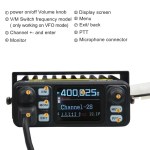 I recently got my hands on the Hiroyasu IC-980 Pro dual band base radio. This is pronounced as “Hiro-Yasu”. When I say, got…
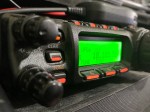 A great radio that does all bands up to 70cm. Using all modes also you can talk on SSB on VHF and UHF.…
 I purchased this radio from a friend, and it worked well. He hadn’t really used it, so I did a factory reset. This…
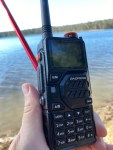 I managed to get one of these radios and was rather impressed with it and what it came with. Have a look what…
 Key Assignment For some reason, not all the key assignment options are in the manual and after a bit of searching, I found…
 The Yaesu FT-620 (and its updated version, the FT-620B) is a vintage amateur radio transceiver designed specifically for the 6-meter band (50–54 MHz). Produced in the 1970s, it…
 Overview The Anytone AT-778UV is a dual-band VHF/UHF mobile transceiver designed for amateur radio operators. It operates on the 136–174 MHz (VHF) and…
 The Radtel P8 PoC radio is a Push-to-Talk over Cellular (PoC) device that looks like a traditional walkie-talkie but communicates using 4G/LTE mobile…
 The Baofeng UV-5R Mini handheld radio is a popular and affordable dual-band amateur radio transceiver widely used by beginners and experienced ham radio…




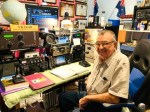






















 VK3TBS