The Baofeng UV-29 Pro is a powerful dual-band handheld radio designed for amateur radio operators, outdoor activities, emergency communications and general VHF/UHF radio use. With up to 10 watts of transmit power, a large battery and a range of useful features, the UV-29 Pro offers more power and functionality than many basic handheld ham radios.

The Baofeng UV-29 Pro operates on VHF and UHF frequencies, making it suitable for 2 metre and 70 centimetre amateur radio operation where permitted. It has selectable transmit power levels of 10 W, 5 W and 2 W, allowing operators to balance transmission range, battery life and heat generation.
One of the standout features of the UV-29 Pro is its cross-band repeater function. This allows the radio to receive on one band and retransmit on another, effectively turning the handheld into a small portable repeater. This can be useful for field days, 4WD trips, outdoor activities and amateur radio operations where extending local coverage is important.
The UV-29 Pro also includes a 2,600 mAh rechargeable lithium-ion battery and USB-C charging. The USB-C connection makes it convenient to recharge the radio from modern power banks, vehicle chargers and other USB power sources. The radio also includes a desktop charging option.
Another useful feature is Bluetooth connectivity. The UV-29 Pro can be programmed using a smartphone through the appropriate Baofeng application, reducing the need for a traditional programming cable and computer. Bluetooth can also be used with compatible wireless audio and PTT accessories.
The radio provides a large memory capacity of up to 1,000 channels, allowing users to store a substantial number of VHF and UHF frequencies, repeaters and other channels. For an amateur radio operator, this makes it possible to create separate memory groups for local repeaters, simplex channels, travel frequencies and other commonly used frequencies.
The receiver also covers frequencies outside the normal amateur radio bands, including FM broadcast and aviation reception, depending on the radio’s configuration and local regulations. Receiving other radio services can be useful for monitoring, although transmitting is only permitted on frequencies and services for which the operator and equipment are authorised.
Overall, the Baofeng UV-29 Pro 10 W dual-band handheld radio is an interesting option for operators looking for higher transmit power, a large battery, Bluetooth programming, extensive channel memory and cross-band repeater capability. Its combination of VHF/UHF operation and portable design makes it particularly suited to amateur radio, outdoor communications and field operations.
See my full review on this radio and let me know in the comments what you think
Direct link for the radio is here.
Don’t forget to see my other videos on this. Please comment if you have any thoughts.
Discount
If you go via this link, you will get a discount then search for your item.
If you enjoyed this read, here are some others you may enjoy also:
- Retevis RT73 – Kydera CDR300UV
 The Retevis RT73 and Kydera CDR300UV are identical radios. They are a DMR/FM duel band radio for Amateur radio use. This is great, as most of the early DMR radios available were commercial radios that were used for Amateur operations.…
 - Baofeng UV-17R Plus Series Review
 I recently got my hands on a new Baofeng UV-17R Plus Series radio. It didn’t take long at all to arrive and was not expensive at all. People these days pay more for a UHF CB radio than a radio…
 - DNR – Digital Noise Reduction
 As per the Yaesu FT-710 manual, the Digital Noise Reduction (DNR) system is designed to reduce the level of ambient noise found on the HF and 50 MHz bands. The (DNR) system is especially effective during SSB operation. Any of…
 - Portable HF all band Antenna and Mount
 I recently got the Radioddity M916 Heavy duty antenna magnetic mound with the Radioditty HF-008 all band portable antenna. I had always wanted to use HF more while camping or going on adventures around Australia (see our adventures page if…
 - Baofeng GT-5R Pro
 The first thing I noticed after receiving the radio was the size of the radio. It is small yet not to small that it is hard to use. It fits comfortably in your hand. Not only is it physically small,…
 - Radioddity QT80
 The new QT80 radio by Radioddity is a fantastic radio and I have a lot of contacts on it already. QT60 Vs QT80 This is a QT80 model but there is also the QT60 model so what’s the difference? QT80…
 - HF Mobile Antenna CBL-561
 CBL-561 Review The new CBL-561 antenna is strong and light that is fit for mobile work, camping or remote radio use. I plan to use this on our next outback trip! This antenna supports a frequency range of 25-30MHz, covering…
 - Radioddity RA-UV712 Magnet Mount Antenna
 There are lots of duel band antennas available, but most required extra mounting brackets. These brackets often restrict you as to where you can mount the antenna on your car. One of my first mobile antennas for the car was…
 - RH1 Radio Cup Holder
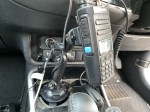 Why does a radio need a cup holder? I agree it’s a bit odd. But this isn’t a product that involves a cup. Rather it uses a cup holder. Almost every car now has a cup holder, but they are…
 - Yaesu FT-225R
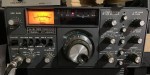 The 2m band has always been an interesting one for me. It used to be swamped with pager interference, but it actually is a great band. Inversion allows your signal to travel long distances at times, especially on SSB. This…
 - Daiwa CN-460M Meter
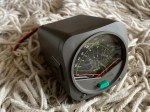 The Daiwa CN-460M is a small cross-needle meter displays both forward and reflected power for 2m and 70cm. It measures in ranges of 15/150 watts forward and 5/50 watts reflected. SO-239 jacks. It includes a mobile mounting bracket and meter illumination option…
 - Hiroyasu IC-980 Pro
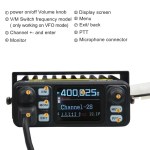 I recently got my hands on the Hiroyasu IC-980 Pro dual band base radio. This is pronounced as “Hiro-Yasu”. When I say, got my hands on it, the unit is so small, you only need one hand really! This analogue…
 - Yaesu 857D
 A great radio that does all bands up to 70cm. Using all modes also you can talk on SSB on VHF and UHF. If you haven’t done SSB on 2m and 70cm, then I’d encourage you to do so. it…
 - Baofeng RadiosYou could say every amateur radio operator knows about the Baofeng if they have been around long enough. Most have held one of their radios and lots have at least one. They have made a huge amount of radios. According…
- Zastone D9000 Number Lock
 I purchased this radio from a friend, and it worked well. He hadn’t really used it, so I did a factory reset. This was a bit of a mistake, as it did a few things like turning everything to Chinese.…