The 6-Meter Amateur Radio Band

What Is the 6m Band?

The 6-meter band, spanning roughly 50–54 MHz, is a section of the VHF spectrum assigned to amateur radio operators.

Its wavelength is six meters, and its position between HF and VHF makes it behave like a mix of both services.

Why It’s Called the “Magic Band”

6 meters has an almost unpredictable personality.

Sometimes it acts like a local VHF band; other times it opens up suddenly and supports long-distance DX like HF.

Because of these rapid and surprising changes, operators refer to it as the Magic Band.

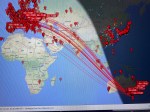
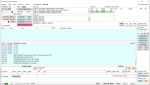
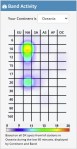
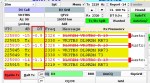
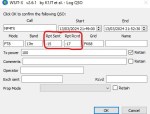
Contacts I had across to Europe

Propagation Characteristics

6 meters supports a wide range of radio propagation mechanisms:

Sporadic-E

Dense patches of ionization in the E-layer

Allows contacts hundreds to thousands of kilometers away

Most common from late spring through summer and again in winter

F-Layer / F2 Propagation

Appears during strong solar activity

Enables global, long-haul communication

Can keep the band open for long stretches

Tropospheric Enhancement

Weather-related bending in the lower atmosphere

Extends VHF-range signals over much longer distances

Meteor Scatter

Radio waves reflect off meteor trails

Excellent during meteor showers

Modern digital modes—especially MSK144—dominate this technique

Auroral Propagation

Signals scatter from auroral activity

Produces a very distinct, rough sound

Common at northern latitudes

Trans-Equatorial Propagation (TEP)

Occurs near the geomagnetic equator

Allows north–south DX paths across continents

Modes of Operation

6 meters accommodates virtually every common amateur mode

Weak-Signal & DX

SSB, CW

Digital

FT8 (primary mode for most openings)

FT4, JT65

MSK144 (meteor scatter)

FM

Simplex and repeater use in certain regions

AM

Niche but still used by some hobbyists

Equipment and Antennas

Radio

Many modern HF transceivers include the 6-meter band. Examples include:

Icom IC-7300

Yaesu FT-991A

Icom IC-705

Dedicated 6-meter rigs and transverters are also popular among weak-signal operators.

Antennas

6-meter antennas are small enough to install easily yet large enough to perform well.

Common options:

Dipoles

Verticals (good for FM)

Yagis (excellent for DX)

Moxons

Loops

End-fed half waves

Even a small Yagi can work impressive DX during an opening.

Seasonal and Solar Patterns

May–August: Prime Sporadic-E season

December–January: Smaller Es season

Active solar years: Best chances for worldwide F2 propagation

Meteor showers: Ideal for MSK144 activity

What Makes 6 Meters Appealing

Sudden, exciting band openings

Possibility of worldwide communication with small antennas

Plenty of room for experimentation

A wide variety of propagation modes

Generally less crowded than HF

The band blends scientific curiosity, operating skill, and pure luck — which is exactly why many operators love it.

Example

I love 6m when it is active. But I also love 6m when it isn’t open as a few of us use it to chat on it.

The Japanese love 6m. They seem to use it all year perhaps because they don’t need the band to be open to use it and talk across their country.

Below is a video where the band was open for a few minutes. Only a few contacts were made and I happen to be one of them.

After my contact, the bad suddenly closed, making this contact all the more special.


Other Reads

If you enjoyed this, here are some others you may enjoy also.

  • 6m and TV Channel 0
    Prior to 1989, it was illegal to operate between 50 MHz and 52 MHz in Australia. It was a real pain as that was where all the action was…
  • Dipole Antennas Vs Long Wire Antennas
    I’ve heard a lot about dipole antennas, and I’ve heard a lot about long wire antennas also. I would say I’ve seen more dipoles than long wire antennas. So…
  • Repeater-START
    Repeater-START is a multi-platform app designed for ham radio and radio-operator enthusiasts who need fast access to repeater information. The app provides a detailed repeater map as well as…
  • The 6-Meter Amateur Radio Band
    What Is the 6m Band? The 6-meter band, spanning roughly 50–54 MHz, is a section of the VHF spectrum assigned to amateur radio operators. Its wavelength is six meters,…
  • Anytone AT-778UV
    Overview The Anytone AT-778UV is a dual-band VHF/UHF mobile transceiver designed for amateur radio operators. It operates on the 136–174 MHz (VHF) and 400–490 MHz (UHF) bands, offering reliable…
  • 160 Meters Band
    160 meters band is known as the “Gentlemen’s band”. It is right next to the AM commercial band, known as medium wave. The 160-meter band is the radio frequencies…
  • What does this Antenna do?
    Have you ever had an antenna and forgotten what it is for? Maybe you have been given one and wasn’t told exactly what it was used for. I got…
  • Olivia Digital Mode MFSK
    Yes, this popular girl name is actually an Amateur Radio term. Christian, DK8EW, put me onto Olivia after we chatted on VARA HF. I had heard about Olivia before,…
  • Yaesu FT-620
    The Yaesu FT-620 (and its updated version, the FT-620B) is a vintage amateur radio transceiver designed specifically for the 6-meter band (50–54 MHz). Produced in the 1970s, it offers support for AM, CW, and SSB…
  • FreeDV
    I came across something different, FreeDV. The name FreeDV insinuates it is free, but is it? What is it? And what does it do? They say it will be…
  • Anytone 778UV Key Assignment
    Key Assignment For some reason, not all the key assignment options are in the manual and after a bit of searching, I found no complete list.  Hopefully this below…
  • Kenwood – did you know this?
    Everyone that has been into radio for a while will know the brand Kenwood.  And most know Kenwood isn’t only into Amateur radio, they are bigger than that, and…
  • VK3AHR Ron
    Today (20/06/25) I head Ron, VK3AHR, on the 7.100 40-meter net. I understand he ran this net for over 7 years, but hasn’t been able to for the last…
  • The History Of Yaesu
    As licensed Amateur Radio operators, we have all heard about Yaesu. We have all seen a Yaesu radio and most of us have used and even own one. I’ve…

DMR Explained

With digital radio changing so quickly, below is a bit of an update in regards to DMR radio networks.

DMR stands for Digital Mobile Radio and is an internation standard for digital radios since about 2005. It can contain voice and data. It was created as a standard so it remained low cost and could be used and made by any country.

DMR was designs with three tires where tire 3 is usually for trunked radio networks, however this didn’t start until about 2012. DMR is used between 30MHz and 1GHz

DMR uses 12.5 channel spacing but had two voice channels per frequency. This is done by having the two voice channels on two different time slots. In very basic terms, the radio will listen to 30ms of each time slot and only play the selected one. This means you will miss every second 30 millisecond, but as this is so short, you wouldn’t notice any of the voice missing unless the signal is weak.

Within each time slot, you can have talk groups. So, if you are not on the right frequency, time slot and talk group, you may not hear anything or be heard.

DMR Conventional

This can be either DMR Duplex (as in a base repeater) or DMR Simplex ( where uses talk direct to each other without a repeater). Radios can be lower in transmission power, and best suited to individuals or companies in outdoor recreation, small business, or other applications that do not require a lot of radio users and wide-area coverage. However a repeater can be used to widen the range of a DMR network.

DMR Capacity Plus

This is a single site network, is one with no central control channel. All radios on this system scan each frequency at that site continually. There is a maximum 6 frequencies / 12 channels (tier 1 and 2). This could be a Motorola Solutions Cap+ network, PA People Cap+ network and so on. There can be up to 1600 users per site.

Occasionally you will come across a 1 frequency Cap+ site with no second frequency. However single frequency DMR Capacity Plus systems are often preferred to standard conventional because of the following reasons:

  • Capacity. You can easily have 4-6 talk groups on a single repeater.
  • System wide All Call. You can easily contact every radio when doing a capacity plus all-call if their radio is on and in range.
  • System wide Private Call. You can easily connect to your private call recipient if their radio is on and in range.
  • System wide radio ping and disable. A radio ping can ping a users radio to see if it is on and in range.
  • With Conventional DMR you must be on the right slot and correct talk group in order to do any of the above.

DMR Connect Plus

This is a multi-site Trunked linked by IP and has a centralised control channel. An example of this is the Orion Network commenced in Australia in 2010 with Connect Plus. Also they started the Orion CapMax Tier 3 in 2019, the longer term aim is to move all Connect Plus users over to CapMax Tier 3 and eventually shut down the Connect Plus network. This has already happened in Queensland.
An example is the Orion Con+ on DSD (Site 1-XX).

DMR Capacity Max Tier 3

This is a multi-site Trunked with a centralised control channel with advanced radio features (integrated data applications such as GPS services, text messaging, data services and dispatch console capability). Examples include the Orion CapMax on DSD (Site H2-XXX).

Please let me know what your thoughts about this are. Did it help you? Is there something else you want to know?


If you enjoyed this, below are some other posts you may enjoy also:

  • Olivia Digital Mode MFSK
    Yes, this popular girl name is actually an Amateur Radio term. Christian, DK8EW, put me onto Olivia after we chatted on VARA HF. I had heard about Olivia before, but he encouraged me to give…
  • FreeDV
    I came across something different, FreeDV. The name FreeDV insinuates it is free, but is it? What is it? And what does it do? They say it will be the new SSB of radio. They…
  • HamClock
    HamClock has always fascinated me, as it seems such an amazing program specifically set up for Amateur Radio. I have seen countless videos on it but the draw back was always needing to have a…
  • NanoVNA H4 USB Control to PC
    If you haven’t seen my previous blog on the NanoVNA Analyser, then I suggest you look at that first before reading this blog. This one will talk about how to connect your NanoVNA to your…
  • Flrig
    Flrig is a transceiver control program designed to be used either stand alone or as an adjunct to fldigi (see my review on this). The supported transceivers all have some degree of CAT. The flrig…
  • VARA – VARAC
    Ever heard this sound on HF / VHF / UHF? I know I have more and more recently. After a bit of research, someone told me it was VARAC. https://www.varac-hamradio.com/ As I understand it, the…
  • DXHeat.com
    DXHeat.com is a great website that can update you the current conditions on each band. The website has filtering of incoming DX Spots which can be displayed instantly using great graphical tools. From the main…
  • EchoLink CQ
    I’ve been using EchoLink well before smartphones where the only way I knew how to connect to a different station was via the radio. The internet wasn’t as extensive as it is now and you…
  • NetTime
    When using digital over the radio, it is particularly important you have the correct time. Even a second out will stop you from making contacts. I relied on Windows to update the time and got…
  • GD-77 Won’t connect to PC
    I have been using my Radioddity now for some years and love it.  Though upgrading this to the OpenGD77 opened a whole new world and it gets better all the time. One issue I had…
  • DudeStar
    Here is a free windows program that will connect your PC to: DMR Yaesu Fusion DStar M17 P25 NXDN You can do all this without needing to purchase a radio. I prefer to use a…

Radioddity GD77

After using this radio for years, this is my summary on how I find it.

While I want to replace it to a base station that puts out more power, I don’t want to lose the OpenGD77 firmware. Can you suggest a radio that would work for me where you can manually type in any talk group? It would be a base station radio that puts out 10 or more watts.

If you enjoyed this, here are some other things I have posted:

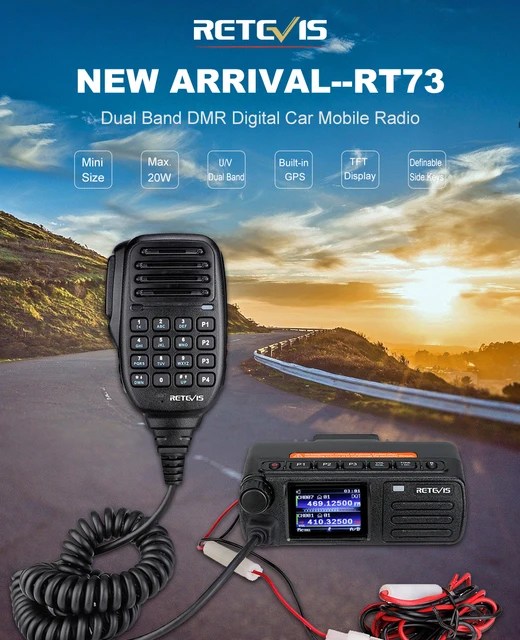
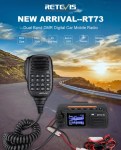
Retevis RT73 – Kydera CDR300UV

The Retevis RT73 and Kydera CDR300UV are identical radios. They are a DMR/FM duel band radio for Amateur radio use. This is great, as most of the early DMR radios available were commercial radios that were used for Amateur operations.

At time of writing this, the radio is one of the smallest dual band DMR mobile I’ve seen, about the size of a handheld.

Some of the features include:

  • DMR / Analog
  • Dual Timeslot (MotoTRBO compatible)
  • VHF / UHF Dual Band
  • Size: 121 x 76 x 43mm, 4.75 x 3.0 x 1.7″
  • Weight: 329g, 11.6oz
  • 136-174 400-480 MHz
  • 5W-20W transmit
  • FM radio receive
  • 300,000 DMR DB IDs (w/ Latest FW/SW)
  • 20,000 call groups
  • 4000 channels
  • Analog APRS
  • 16 zones (250 Chan / zone)
  • Built in GPS
  • DMR roaming

Included with the radio in the box are:

  • Microphone (DTMF currently doesn’t work but may be fixed with a future update)
  • Mounting bracket and screws
  • 2m 12V power cord
  • 60-page user guide – 6 languages
  • GPS antenna
  • Programming cable (optional – but you may already have one)

There are three programable keys along the top along with other buttons. These buttons respond differently to long and short presses. The speaker is on the front making it easy to mount, however the speaker microphone can also be a speaker if you want it to be. There are two power levels, 5W and 20W.

The display is small, but it is a small radio. However, the 2″ screen is bright and colourful. It is easy to navigate also with icons on the main menu.

Programming can be a bit tricky if you use the normal software, however there are a few alternatives. The good news is the software is free. Some do not allow you to export or import, and when you want to add a channel, it has to be added to the end, not between.

I would recomend Codeplug Editor by David MM7DBT as it has an easy tabulated menu system that guides you through each step of programming this radio.

Some other things you should know:

  • Listen in single channel or dual channel mode
  • Has promiscuous mode for DMR, however it is only on the one timeslot even in dual mode which is a pain.
  • You will need to make sure you are on the latest firmware for everything to work correctly (eg APRS).
  • You can adjust the TX audio for DMR and analog. This may need adjusting when you first get it.
  • Colour display that is easy to use, but can be hard to see from a distance or in a car.
  • You can program in zones, which is great. So you can turn them on or off.
  • Small design so easy to mount in the car

It is clear from other reviews that this radio had and has some bugs. But as more firmware updates gets pushed out, the better the radio becomes. This is mainly about GPS and APRS making the radio slow or even take over. However, most reviews admit with the latest firmware, the problem has been fixed.

If you enjoyed this read, please subscribe so you do not miss out on any other posts we put here. There are some other articles you may find of interest below:

  • 6m and TV Channel 0
    Prior to 1989, it was illegal to operate between 50 MHz and 52 MHz in Australia. It was a real pain as that was where all the action was…
  • Dipole Antennas Vs Long Wire Antennas
    I’ve heard a lot about dipole antennas, and I’ve heard a lot about long wire antennas also. I would say I’ve seen more dipoles than long wire antennas. So…
  • Repeater-START
    Repeater-START is a multi-platform app designed for ham radio and radio-operator enthusiasts who need fast access to repeater information. The app provides a detailed repeater map as well as…
  • The 6-Meter Amateur Radio Band
    What Is the 6m Band? The 6-meter band, spanning roughly 50–54 MHz, is a section of the VHF spectrum assigned to amateur radio operators. Its wavelength is six meters,…
  • Anytone AT-778UV
    Overview The Anytone AT-778UV is a dual-band VHF/UHF mobile transceiver designed for amateur radio operators. It operates on the 136–174 MHz (VHF) and 400–490 MHz (UHF) bands, offering reliable…
  • 160 Meters Band
    160 meters band is known as the “Gentlemen’s band”. It is right next to the AM commercial band, known as medium wave. The 160-meter band is the radio frequencies…
  • What does this Antenna do?
    Have you ever had an antenna and forgotten what it is for? Maybe you have been given one and wasn’t told exactly what it was used for. I got…
  • Olivia Digital Mode MFSK
    Yes, this popular girl name is actually an Amateur Radio term. Christian, DK8EW, put me onto Olivia after we chatted on VARA HF. I had heard about Olivia before,…
  • Yaesu FT-620
    The Yaesu FT-620 (and its updated version, the FT-620B) is a vintage amateur radio transceiver designed specifically for the 6-meter band (50–54 MHz). Produced in the 1970s, it offers support for AM, CW, and SSB…
  • FreeDV
    I came across something different, FreeDV. The name FreeDV insinuates it is free, but is it? What is it? And what does it do? They say it will be…

OpenSpot from the Start

I have spoken to a few people who have felt a bit overwhelmed setting up their OpenSpot from the start. In saying that, I have always been surprised how many people are on digital, some of them have no computer experience at all.  It only takes one tickbox to be selected wrongly and you are off the air totally.  So clearly there are a lot of helpful Amateurs out there.  This website is my way of helping, as I can’t be all over the world to help.  I have put things of interest as I find them on my site.  If you find it interesting, please subscribe or let me know.

In saying that, OpenSpot has been setup to be as easy as possible with a lot of thought behind it.  While I am not claiming this is the best hotspot, I am saying I have two of them and found them great to use at home, mobile, and portable.

This is what I do with my openspot2.

Starting from the beginning

Plug your OpenSpot2 in

Turn your mobile phone wifi (or could use a tablet or laptop with wifi) on and connect to your openSPOT2 AP

If the popup page does not show up (it may take a while to load), type in openspot2.local in a web browser

A welcome screen will ask you to select your country

Scan or manually select your home wifi

Press connect and type in your password for your home wifi

After pressing ok, you will get a message saying this hotspot is going to connect to the wifi now instead of directly connecting to your phone

You can then connect to it via your phone or device that is connected to the home wifi.  I recommend you do this via a pc as you get more functions on screen, however you can do it via a mobile phone with a smaller screen. To connect, go to openspot2.local in a web browser.  However, if you have two openspot2’s on your network, as I do, you will need to log into your network modem and check the actual ip address of your openspot.

If you can not find it on your network, then I suggest you go back to your phone and see if you can connect to your openspot again via wifi.  If it is not there, you may need to unplug the power cord and plug it back in a minute or so later, or press the button next to the power cord until the light goes white to reset it and start again.

Once you connect via the wifi network to your Openspot for the first time you will get a Quick Setup Screen.

Put in your call sign and the DMR ID will auto populate.  You can put in your NXDN ID also.

Select the type of radio you will be using to connect to the OpenSpot.

Type in the frequency you want to use while using the Openspot.  Make sure it is a different frequency to all other hotspots so you don’t get hotspot feedback. Keep colour code as 1. Then select the network you want to connect to.

Enjoyed the read? Don’t forget to subscribe. Below are some other interesting reads:

DROID-Star

After talking to a friend just to the north of me, he told me about the app DROID-Star for Android. As I only have apple devices, this wasn’t initially an option for me, however I do have an Android TV box which I use for Amateur Radio, so will review it from that device.

At the time of writing this review, I must state it is an Early Access version. It has been updated slightly since.

This app connects to D-Star and Yaesu System Fusion reflectors and repeaters via UDP and decodes audio and data in software. No AMBE hardware is required. It is written by Doug McLain.

Start screen to DROID-Star

The two option menus at the top of the screen allow you to Reload DMR IDs, Reload host files, and check the current version. I recommend reloading these.

From here you have the following options:

  • Mode – select what mode you want, this could be REF, XRF, DCS, YSF, DMR, P25 or NXDN.
  • Before pressing connect, select your Host, and fill in the other details.

Once working you will be able to listen into the room you select and it will display the call sign and even caller ID (if there is one), on the user that is transmitting.

As I said earlier, this app will no doubt be updated. I will try and keep this review updated as the app changes, but this may not be possible. Thanks for reading, I hope you enjoyed. If there are other apps you would like us to look at or think we should know about, please let me know. Don’t forget to subscribe to our posts by putting in your email address on the above follow us page.

I also spoke to Doug AD8DP, who wrote this app, and he said to mention that the app is very much in beta development stage. He plans on users being able to add custom reflectors/servers and so on. He also wants to add TX ability with the choice between on board software IMBE/AMBE encoding or remote AMBE server. He also said to me that he APK installer file can be downloaded directly here for Amazon Fire users and others without access to the Google Play Store: http://www.dudetronics.com/radio/DroidStar.apk

Another site is here (it keeps changing): https://napkforpc.com/apk/org.dudetronics.droidstar/?fbclid=IwAR2S2Xmi-WZBcseYtkk0oNJkj7t-xPXTLblR5LKfzE_VL-DU67bvCyRh5-4

UPDATE:

I have now heard many people use this app with great ease. The biggest question I have had is what is the password. Just put in your DMR network username and password.

One of the good rooms is YSF with Host 0-0-CQ-UK-Aussie. Then again, I am from downunder, but you might hear me on this one.

Please post and questions or comments below. Or join the discussion at https://groups.io/g/DroidStar

If you enjoyed this read, please don’t forget to subscribe to our page so you get updates every time we post new updates.

Using DMR with DROID-Star

I have found most people struggle to use this app on DMR. DMR requires a few other options to be set as other networks do not need all these filled out correctly or at all.

After you have installed the software, go to settings area and put in the following. First put in your call sign then your DMR ID number. If you don’t have one, then you will need to get one.

You should then update the ESSID number other than blank. If it is a second radio, I use 2.

Then put in your Password that you put in for your BrandMeister account. If your unsure what that is, go to BrandMeister Self Care area and set it again.

Once the above has been done, click on ‘Update Hosts” then “Update ID files”, and this will make sure everything is updated.

Then return to the main screen and change the mode to DMR. Change the host to BM_3102_United_States (for example, this can be changed later). Then enter the talk group you want to go to adn press the connect button. Press the big blue button and start testing.

I suggest you test it on a quiet talk group and if you have another radio, listen to what you sound like. Adjust the mic gain as often this can be set to high. You don’t want to test it on a very busy talk group – it only upsets people.

Just remember, DROID-Star is being made by a volunteer, so updates will come in time. Currently it is really important you check your audio first as it can be very clear you are using a PC and not a radio.

Hope this has helped. Please let me know. Below are some other interesting reads you may enjoy also.

Other Interesting Reads

  • HamClock
    HamClock has always fascinated me, as it seems such an amazing program specifically set up for Amateur Radio. I have seen countless videos on…
  • NanoVNA H4 USB Control to PC
    If you haven’t seen my previous blog on the NanoVNA Analyser, then I suggest you look at that first before reading this blog. This…
  • Flrig
    Flrig is a transceiver control program designed to be used either stand alone or as an adjunct to fldigi (see my review on this).…
  • VARA – VARAC
    Ever heard this sound on HF / VHF / UHF? I know I have more and more recently. After a bit of research, someone…
  • EchoLink CQ
    I’ve been using EchoLink well before smartphones where the only way I knew how to connect to a different station was via the radio.…
  • NetTime
    When using digital over the radio, it is particularly important you have the correct time. Even a second out will stop you from making…
  • GD-77 Won’t connect to PC
    I have been using my Radioddity now for some years and love it.  Though upgrading this to the OpenGD77 opened a whole new world…
  • DudeStar
    Here is a free windows program that will connect your PC to: DMR Yaesu Fusion DStar M17 P25 NXDN You can do all this…
  • Welle.io
    Welle.io is a DAB and DAB+ software defined radio (SDR). It runs on Windows, Linux and embedded devices like the Raspberry Pi 2 and…
  • Treehouse
    An unusual name, but a catchy name no less, just like Peanut that was written by the same person, David PA7LIM. If you like Peanut, then you will like this project also. This project, like Peanut, includes some amazing coding and thinking.…
  • Software Defined Radio (SDR)
    If you don’t have one of the latest and greatest expensive scanners, you will struggle to listen to a lot of transmissions. While there…
  • BlueDV Windows 10 GD-77
    I found it hard to find useful information on how to run the OpenGD-77 hotpot mode with Windows 10. At the time of writing this, there is a lot about this topic using a pistar and even android or ISO, but not much with Windows 10. This is my experence with BlueDV and Open GD-77 using a Windows 10 PC.…
  • Iphone won’t download photos
    I get the “Device is unreachable” Error message when trying to import media from iPhone to Windows 10 PC. …
  • ProScan and ProScan Client Update
    I recently started using ProScan after years of using FreeScan. I have always enjoyed using FreeScan as it is easy to setup, I can download outputs from the software, and the main reason “it works”. However ProScan seems to be more graphical and has different features also.…
  • ProScan and ProScan Client
    I recently started using ProScan after years of using FreeScan. I have always enjoyed using FreeScan as it is easy to setup, I can download outputs from the software, and the main reason “it works”. However ProScan seems to be more graphical and has different features also.…
  • USB Device Error PL2303HXA
    I went into the device manager and found the error, my cable no longer worked. This same issue happened to a USB Card reader also.…

SMS via Radio or Hotspot

One of the most underutilised by very cool feature that comes with some digital networks is the ability to send and receive SMS messages. You can send it fairly easily to another radio, but did you know you can also receive a weather report, see where your last GPS transmitted location is, and send messages to your mobile phone. The best thing is there no cost either.

While not all networks and not all radio’s support sending SMS’s. Some hotspots do and some done also just to make it even more confusing. While I don’t plan to list all networks available, as they there are more all the time, and the settings change also. However, at the time of writing this (2020), the VK-DMR network does not support GPS or SMS (you must turn it off to use the system), but the BrandMeister one does. So, I will talk from here on about the BrandMeister network. If you use a different network, then check with that network first.

BrandMeister Setup

First you need to setup your BrandMeister account to send and receive SMS. From the BrandMeister page, login at the right of the screen. Then under Services on the left side, select selfcare. I usually set the radio brand to either ETSI or Motorola, however this will depend on the radio you have. While you are here, you might want to turn on or off your GPS location and check everything looks good.

Radio Setup

Would you believe most digital radios allow you to send and receive messages right from the screen easily. However not all. Unfortunately, at the time of writing this (2020), the OpenGD-77 does not support text messaging as yet. However, it is on the job list. I do understand that since text messaging isn’t the most used option in digital radio, probably leaving this setup until last is fair enough. However, I have done it on the original GD-77 firmware, and seen it done on other radio’s also.

If your fortunate enough, you may have a hotspot that can do it anyway.

Hotspot Sending

I am not going to talk about every hotspot available, mainly because I don’t own every hotspot available. But I will talk about the OpenSpot as I have a couple of them myself, and I know they work.

From a PC, the menu on the right side has DMR SMS chat that will bring up a box much like the picture below.

DMR SMS Chat in OpenSpot

262993 GPS and Weather

If you send the message help to destination ID 262993 you will get a prompt much like above. It may take a little while to reply. As I live in Melbourne, you can see above I then sent a private message to 262993 again and typed in the message wx Melbourne, AU. You can see above the message on the left I received. Remember, the reply’s do take a while to come back and usually arrive just as you have given up waiting!

You could also send the message gps help to the same number, 262993, to get an overview of all the GPS commands which includes setting your home position, and so on. If you have transmitted your GPS location with the same callsign you set up in the selfcare then it will reply with your last location sent. If you want to save that as your home location, send GPS SET and it will save your last location as your home location. Then you will get from now on your home location and your last transmitted location.

If you send RSSI to 262993 it will reply with the repeater and connected talk group you were last using. If you send a message INFO *callsign where *callsign is replaced with your call sign you will get a reply when you last spoke. If you have two digital ID numbers, then it will send both of them back to you.

262994 Repeater, POCSAG and dapnet

If you send RPT SMS to 262994 you will get a reply of what static talk groups you are currently connected to.

You can also send a message to a call sign using this 262994 number. For example, if you want to send a message to me, send VK3TBS followed by your message to number 262994. However, I couldn’t get this to work – maybe because I was messaging myself! If you get it to work, please let me know what I did wrong.

262995 SMSC – SMS-ing to a mobile phone

This is taking SMS-ing to the next level. I was even able to SMS my wife who doesn’t have a licence.

To do this, send the following message SMSGTE @[phone number] [message] to 262995. where [phone number] is your country number (e.g. 61 for Australia) followed by the mobile number. Remember to remove the first 0 if you’re in Australia.

There is more information on sending messages to and from your radio to mobile phones on the smsgte.org web site. There is heaps of information under the User Guide menu.

UPDATE – Before I finish, I discovered the hard way that when you send a message from a mobile phone to a radio, I got a bill. I am not sure if it was because I am in Australia, or my phone carrier saw the oppertunity, but I think with a few tests it was only $1 or so.

APRS Chat

APRS is almost a bit easier and can quickly send messages to and from a mobile phone. Once you have done the above setup, I selected APRS chat in my OpenSpot2 dashboard. Then I sent a message with the destination callsign of SMSGTE then the message was @[phone number] [message] there [phone number] is your country number (e.g. 61 for Australia) followed by the mobile number. Remember to remove the first 0 if you’re in Australia.

You can see in the picture below I sent a message Test from hotspot to my phone which appeared instantly. I then sent one back from my phone saying This is from my mobile phone which then appeared instantly. It worked really well.

Other Reads

Hope you enjoyed the above post. Below are some other reads I think you may also enjoy.

  • HamClock
    HamClock has always fascinated me, as it seems such an amazing program specifically set up for Amateur Radio. I have seen countless videos on it…
  • NanoVNA H4 USB Control to PC
    If you haven’t seen my previous blog on the NanoVNA Analyser, then I suggest you look at that first before reading this blog. This one…
  • Flrig
    Flrig is a transceiver control program designed to be used either stand alone or as an adjunct to fldigi (see my review on this). The…
  • VARA – VARAC
    Ever heard this sound on HF / VHF / UHF? I know I have more and more recently. After a bit of research, someone told…
  • EchoLink CQ
    I’ve been using EchoLink well before smartphones where the only way I knew how to connect to a different station was via the radio. The…

BlueDV Windows 10 GD-77

I found it hard to find useful information on how to run the OpenGD-77 hotpot mode with Windows 10. At the time of writing this, there is a lot about this topic using a pistar and even android or ISO, but not much with Windows 10. This is my experence with BlueDV and Open GD-77 using a Windows 10 PC.

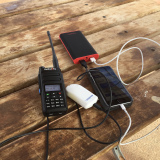
Someone once asked me after reading this page, why would you want to do this? So I have added this paragraph to try and explain. One reason is to extend your hotspot range. For example, if you use a normal regular hotspot, it will only have a small range around or in the house. If you want to go for a walk or dig in the garden, you either have to take a battery pack to plug your hotspot in and your mobile plus your radio. This is something I have done many time, especially while camping and in outback Australia – I have added a photo of it below. However if you have a spare digital radio, then you can plug in your GD77 into an external antenna and via BlueDV as explained below, and then almost run your own 5W repeater into the talk group you want. I have done this and been able to walk several kms from home and still have full access yet only taking my GD77 radio with me. The other reason you can do this is because you can. To make your own repeater is a bit of fun.

Hotspot with battery pack and mobile phone on a park bench.

Before you read on, it should be noted that the Open GD-77 firmware and software is changing all the time, so some of the steps below may change. I will do my best to keep this page up to date, however please message me or leave a comment if you have any suggestions.

First install the Open GD-77 firmware and comm driver. There are instructions on my other post here.

Then once complete, make sure your GD77 is plugged into your USB on your PC. Then type in Device manager in the Windows 10 search box to open the Device Manager. Go to Ports and there you should see OpenGD77 followed by a COM number. If you do not, then you need to install the Comm Driver again. Take note of this Com number.

Now open the GD-77 CPS Community Edition and once loaded make sure it has an Extras menu between the View and Language menus. Click on the Extras menu and select OpenGD77 support. Click on Read codeplug and make sure that works. Obviously you need the radio plugged in and turned on to do this.

Now download the latest BlueDV install file from the following web site. Make sure you select the Windows version. There may be beta versions available if you want to try them.

Download and then install the msi file inside the zip file.

Keep the radio plugged into the USB port on your PC. Turn on the radio and press the green button to go into the OpenGD77 menu. Scroll down to options and then go up to Hotspot and when on hotspot press the right button until it changes to BlueDv. Press the green button to save.

Next open BlueDV and once opened, click on Menu then Setup. Put in your callsign, then change the serial port radio to the Com port noted earlier. Tick on RX/TX Colors, enter in the Frequency you wish to use, enter your DMR ID in both boxes, then select the Brandmeister DMR Master server you want to connect to and put in your password. Select Save to save these settings and close the setup box.

Now turn on Serial (top left under menu) by pressing the slide switch to the left, and DMR in the BlueDV interface. If you can not turn on DMR then you have the same problem I did, then you have not turned your radio on correctly or turned the hotspot mode on. If you have not turned on the hotspot, see two paragraphs above. Then, make sure the radio is in VFO mode by pressing the red button, you should see two lines of frequencies. Make sure they are both the frequency you are using in BlueDV. Turn your radio off, connect the cable and plug it into the PC, then hold down the small black button above the blue button and PTT button, and while holding the button, turn the radio on. The radio should say Hotspot along the top of the screen.

It should now work. Adjust your power level on this radio and plug into a nice antenna, then you can use another DMR radio on the same frequency and you now have your own hotspot that will cover an area that your GD77 will cover.

If you put in the DStar or Fusion settings, you can cross mode across to these networks also if you use the latest BlueDV version.

For more information, here is a video I found that got me going with this project. If you look at this video from 6:34 you can see how to do it without BlueDV and using MMDVMHost instead.

I hope you have found this useful. Please see below some other similar articles I have written that might be of interest. Please leave me some feedback if this has been of some help.

Australian DMR Repeaters

There are several DMR networks around the world, and more and more start all the time. The Australian DMR network currently covers the entire country and is for Australian residents only.

It can often be hard to find which DMR repeaters are online, offline and where they are, especially if you travel a bit like me.

Here is a few links that may be of some use. Please let me know if these links no longer work.

A map of all DMR repeaters around Australia is available here.

If you want to check the status of these above repeaters, have a look at this page. It shows which ones are currently online, or offline.

Online repeater map is a great page showing all repeaters around Australia. It is well worth the look at if you are traveling or are going to be in Australia. https://www.onlinerepeatermap.com/

Another way is via the DMR database. If you put the start of the repeater call sign in the middle repeater section it will list the repeaters in your area. For example, all repeaters in my area start with VK3, so I put in VK3 in the middle callsign box and selected begins with and got a list of registered repeaters. This will work all over the world. https://www.radioid.net/database/search#!

Further Reading

Enjoyed what you read, here is some more interesting articles on this site you may enjoy.

WizNet DMR

The WizNet DMR app is still in beta testing, and at the time of writing this, you have to not only have a currently have a licence as an Amateur Radio Operator, but approved to be part of the beta testing group. You can do this by googling the web site, submitt a few details, and a password. Once approved, you will get an email with a link and log in details that will tell you how to install.

I understand this app is currently only available on android devices at this time, however there are plans to extend this to Apple.

Installing on Android, you will need to make sure you turn on the feature where you download sources from anyone. Once installed, put in your callsign, and your password as per the email and your in.

The first thing you will need to do is click on the settings menu right down the bottom left of the screen. In there you will have your call sign already populated, but you will need to put in your DMR ID number. If you have two Wiznet apps on different devices, you can use two different DMR ID numbers. You can on this same settings screen you can adjust your mic gain also.

Over the left side is five menu options.

The first item at the top on the left side expands out the menu’s so you can see the text for each item and not just the icon.

Talk Groups

By default you should land Talk Groups page which has the icon of a person and paper next to the person.

On this list you can see available talk groups. The scan ones will scan talk groups on that network, and will continue to scan until someone is talking.

Talk Group

When you click on a talk group, you will go to a new screen, the Talk Group screen, where you can see yourself in that talk group, and whoever else is in that talk group that is also using the same app.

If you go into a dynamic one, you can put in the Talk Group number at the top of the screen and select set to join that group. If the dynamic talk group is on the TGIF network, then you can select talk groups on that network to join, however it is on the BrandMeister network, you can select talk groups on that network.

When you switch the dynamic talk group to another talk group, you take everyone already logged into that group with you, so it is usually best to ask to see if anyone else is using it first.

Down the bottom of the screen is the button you press to transmit – you have to hold it unfortunately but I guess this stops accidents.

At the top of the screen is a chat window also. Just select the background and type.

2020 Update

Since writing this review, this software no longer seems to be available. Thank you for the many people who have contacted me to let me know they couldn’t download it. I am not sure what happened, but while it was working it worked very well. Hopefully it will return or turn into something similar soon.


Other Apps and Software

Hope that was helpful. Below are some other apps I have looked at also:

  • Orion Push to Talk
    Orion is an app that isn’t really known in my world, perhaps because it isn’t available on all platforms, or because it does transmit your exact location to everyone on the channel. However there are some benefits to this mode and does add another communication mode to your list. You can also create your own…
  • Repeater-START
    Repeater-START is a multi-platform app designed for ham radio and radio-operator enthusiasts who need fast access to repeater information. The app provides a detailed repeater map as well as a distance-sorted list, allowing users to easily locate nearby communication points wherever they travel. Because it uses open repeater databases, the information remains current, community-supported, and…
  • Solar Data & Propagation
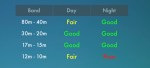
    There are several website that tell you what bands are open in your area. Most people paste them on their QRZ page, but there are some examples below that update every hour. You can see more on their webpage https://www.hamqsl.com/solar.html where all you have to do is paste the code and put on your website.…
  • WizNet DMR
    The WizNet DMR app is still in beta testing, and at the time of writing this, you have to not only have a currently have a licence as an Amateur Radio Operator, but approved to be part of the beta testing group. You can do this by googling the web site, submitt a few details,…

Android Apps

  • DROID-Star
    After talking to a friend just to the north of me, he told me about the app DROID-Star for Android. As I only have apple devices, this wasn’t initially an option for me, however I do have an Android TV box which I use for Amateur Radio, so will review it from that device. At…
  • EchoLink CQ
    I’ve been using EchoLink well before smartphones where the only way I knew how to connect to a different station was via the radio. The internet wasn’t as extensive as it is now and you had to dial the node you wanted via the radio. You can still do this today but I don’t think…
  • Mini Keyboard Options
    I bought this wireless keyboard/mouse which was very cheap. It does not come with batteries, but come with a USB dongle. It has a fantastic range since it is 2.4GHz RF. The back also has good grip which apparently isn’t common on all models. You can select what colour you want the plastic to be also.…
  • Orion Push to Talk
    Orion is an app that isn’t really known in my world, perhaps because it isn’t available on all platforms, or because it does transmit your exact location to everyone on the channel. However there are some benefits to this mode and does add another communication mode to your list. You can also create your own…
  • Repeater-START
    Repeater-START is a multi-platform app designed for ham radio and radio-operator enthusiasts who need fast access to repeater information. The app provides a detailed repeater map as well as a distance-sorted list, allowing users to easily locate nearby communication points wherever they travel. Because it uses open repeater databases, the information remains current, community-supported, and…

Apple Apps

  • Orion Push to Talk
    Orion is an app that isn’t really known in my world, perhaps because it isn’t available on all platforms, or because it does transmit your exact location to everyone on the channel. However there are some benefits to this mode and does add another communication mode to your list. You can also create your own…
  • Parks & Peaks App
    I’ve been using the Parks and Peaks app on iphone and ipad for a little while now and quite enjoyed it.  There don’t seem to be many iphone apps compared to android, so when there is one, I usually have a look.  This one caught my eye as it was not only free, but useful.…
  • Repeater-START
    Repeater-START is a multi-platform app designed for ham radio and radio-operator enthusiasts who need fast access to repeater information. The app provides a detailed repeater map as well as a distance-sorted list, allowing users to easily locate nearby communication points wherever they travel. Because it uses open repeater databases, the information remains current, community-supported, and…
  • Solar Data & Propagation
    There are several website that tell you what bands are open in your area. Most people paste them on their QRZ page, but there are some examples below that update every hour. You can see more on their webpage https://www.hamqsl.com/solar.html where all you have to do is paste the code and put on your website.…