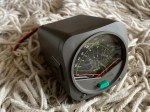
The S-meter is an instrument on most radio receivers that measures the strength of the signal being received. It uses a unit: the S-point. HF radios usually have a needle scale, whereas other bands often have LEDs displaying the S-Points.
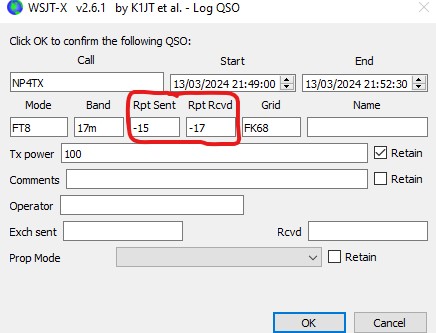
S-Points is the common method of measuring signal strength between operators, however many programs like WSJTX use dB. So how do you convert between dB and S?
S-points go from S1 to S9, and each S-point is defined as a 6 dB change in signal strength. Therefore, each time the voltage is halved (–6 dB) the signal strength decreases by one point. S9 is already a very strong signal, but to describe larger signals, steps of 10 dB are used instead of 6 dB, noted “S9+20” meaning 20 dB above S9.
S-points for frequencies below 30 MHz
Signal strength
Relative intensity
S1
–48 dB
S2
–42 dB
S3
–36 dB
S4
–30 dB
S5
–24 dB
S6
–18 dB
S7
–12 dB
S8
–6 dB
S9
0 dB
S9+10
10 dB
S9+20
20 dB
S9+30
30 dB
S9+40
40 dB
S9+50
50 dB
S9+60
60 dB
S-points for frequencies above 30 MHz:
Signal strength
Relative intensity
S1
–48 dB
S2
–42 dB
S3
–36 dB
S4
–30 dB
S5
–24 dB
S6
–18 dB
S7
–12 dB
S8
–6 dB
S9
0 dB
S9+10
10 dB
S9+20
20 dB
S9+30
30 dB
S9+40
40 dB
S9+50
50 dB
S9+60
60 dB
Hopefully, this helps answer the question how to convert a dB signal strength to a S1 to S9 signal strength.
If you enjoyed this read, there are some others below you may enjoy. Please put your email address in the subscribe area if you want to keep updated with all the updates.
An antenna coupler (also called an antenna tuner or matching network) is a device used in radio systems to ensure impedance matching between a transmitter and an antenna. Most transmitters…
Amateur radio operators use many different antenna types, each designed for specific bands, space limits, and operating goals. Here’s a clear overview of the most common ones and why hams…
A dipole antenna is a basic radio antenna made of two conductive elements fed at the center. It is typically a half-wavelength long and is widely used as a reference…
Interference in Amateur Radio refers to unwanted signals that disrupt radio communication. This interference can reduce signal clarity, make contacts difficult, or completely block communication between amateur radio operators. Radio…
I’ve heard a lot about dipole antennas, and I’ve heard a lot about long wire antennas also. I would say I’ve seen more dipoles than long wire antennas. So why…
Repeater-START is a multi-platform app designed for ham radio and radio-operator enthusiasts who need fast access to repeater information. The app provides a detailed repeater map as well as a…
What Is the 6m Band? The 6-meter band, spanning roughly 50–54 MHz, is a section of the VHF spectrum assigned to amateur radio operators. Its wavelength is six meters, and…
Ever heard this sound on HF / VHF / UHF? I know I have more and more recently.
Listen to the strange data sounds you can hear
After a bit of research, someone told me it was VARAC. https://www.varac-hamradio.com/ As I understand it, the project started with Irad Deutsch 4Z1AC. It is free of charge for amateur radio operators.
This software provides text base communications over HF / VHF / UHF bands (and a few more also!). It is a bit different to FT8 FT4 JT8 etc as this not only gives you a signal report, but you can do a lot of cool things and really make some good friends in the process. I know I have in just the first 2 days. You can type in real time via your radio, and even see when the other person is typing. You can send files, and emails also and send out a beacon every 15 minutes to let people know you are there or see who can hear you on PSK. The software will also let people know when you hear them automatically.
You need the software VARA HF to decode it. VARA HF is essentially a software modem. Whereas VARAC is the chat-based software.
Downloading
Simply go to the address https://www.varac-hamradio.com/download and download the appropriate version. You can download HF or FM depending on what mode you will be using. Down the bottom of this page you can put in your email address and they will send you instructions.
Setting Up VARA HF
VARA FM is also available to be used with UHF and VHF. There is also VARA SAT for geostationary Sat.
VARA HF (as well as VARA FM and VARA SAT) is essentially a software modem that connects your radio to the VARA AC software. VARA HF is for HF only and this is the one I am using and talking about here. Though I understand the others are the same concept, just different radios.
Once installed, select settings, then sound card and update to the settings you use. If you are not sure what device to add, then have a look at windows device manager. Then put in your call sign and registration Key. If you don’t have one, you can just use your call sign for a period. This part of the software you will have to buy at some point, but you get a while to try it before you have to and it really isn’t expensive. There are updates all the time by the look of what is posted on Facebook.
Setting Up VARAC
Go to settings then Rig Control and VARA configurations. Here we need to set the PTT configuration up the top left of this screen. This will be how the software connects to your radio. You also need to setup the frequency control section. Once setup, press the save and exit button.
Using VARAC
Each band has a calling frequency, which you can select up the top left of the default screen via the drop-down box. On the calling frequency, you can receive calls which will be shown on the top blue box. While on the calling frequency, other users can get an automatic signal report from you, or even ping you to see if you are there.
The above picture is the main screen in advanced mode (you can see I have it ticked up the top right). The lower blue box shows that I have sent a beacon, and about to send another one. Prior to that I had a 15min conversation with VK3FFB.
The box up the top right shows anyone currently calling CQ (currently none in the above example, but the band was a bit dead), and the box next to that is the two beacons I can pick up with their signal strength. You can see on the top left I am on the calling frequency of 28.105 Mhz.
If you click on someone calling CQ, VARAC will attempt to connect with that station via the same slot that they are on. The slots are just a different frequency to the main calling frequency.
When calling CQ yourself, you press the purple CALL CQ button then check which slots are available. Select a slot then press the sniffer button and listen to your radio to check no one is there. Remember to turn the volume up for this! If there is traffic on that selected slot, select another slot and sniff that one. Once you have found one, you can press CALL CQ on that box.
VARA AC will now call CQ on the calling frequency then receive on the chosen slot. Should someone join you, you will see it on the bottom blue screen. You can type whatever you want in the bottom new message box and press send, and you can do it for as long as you want, it is not like FT8 with just a signal report. You can also see when the other person is typing a message (if enabled).
You can also send files to each other should you want to. I like to send a QSL card. On the right you can see Send VMail, or you can set yourself to away.
Just above the new message box to the far right, are some canned messages. You can edit these via the settings menu. These will send pre-populated information about yourself to the other person, like your name, QTH, Location and your power. This information will then auto populate on their screen in the boxes just above the New Message box. If they send you one back, it will auto populate on yours so you can either auto log or press log to log the contact with all the information received. This logged information can then be used for a variety of logging programs.
If you are logging on QRZ, you will find VARAC under Dynamic mode.
PSK
One extra feature is you can go to https://pskreporter.info/pskmap.html and put in your call sign and then select VARA. Every 15 minutes VARAC will send out a ping and on PSK you can see who heard you around the world on the map. This 15-minute time can be adjusted in the settings window down the bottom right.
VarAC Do’s and Don’ts
Here is a copy of the code of conduct that should get emailed to you if you put in your email address. Make sure you have a good read as you don’t want to be the one everyone talks about for the wrong reason!
The Don’t: Don’t jam the Calling Frequency (CF). Don’t hold it for more then a few minutes or more then necessary.
The Do: Started a QSO on the CF? It’s OK, but QSY as soon as possible. You have QSY UP/Down buttons or a free-form QSY button where you can select your desired QSY frequency.
The Don’t: Don’t use the PING feature for DXCC/Grid hunting. Pings are not registered as QSOs as only one side sends an SNR report.
The Do: Use PING only as tool to check the link quality with your desired destination.
The Don’t: Don’t use 2300Hz BW on the VarAC CF or on any of the slots.
The Do: Use Only 500Hz on VarAC CF and slots to avoid QRM-ing nearby VarAC QSOs. Use 2300Hz only outside of the slot frequencies.
The Don’t: Don’t QSY to a frequency without checking if it is free.
The Do: VarAC provides you with Sniffers. Right-click on the QSY Up/Down buttons will temporarily QSY to the destination frequency (without keying your PTT) so you can listen before QSY-ing. Same goes for calling CQs: Use the CQ slot sniffer.
The Don’t: Don’t try to send large files over HF. And if the link is slow – don’t send files at all. It will never end. And PLEASE don’t send files over the CF.
The Do: Send files up to 5-10K in high speed and no more than 1-2K in low speed and always on non CF frequencies.
Other information
There is a lot more to learn about VARC, but hopefully this helps as a starting point. Please let me know in the comments if it helped you. I do hope to do a video on it soon.
Special thanks to Irad Deutsch 4Z1AC who helped me in answering questions for this review.
Below are some other interesting reads you may enjoy also.
Amateur radio operators use many different antenna types, each designed for specific bands, space limits, and operating goals. Here’s a clear overview…
Interference in Amateur Radio refers to unwanted signals that disrupt radio communication. This interference can reduce signal clarity, make contacts difficult, or…
The Yaesu FT-620 (and its updated version, the FT-620B) is a vintage amateur radio transceiver designed specifically for the 6-meter band (50–54 MHz). Produced in the 1970s,…
DXHeat.com is a great website that can update you the current conditions on each band. The website has filtering of incoming DX Spots which can be displayed instantly using great graphical tools.
From the main landing page dxheat.com you can do a search by call sign or open DX Cluster. You can also scroll down to see more information.
Callsign Search
By typing in a call sign, you will see a lot of information instantly about that person. Some of the graphs are interesting as it shows how often the selected user does DX Spots by date, by band and what Continent they have been heard in.
It then shows what DX spots this user as submitted by time, band, and Continent.
DX Cluster
This is the best part of the website.
In the middle you can see live data. You can apply filters as required on the left side. On the right is the current UTC time and a lot of other interesting things.
On the right is a Propagation box which is helpful.
Also on the right is a Band Activity box which is great and perhaps the best part of the website.
This graph is powerful and shows you instantly where the bands are open.
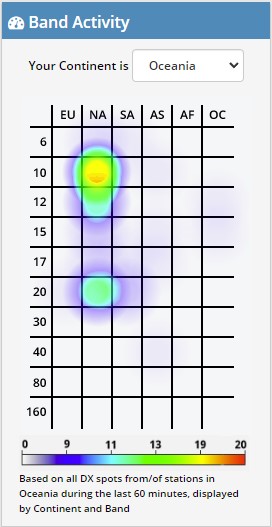
Select your area via the drop-down box. I have selected Oceania in the example shown. You can see the band is open on 10 metres to NA, which is North America, and slightly open to NA on 20 metres also.
10 minutes before I took this screen dump, 10 metres was in the red to North America, so it changes live. 10 minutes after this screen dump, 20 metres was in the purple meaning conditions were getting harder, however 10 metres became a solid red.
20 minute later after the above screen dump, I took the following one on the right.
Now you can see 10 metres to North America is strong, and 20 metres is not even showing anymore. 15 metres is also on the graph now potentially growing in strength.
Asia is also starting to show signs of colour on 17 metres which it wasn’t before.
While these graphs are powerful, they are limited to the amount of activity on the band. For example, if no one picks up a microphone, then there is still no one to listen to.
It is a great starting point though and displayed very well. I would love to embed this on my QRZ page if anyone knows how.
The main text in the screen, you can hover over the green boxes and filter according to that box. Up towards the top, there is a mode section on the left side with green boxes, you can filter by them also. You can filter via region and band also.
Login
At the top of the screen is a login/sign up option. I would encourage you to create an account. Simply put in your email and password, then confirm it and you will be able to update your profile. You will then have an opportunity to adjust your display DX-Cluster settings as you like.
Other websites
There are other websites that show similar information in a different format that include:
Solar Flux on VK3FS https://3fs.net.au/daily-solar-data/ This page is well written by a fellow Amateur, Andrew, also living in VK3. He explains a lot and goes to a lot of detail. On this Daily Solar Data page there is a usful graph tha shows the Solar Flux over the last month.
Other interesting reads:
Did you enjoy this read, below are some other interesting topics you may enjoy also:
An antenna coupler (also called an antenna tuner or matching network) is a device used in radio systems to ensure impedance matching between a transmitter and an antenna. Most transmitters…
Amateur radio operators use many different antenna types, each designed for specific bands, space limits, and operating goals. Here’s a clear overview of the most common ones and why hams…
A dipole antenna is a basic radio antenna made of two conductive elements fed at the center. It is typically a half-wavelength long and is widely used as a reference…
Interference in Amateur Radio refers to unwanted signals that disrupt radio communication. This interference can reduce signal clarity, make contacts difficult, or completely block communication between amateur radio operators. Radio…
I’ve heard a lot about dipole antennas, and I’ve heard a lot about long wire antennas also. I would say I’ve seen more dipoles than long wire antennas. So why…
Repeater-START is a multi-platform app designed for ham radio and radio-operator enthusiasts who need fast access to repeater information. The app provides a detailed repeater map as well as a…
What Is the 6m Band? The 6-meter band, spanning roughly 50–54 MHz, is a section of the VHF spectrum assigned to amateur radio operators. Its wavelength is six meters, and…
Overview The Anytone AT-778UV is a dual-band VHF/UHF mobile transceiver designed for amateur radio operators. It operates on the 136–174 MHz (VHF) and 400–490 MHz (UHF) bands, offering reliable two-way…
160 meters band is known as the “Gentlemen’s band”. It is right next to the AM commercial band, known as medium wave. The 160-meter band is the radio frequencies between…
The Nano VNA-H 4 is my new toy that has just arrived after purchasing via Banggood. This Antenna Analyser is a complicated device, but doesn’t have to be, and can be a powerful tool for the Amateur Radio hobbyist.
My NanoVNA H-4
Charging the device
Your NanoVNA should come with a USB cord. To charge it, simply plug one end into the NanoVNA box and the other end into a USB charger. A blue light should come on near the charging port.
Analysing an Antenna
The main thing we mostly want it to do is to analyse our antennas. So, let’s start off by looking at how we do that.
To analysing an antenna, we need to understand what the three SMA connectors are. There are three of them.
If you look at the bottom of each connector, you can see they are all different.
Open – this one is open and is like an open hole. I remember this one with the route hole which looks like an O for Open.
Short – this one has a short stick sticking out and a shiny surface around it. The shiny service reminds me of short. As in S for shiny and S for short.
Load – this one is usually grey where the others are golden. It has a stick like the short one, but has plastic around it. It should measure as a 50 ohm load.
On your NanoVNA device, there are two SMA connectors. One that says CH0 and one that says CH1. For this experiment, we will only use CH0. The three connectors can be fitted as needed onto the CH0 SMA connection. Make sure you only put it on finger tight so you can get it off.
Turn on the NanoVNA device by sliding the switch away from the SMA connectors.
The display will look very confusing showing you heaps of information. So to simply the display, touch the screen up the top right corner and a menu will appear. If you don’t have a stylis, then you can use the blunt end of a pencil, or on the wrist band holder that comes with the device, is what looks like a guitar pluck, you can use that.
Press DISPLAY, then TRACE, and now you will see TRACE 0, TRACE 1, TRACE 2, TRACE 3 with colours on them. These colours reflect the colours of the graph currently on display. We currently have all four on, so lets turn most of them off. Press TRACE 1 twice to turn that off. If you press it to many times, it will turn on again, so press it again to turn it off. Do the same with TRACE 2 and Trace 3 so there is only TRACE 0 with one yellow line on. Now the display should look a lot more simple.
Now press the BACK menu option to return to the first menu. You can click anywhere else on the screen away from the menu to remove the menu.
Calibrate the NanoVNA
The first thing we must do is calibrate the NanoVNA. We need to calibrate the device to make sure it is right. If we are analysing between a set of frequencies, it will do one hundred calculations between them when analysing your antenna, so we need to calibrate it first between the set frequencies.
Setting up the frequency range
We first need to set up the frequency range we want to calibrate our antenna on.
Select the STIMULUS menu item. If you cannot see it, then press BACK first. Once in the STIMULUS menu, you will see START and STOP at the top of the menu. Select START and put in the start frequency via the numbers, then press either G = gigahertz, M = megahertz, k = kilohertz. The screen down the bottom left should now say START and the frequency you just entered.
Now press on the upper right of the screen and press STOP and enter the upper frequency. You should now see the frequency range you just set down the bottom of the screen.
Now we can calibrate between these frequencies.
Click up the top right to display the menu. You will not see Calibrate on the displayed menu, so press the BACK option. Now you see CAL which is calibrate.
Press CAL, then RESET to clear the device. Then press CALIBRATE to go into the calibrate menu which is listed in the order in which you want to calibrate in.
Attach the open connector (as shown above) and attach it to CH0 (hand tight only). Then press OPEN. It will only take a second and once done, OPEN will go black, and SHORT will go blue.
Now put the Short SMA connector on, then press SHORT.
Now put the Load SMA connector on, then press LOAD.
As we are doing a SWR test only, just click ISOLN then THRU and DONE while the load SMA connector is on.
You can now press SAVE 0 so next time you turn on your device, it will load this settings as you saved it in SAVE 0.
Up the top left of the screen will probably now say CH0 LOGMAG. This is not what we want to test.
Press the screen up the top right to display the menu, press DISPLAY then FORMAT, and then we get a few choices on what we want to display. For this example, we want to display SWR so press that. It should now say SWR at the top left of the screen. If we still have our load SMA connector on, you will see the yellow line is 1 right across the graph.
Take the load SMA connector off and plug in your antenna. You may need a SMA connector converter.
Looking at your screen now, the top left in yellow will tell you how many each vertical line is. For example if it says SWR 10 in yellow then each line is 10. So we need to change the scale. Press the top right of the screen to get the menu, press BACK several times until you see DISPLAY, then press it, then SCALE. In there is SCALE/DIV which is scale per division line. By pressing that we can change the value which in turn will update the graph.
If you change the SALE/DIV to .25 then press x1, it will mean each horizontal line is a quarter of a SWA. The bottom line will be 1, the next line will be 1.25, the next will be 1.5, then 1.75 and the middle line will be 2. So anything above the centre line is bad, but above it is good.
The graph will clearly show you the frequencies that the antenna is tuned for. You should now change the frequency range to these areas to get a better reading for that area and see if you can improve it further.
You can do this by bring up the menu again, pressing BACK until you see STIMULUS, press it, then change the START and the STOP to the new range you want. We do not need to calibrate again as this new frequency range is within the original calibration.
Using the Marking
There is a little marker on the graph. If you move the marker across the screen by either clicking it and dragging it or using the paddle near the on/off switch, you can move the marker across your graph. As you move the marker, the actual SWA will update up the top of the screen.
Just remember the above is the simplest option to use the NanoVNA, there are lots more you can do with it and if you subscribe to my page, you will get them as I learn them also.
An antenna coupler (also called an antenna tuner or matching network) is a device used in radio systems to ensure impedance matching between a transmitter and an antenna. Most transmitters are designed for a specific impedance, commonly…
Amateur radio operators use many different antenna types, each designed for specific bands, space limits, and operating goals. Here’s a clear overview of the most common ones and why hams choose them. Wire Antennas These are some…
Have you ever had an antenna and forgotten what it is for? Maybe you have been given one and wasn’t told exactly what it was used for. I got given an antenna at at ham fest because…
The Daiwa CN-460M is a small cross-needle meter displays both forward and reflected power for 2m and 70cm. It measures in ranges of 15/150 watts forward and 5/50 watts reflected. SO-239 jacks. It includes a mobile mounting bracket and…
When measuring SWR, I always forget if I should lengthen or shorten the antenna. So rather than jump around the bush, I will get to the answer straight away. The graph below will help you always remember.…
Updating the firmware on the GD-77 can be daunting, as you can easily “brick” your radio. So be extremely careful. Make sure you understand why you are updating your firmware first. Since there is the option of…
CHIRP is a free, open-source tool for programming your amateur radio. It supports a large number of manufacturers and models, as well as provides a way to interface with multiple data sources and formats. Supported Radios Supported…
In 2019 my family and I went on a five week trip through outback Australia to some of the remotest parts. We had no access to power, reception, food or water for days. We took what we…
Hi there from Down Under, Melbourne Australia. Thank you for visiting my radio web site. Below is what items by category is available on this web site. Thanks again for visiting. This web site is still being…
If you want to get onto Digital Radio for less (way less) than $100, then you may be interested in this. I have Apple equipment, and therefore miss out on a lot of the testing apps that…
Orion is an app that isn’t really known in my world, perhaps because it isn’t available on all platforms, or because it does transmit your exact location to everyone on the channel. However there are some benefits…
I bought this wireless keyboard/mouse which was very cheap. It does not come with batteries, but come with a USB dongle. It has a fantastic range since it is 2.4GHz RF. The back also has good grip which apparently isn’t common on all models. You can select what colour you want the plastic to be also.…
I’ve been using EchoLink well before smartphones where the only way I knew how to connect to a different station was via the radio. The internet wasn’t as extensive as it is now and you had to dial the node you wanted via the radio. You can still do this today but I don’t think anywhere near as many do it.
I always felt EchoLink was well ahead of its time. Started well before any digital radio was thought of. Connecting the world via the internet.
It was great to be able to talk to the UK or States while mobile on the way to work just using a small whip antenna on the car.
Given I’m in Australia, it can be difficult to remember when overseas nets are on, or what part of the world is awake and up for a chat and which ones are not. But EchoLink has a CQ feature.
Calling CQ
EchoLink had a CQ feature where you can call CQ and it will automatically connect to someone who is calling CQ also.
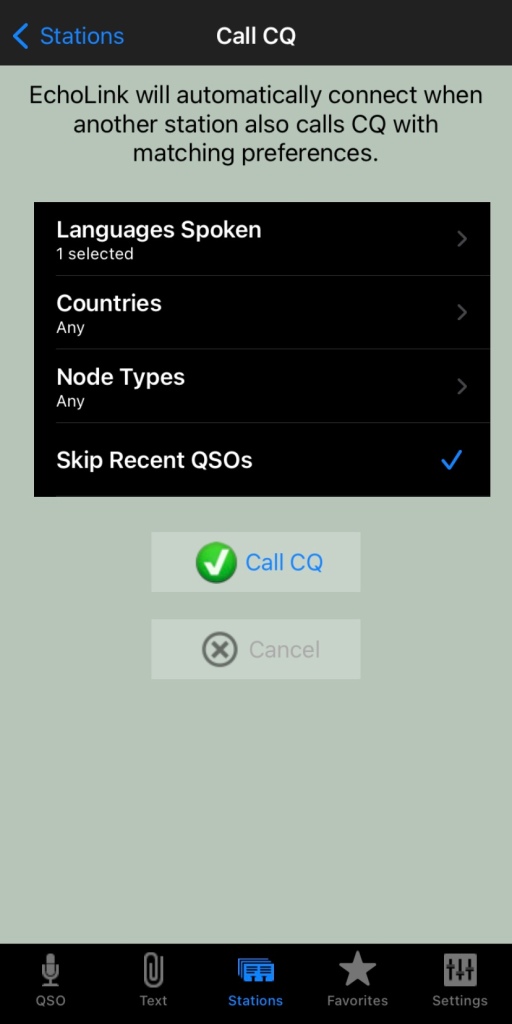
From the Stations screen select call CQ.
Then select your language.
Select the country, if you leave it as any, you will not limit your connection options
Select the node type, again, leave as any to start with
And you can skip recent if you want to.
Then press Call CQ
It will call CQ for a while searching for a connection that matches your settings. I find that sometimes it tries to connect to another node but can fail. This is perhaps because the connection drops out for whatever reason. Just try again.
The good thing about this option is you will get someone who is wanting to talk to someone just like you do!
What is your experience with EchoLink? What is your favourite nodes? Why don’t you put it in the comments below so we can all learn from your experiences.
An antenna coupler (also called an antenna tuner or matching network) is a device used in radio systems to ensure impedance matching between a transmitter and an antenna. Most transmitters are designed for a specific…
Amateur radio operators use many different antenna types, each designed for specific bands, space limits, and operating goals. Here’s a clear overview of the most common ones and why hams choose them. Wire Antennas These…
A dipole antenna is a basic radio antenna made of two conductive elements fed at the center. It is typically a half-wavelength long and is widely used as a reference antenna in antenna theory and…
Interference in Amateur Radio refers to unwanted signals that disrupt radio communication. This interference can reduce signal clarity, make contacts difficult, or completely block communication between amateur radio operators. Radio Frequency Interference (RFI) is one…
Prior to 1989, it was illegal to operate between 50 MHz and 52 MHz in Australia. It was a real pain as that was where all the action was when the band opened up. However,…
I’ve heard a lot about dipole antennas, and I’ve heard a lot about long wire antennas also. I would say I’ve seen more dipoles than long wire antennas. So why is that? What is the…
Repeater-START is a multi-platform app designed for ham radio and radio-operator enthusiasts who need fast access to repeater information. The app provides a detailed repeater map as well as a distance-sorted list, allowing users to…
What Is the 6m Band? The 6-meter band, spanning roughly 50–54 MHz, is a section of the VHF spectrum assigned to amateur radio operators. Its wavelength is six meters, and its position between HF and…
Overview The Anytone AT-778UV is a dual-band VHF/UHF mobile transceiver designed for amateur radio operators. It operates on the 136–174 MHz (VHF) and 400–490 MHz (UHF) bands, offering reliable two-way communication for both ham radio…
160 meters band is known as the “Gentlemen’s band”. It is right next to the AM commercial band, known as medium wave. The 160-meter band is the radio frequencies between 1.8 and 2 MHz. For…
I purchased the Diamond W series W8010 antenna and quickly put it together. The instructions were a bit hard to read as it was exceedingly small. However, I found someone who did a video on how to put it together. (this is not my video)
To me, an antenna is far more important than the power you put out and the radio you own. You can make a fantastic contact on an extremely old radio on a good well positioned antenna. But if you have a bad antenna and a fantastic radio, you may find it a bit harder.
Tip when tuning
The above video, and instructions will tell you when tuning the antenna to cut the tuning wires to length. Instead, I folded the tuning wires back on themselves towards the centre of the antenna. You may need to fold back a little more than you would have cut off, but if you ever need to move the antenna, you will need to re-tune it and you cannot re-tune it if you have cut the tunning wires off already.
So, for my antenna, all I did was set up the antenna where the wires were greater than 30 degrees from each other, and then bend the tuning wires on themselves with electrical tape. For one of the bands, I took the tuning wires completely off.
As my antenna is on the roof, I had to adjust and climb down many times and check the radio before trying again. At one stage I got a helper who stayed in the shack, and I stayed on the roof. However me being on the roof affected the antenna, even if I wasn’t near it. One of the bands wouldn’t tune in, but when I was sure it was right, I went off the roof and then it worked fine without me on the roof. Maybe my antenna doesn’t like the site of me!
Review of W-8010
This W-8010 antenna is a good cheap antenna that does a decent job. It isn’t hard to install and put together and covers several bands once you get it up and going. I was expecting it to take a lot longer than it did. It doesn’t need a huge mast and if you have the space, can be installed so it doesn’t look too bad either.
I managed to get this antenna working on all bands as advertised except 80m. I am still trying to get this band to work. I understand the antenna is very narrow on this band when I purchased it, so I expected tuning to be difficult. Given the antenna is above the house on new tiles, I didn’t want to climb on the roof to many times, so I tried several times while tuning the other bands, but ended up giving it away. Each time I get on the roof I adjust it a little, then try again, but I have almost given up and sure it won’t work right across the band either. 80m is my main issue with this band.
Expanding the W-8010 antenna to WARC Bands
After tuning in the antenna, I wondered if I could modify it to also be usable on the WARC bands. It was a little frustrating hearing people talk on the other bands yet couldn’t talk to them as I didn’t have a resident antenna.
I found some coaxial cable on the footpath on my morning walk. It was against a power pole and looked like the same cable used for pay TV which was above me at the time. I had a closer look at it, and noticed it was RG66 which is 75-ohm, but also had a strong wire wrapped in next to the coax. So, using this wire, I could hang it and put all the strain on the wire, and not the coax. Better still it was free!
So how much do I need for which band I hear you ask, especially since I am using 75-ohm not 50-ohm coax?
To calculate the lengths, you need is easy. Just work out what frequency you want to use. Try one in the middle of the range of the band you want to use. Then with this frequency, use the following formula:
Dipole total length in meters: 143 / frequency in MHz
This total length in the above is from point to point, so you need to half that for both sides of the dipole. But before you cut, don’t only measure twice (as they say in the building industry), but cut it longer than you need. It is a lot easier to trim the ends off than stick the ends back on! As I said earlier, I was using RG66 75-ohm coax, so these measurements may not be exact. But it also depends on how your antenna is mounted. For me, I added about a metre to each length so when I was on the roof, I knew it was about a metre longer than it should be. Depending on the band and length, you may want to leave more or less on it.
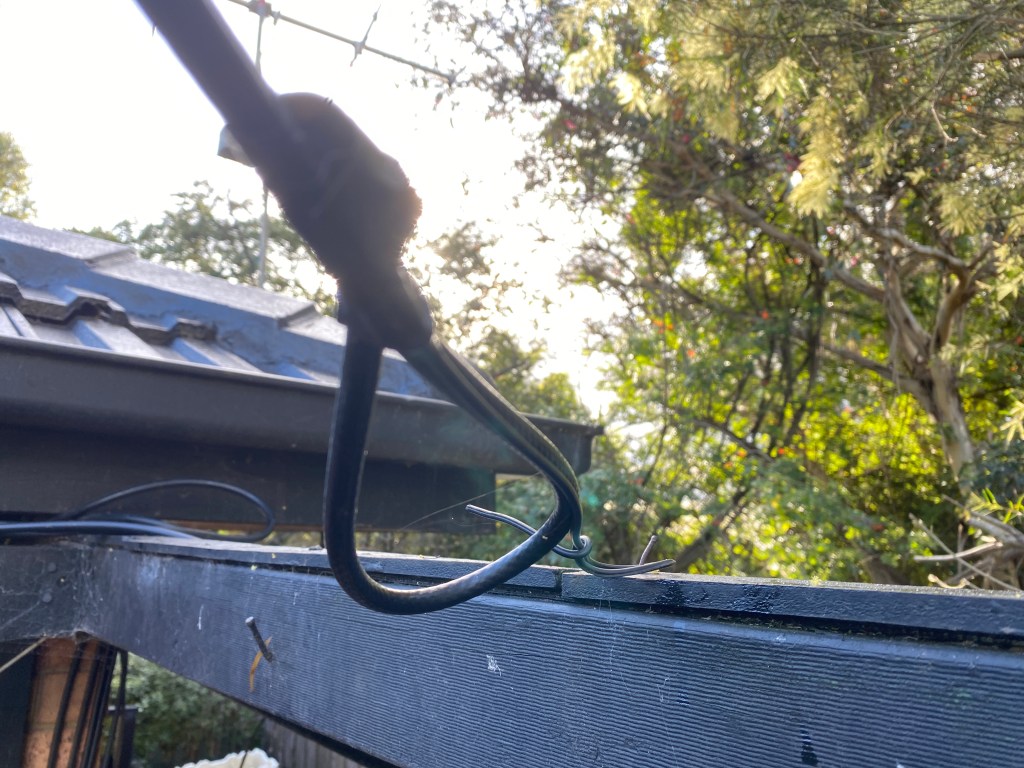
I first got it all working at a height I could reach, as I got sick of climbing up the ladder hundreds of times. Once it worked, I put it to the height I wanted, but it needed to be re-tuned again. Ah! If I had cut the wire, guess what, I would have had fun trying to extend my coax on the roof! You can see below how I folded the wire back on itself. As mentioned, this coax is RG66 and has a wire next to it. You can see this small wire in the photo that isn’t folded back and it supporting the coax on the nail. Don’t worry, this wasn’t my final setup, I was still tuning when I took the photo. It is secured a lot better than this now.
I noticed a lot of birds sat on some of my wires that were almost horizontal, and I was concerned their weight might break the antenna. About the same time, we were throwing out our old trampoline, so I kept some of the springs and have used them after the insulator and the mounting point. This may give the antenna a few more years of life hopefully.
Hope you enjoyed this read. What is your experience with Dipole antennas? What tricks have you learnt? I have been making antennas for some years, but really don’t think I am an experienced antenna builder. Please add your comments below so we can all learn from you.
An antenna coupler (also called an antenna tuner or matching network) is a device used in radio systems to ensure impedance matching between a transmitter and an antenna. Most transmitters are designed…
Amateur radio operators use many different antenna types, each designed for specific bands, space limits, and operating goals. Here’s a clear overview of the most common ones and why hams choose them.…
A dipole antenna is a basic radio antenna made of two conductive elements fed at the center. It is typically a half-wavelength long and is widely used as a reference antenna in…
Interference in Amateur Radio refers to unwanted signals that disrupt radio communication. This interference can reduce signal clarity, make contacts difficult, or completely block communication between amateur radio operators. Radio Frequency Interference…
Prior to 1989, it was illegal to operate between 50 MHz and 52 MHz in Australia. It was a real pain as that was where all the action was when the band…
I’ve heard a lot about dipole antennas, and I’ve heard a lot about long wire antennas also. I would say I’ve seen more dipoles than long wire antennas. So why is that?…
Repeater-START is a multi-platform app designed for ham radio and radio-operator enthusiasts who need fast access to repeater information. The app provides a detailed repeater map as well as a distance-sorted list,…
What Is the 6m Band? The 6-meter band, spanning roughly 50–54 MHz, is a section of the VHF spectrum assigned to amateur radio operators. Its wavelength is six meters, and its position…
Overview The Anytone AT-778UV is a dual-band VHF/UHF mobile transceiver designed for amateur radio operators. It operates on the 136–174 MHz (VHF) and 400–490 MHz (UHF) bands, offering reliable two-way communication for…
160 meters band is known as the “Gentlemen’s band”. It is right next to the AM commercial band, known as medium wave. The 160-meter band is the radio frequencies between 1.8 and…
Have you ever had an antenna and forgotten what it is for? Maybe you have been given one and wasn’t told exactly what it was used for. I got given an antenna…
I’ve heard several amateur radio operators say they are running a Barefoot setup. But what does it mean?
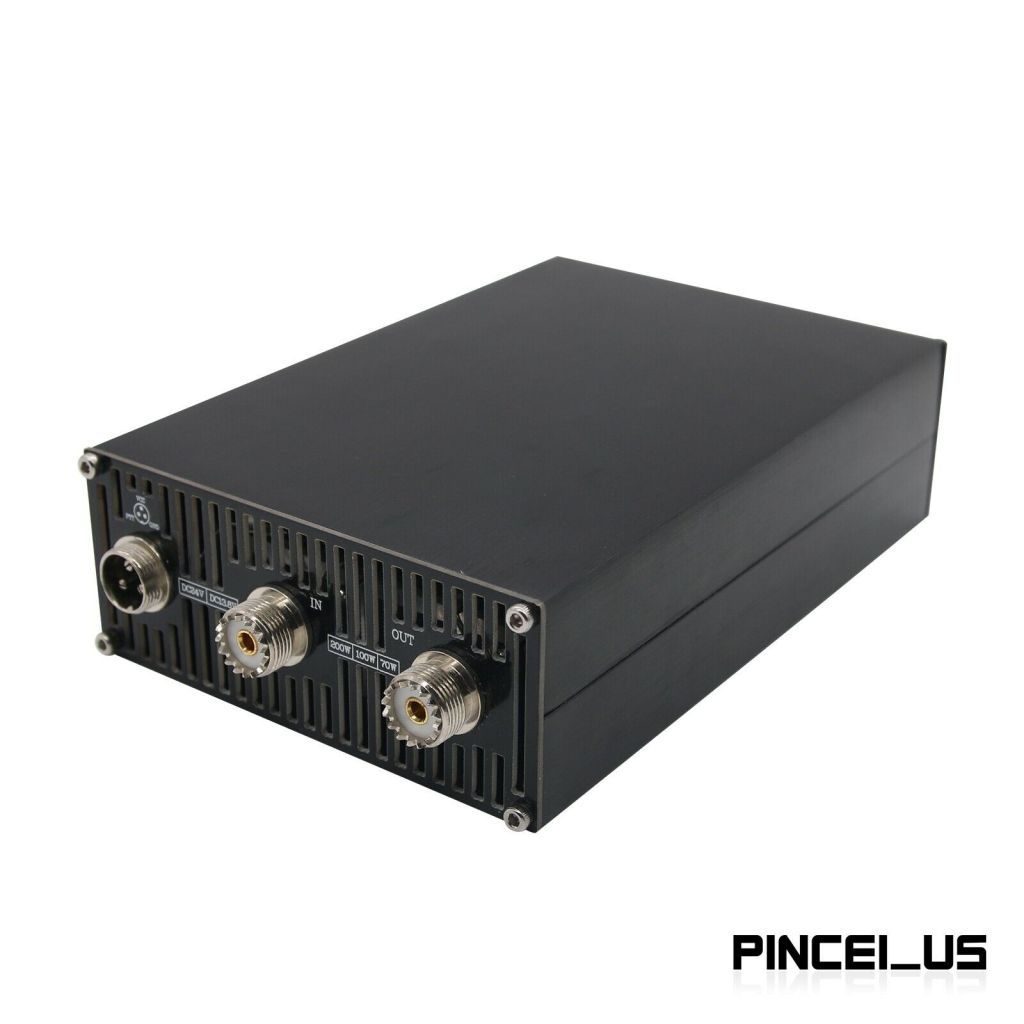
It has nothing to do with what is or is not on your feet. But simply means transmitting without an amplifier.
While power helps, the best thing you can do to fix your signal is your antenna. It doesn’t matter how much power you put out if your antenna is facing the wrong way, or not tuned in correctly. If you are struggling to be heard and sure your radio is set up correctly, I would look at the antenna first.
Some operators think there are two types of radio setups, thoughts with amplifiers, and thoughts without. Some see using an amplifier as cheating. I am not sure I would go that far, but if you are putting out a thousand watts, then yes people will hear you, but this doesn’t help you hear them when they put out 100 watts.
So, are you a barefoot operator or not? Perhaps you are on some bands or radios, but not on others?
An antenna coupler (also called an antenna tuner or matching network) is a device used in radio systems to ensure impedance matching between a transmitter…
Amateur radio operators use many different antenna types, each designed for specific bands, space limits, and operating goals. Here’s a clear overview of the most…
Interference in Amateur Radio refers to unwanted signals that disrupt radio communication. This interference can reduce signal clarity, make contacts difficult, or completely block communication…
Repeater-START is a multi-platform app designed for ham radio and radio-operator enthusiasts who need fast access to repeater information. The app provides a detailed repeater…
Overview The Anytone AT-778UV is a dual-band VHF/UHF mobile transceiver designed for amateur radio operators. It operates on the 136–174 MHz (VHF) and 400–490 MHz…
A simple tip that you may always use after reading this.
Often our shacks end up with cables everywhere. It can be a little hard to remember what cable goes where after a few years. It all starts well but as the equipment grows, so do the cables. I have trouble with the power cords in the power boards and what each plug is!
My shack originally only had one cable that went out that hole, “I’ll remember what it is” we all say years later. But sometimes we might upgrade an antenna or radio. In doing so, it is far easier to use the same cable if it is ok, especially if it goes down a wall or through a small hole. After a few changes, the whole thing can become a bit of a mess (not that anyone else needs to know).
Power cables are easier to manage, as I stick a sticker on each plug at the power board to remind me what they go to. So, if I need to change the power board, I know exactly which plug I am pulling out.
But antenna cables are a bit harder. I started writing on a post it notes what this cable was for and taped it to the cable near the plug, but if you swap it to something else, you must change the note. Maybe you forgot last time you changed something or ran out of time. Perhaps after the testing you got so excited about the positive test you never did update the note on your cable.
So, I now have a new system. I colour code each cable at each end with electrical tape as shown below in the photo.
Using the same colour code on each end, I can now be sure which cable goes to which end. One of my cables has two of the same colour, which is fine, whatever works for you.
If you do this just before the plug at each end, then you can see which antenna the cable goes into and which radio. You could also do it again at the bottom of the tower or window so you know halfway along the cable.
I then have a list of yellow 1 strip = HF 6m and Red = VHF/UHF etc. if I swap the antennas, I just must change the list. I can double check by going outside to see what the same colour code ends up. The electrical tape will stay the same and will last a lot longer than handwritten notes.
So, what do you do to keep your station in order? Do you just remember? Do you have a system? Why not share it in the comments below so we can all learn from you.
An antenna coupler (also called an antenna tuner or matching network) is a device used in radio systems to ensure impedance matching between a transmitter and an antenna. Most transmitters are designed for a specific impedance, commonly 50 ohms, while…
Amateur radio operators use many different antenna types, each designed for specific bands, space limits, and operating goals. Here’s a clear overview of the most common ones and why hams choose them. Wire Antennas These are some of the simplest…
A dipole antenna is a basic radio antenna made of two conductive elements fed at the center. It is typically a half-wavelength long and is widely used as a reference antenna in antenna theory and practice. Dipole antennas work by…
Interference in Amateur Radio refers to unwanted signals that disrupt radio communication. This interference can reduce signal clarity, make contacts difficult, or completely block communication between amateur radio operators. Radio Frequency Interference (RFI) is one of the most common problems…
Prior to 1989, it was illegal to operate between 50 MHz and 52 MHz in Australia. It was a real pain as that was where all the action was when the band opened up. However, after many requests from the…
I’ve heard a lot about dipole antennas, and I’ve heard a lot about long wire antennas also. I would say I’ve seen more dipoles than long wire antennas. So why is that? What is the difference between them? Which is…
Repeater-START is a multi-platform app designed for ham radio and radio-operator enthusiasts who need fast access to repeater information. The app provides a detailed repeater map as well as a distance-sorted list, allowing users to easily locate nearby communication points…
What Is the 6m Band? The 6-meter band, spanning roughly 50–54 MHz, is a section of the VHF spectrum assigned to amateur radio operators. Its wavelength is six meters, and its position between HF and VHF makes it behave like…
Overview The Anytone AT-778UV is a dual-band VHF/UHF mobile transceiver designed for amateur radio operators. It operates on the 136–174 MHz (VHF) and 400–490 MHz (UHF) bands, offering reliable two-way communication for both ham radio and commercial use (depending on…
160 meters band is known as the “Gentlemen’s band”. It is right next to the AM commercial band, known as medium wave. The 160-meter band is the radio frequencies between 1.8 and 2 MHz. For many decades it was the…
There are several website that tell you what bands are open in your area. Most people paste them on their QRZ page, but there are some examples below that update every hour.
You can see more on their webpage https://www.hamqsl.com/solar.html where all you have to do is paste the code and put on your website. There is a great option to donate also. There is a wealth of information on this website that you can spend hours on.
This data is updated every hour, which is fantastic.
But what if you are not in front of your PC and want to look it up. There is a handy little app I use called Solar Data and Propagation. It is a small app only 12.5Mb in size on the iPhone and it is free. It is also available on Android at only 6.75Mb, I will talk about further down.
Below is the app on an apple device.
While it is only a little app, and doesn’t do a lot, it is a simple app that gives you what propagation is open at your current location. While other apps have heaps of features and functions that you may or may not use often, this little app has just what you would use often.
Above are the HF conditions, but you can also see VHF conditions and terrestrial. Adds do pop up from time to time, but the app is free so I don’t see this as a problem.
If you have an Android device, go to the store and search for HF Propagation. It should be the first one on the list with an orange sunshine as the logo.
Once installed, you have a lot of different options available on the first screen.
Scroll down, and you will see the HF then VHF conditions as mentioned for the Apple app.
Conclusion
This little information may save you from running out to the shack and turning everything on to find nothing or trying on the wrong band. As mentioned above, it can be on an apple or android device.
Hopefully, this makes it a little easier for you. Please put in the comments below what apps you enjoy using or let me know what you think.
Repeater-START is a multi-platform app designed for ham radio and radio-operator enthusiasts who need fast access to repeater information. The app provides a detailed repeater map as well as a distance-sorted list, allowing users to easily locate nearby communication points wherever they travel. Because it uses open repeater databases, the information remains current, community-supported, and…
I’ve been using EchoLink well before smartphones where the only way I knew how to connect to a different station was via the radio. The internet wasn’t as extensive as it is now and you had to dial the node you wanted via the radio. You can still do this today but I don’t think…
There are several website that tell you what bands are open in your area. Most people paste them on their QRZ page, but there are some examples below that update every hour. You can see more on their webpage https://www.hamqsl.com/solar.html where all you have to do is paste the code and put on your website.…
It has been a while since I have completed another update, but I have a lot in the making. A broken finger has kept me quiet! HamAlert is an app for both iPhone and Google devices that alerts you as to when a desired station appears on the DX cluster, the Beacon Network, SOTAwatch, POTA…
After talking to a friend just to the north of me, he told me about the app DROID-Star for Android. As I only have apple devices, this wasn’t initially an option for me, however I do have an Android TV box which I use for Amateur Radio, so will review it from that device. At…
The WizNet DMR app is still in beta testing, and at the time of writing this, you have to not only have a currently have a licence as an Amateur Radio Operator, but approved to be part of the beta testing group. You can do this by googling the web site, submitt a few details,…
Orion is an app that isn’t really known in my world, perhaps because it isn’t available on all platforms, or because it does transmit your exact location to everyone on the channel. However there are some benefits to this mode and does add another communication mode to your list. You can also create your own…
It has been a while since I have completed another update, but I have a lot in the making. A broken finger has kept me quiet!
HamAlert is an app for both iPhone and Google devices that alerts you as to when a desired station appears on the DX cluster, the Beacon Network, SOTAwatch, POTA or PSK Reporter. It saves you from checking them all manually.
You can receive different types of alerts including:
DXCC (both actual and callsign home DXCC)
Callsign
IOTA group reference
SOTA summit reference
WWFF/POTA division/reference
CQ zone
Continent
Band
Mode
Time and days of week
Source
Spotter callsign and DXCC
Just download the app from the App Store or google play, create an account, then set what alerts or triggers you want.
Press the three lines up the top left and select triggers. Then press plus to add one. The interface is mostly web based but works well within the app.
My first trigger was using my call sign under any conditions and alert via app
You can easily add more triggers. Select a condition and an Action on what you want the app to do when it meats the desired condition. You can also add in a comment to help you with each trigger.
Once you are done, simply press Done down the bottom of the screen.
Limitations
Limitations menu limits how many times you will be triggered. For example you may want to set a trigger to only alert you once an hour or day.
More information is available on their website at https://hamalert.org/about which even had a forum you can join or add comments about the app.
How do you find this app? Would value your comments below.
An antenna coupler (also called an antenna tuner or matching network) is a device used in radio systems to ensure impedance matching between a transmitter…
Amateur radio operators use many different antenna types, each designed for specific bands, space limits, and operating goals. Here’s a clear overview of the most…
Interference in Amateur Radio refers to unwanted signals that disrupt radio communication. This interference can reduce signal clarity, make contacts difficult, or completely block communication…