The new OpenSpot3 has come out with an internal battery. You might ask why? Well there is two common issues that is mostly raised with almost all hot spots. One is the range – I have addressed this in my BlueDV post if you want to make your own long range hotspot. However the other issue is it isn’t very portable.
I have two OpenSpot2 hotspots and enjoy them very much. I can cross modes easily all by using the one radio. You used to have to get one radio per band which was a lot more expensive. Anyway I can take the OpenSpot2 in the car and plug it into the car battery and run it via my mobile phone which works well. However what if I want to go for a bike ride or walk without the car?
The main issue is not having the battery of the car when you walk or ride your bike. This is perhaps one reason why the OpenSpot3 has an internal battery. For the rest of us, you can still do it.
Below is a picture of my setup. I took this picture in outback South Australia. At the top of the picture is a small pocket size battery which actually has two USB plugs, so I could plug in my HotSpot and my mobile phone. It even has a torch on it and has a lot of charge (15,000 mAh 2.4 Amp) so it wasn’t the cheapest one available. I could have gone a lot cheaper however we also used this battery pack for other things while we were in remote Australia for several days.
To the left of the photo is my GD-77, my hotspot and my phone. With this setup, I was able to talk the world!
I found it hard to find useful information on how to run the OpenGD-77 hotpot mode with Windows 10. At the time of writing this, there is a lot about this topic using a pistar and even android or ISO, but not much with Windows 10. This is my experence with BlueDV and Open GD-77 using a Windows 10 PC.…
I found it hard to find useful information on how to run the OpenGD-77 hotpot mode with Windows 10. At the time of writing this, there is a lot about this topic using a pistar and even android or ISO, but not much with Windows 10. This is my experence with BlueDV and Open GD-77 using a Windows 10 PC.
Someone once asked me after reading this page, why would you want to do this? So I have added this paragraph to try and explain. One reason is to extend your hotspot range. For example, if you use a normal regular hotspot, it will only have a small range around or in the house. If you want to go for a walk or dig in the garden, you either have to take a battery pack to plug your hotspot in and your mobile plus your radio. This is something I have done many time, especially while camping and in outback Australia – I have added a photo of it below. However if you have a spare digital radio, then you can plug in your GD77 into an external antenna and via BlueDV as explained below, and then almost run your own 5W repeater into the talk group you want. I have done this and been able to walk several kms from home and still have full access yet only taking my GD77 radio with me. The other reason you can do this is because you can. To make your own repeater is a bit of fun.
Before you read on, it should be noted that the Open GD-77 firmware and software is changing all the time, so some of the steps below may change. I will do my best to keep this page up to date, however please message me or leave a comment if you have any suggestions.
Then once complete, make sure your GD77 is plugged into your USB on your PC. Then type in Device manager in the Windows 10 search box to open the Device Manager. Go to Ports and there you should see OpenGD77 followed by a COM number. If you do not, then you need to install the Comm Driver again. Take note of this Com number.
Now open the GD-77 CPS Community Edition and once loaded make sure it has an Extras menu between the View and Language menus. Click on the Extras menu and select OpenGD77 support. Click on Read codeplug and make sure that works. Obviously you need the radio plugged in and turned on to do this.
Now download the latest BlueDV install file from the following web site. Make sure you select the Windows version. There may be beta versions available if you want to try them.
Download and then install the msi file inside the zip file.
Keep the radio plugged into the USB port on your PC. Turn on the radio and press the green button to go into the OpenGD77 menu. Scroll down to options and then go up to Hotspot and when on hotspot press the right button until it changes to BlueDv. Press the green button to save.
Next open BlueDV and once opened, click on Menu then Setup. Put in your callsign, then change the serial port radio to the Com port noted earlier. Tick on RX/TX Colors, enter in the Frequency you wish to use, enter your DMR ID in both boxes, then select the Brandmeister DMR Master server you want to connect to and put in your password. Select Save to save these settings and close the setup box.
Now turn on Serial (top left under menu) by pressing the slide switch to the left, and DMR in the BlueDV interface. If you can not turn on DMR then you have the same problem I did, then you have not turned your radio on correctly or turned the hotspot mode on. If you have not turned on the hotspot, see two paragraphs above. Then, make sure the radio is in VFO mode by pressing the red button, you should see two lines of frequencies. Make sure they are both the frequency you are using in BlueDV. Turn your radio off, connect the cable and plug it into the PC, then hold down the small black button above the blue button and PTT button, and while holding the button, turn the radio on. The radio should say Hotspot along the top of the screen.
It should now work. Adjust your power level on this radio and plug into a nice antenna, then you can use another DMR radio on the same frequency and you now have your own hotspot that will cover an area that your GD77 will cover.
If you put in the DStar or Fusion settings, you can cross mode across to these networks also if you use the latest BlueDV version.
For more information, here is a video I found that got me going with this project. If you look at this video from 6:34 you can see how to do it without BlueDV and using MMDVMHost instead.
I hope you have found this useful. Please see below some other similar articles I have written that might be of interest. Please leave me some feedback if this has been of some help.
I found it hard to find useful information on how to run the OpenGD-77 hotpot mode with Windows 10. At the time of writing this, there is a lot about this topic using a pistar and even android or ISO, but not much with Windows 10. This is my experence with BlueDV and Open GD-77 using a Windows 10 PC.…
This page is just a help to friends I have spoke to who are interested in upgrading the Radioditty GD-77 to the OpenGD77 software. This is not my work, however I really do appreciate Roger and his team have done to put this together. I claim no responsibility if it breaks your radio, however I have not hear this happen now in some time. I am not an expert at all with OpenGD77, I have just put this together to help people who have asked me how to do it.…
A good friend of mine, Mike VK5ZC, put the information below together and asked me to put it on my web site. He has spent a lot of time putting it together with pictures and videos, so I encourage you to have a good read.
Amateur radio operators use many different antenna types, each designed for specific bands, space limits, and operating goals. Here’s a clear overview of the most…
Overview The Anytone AT-778UV is a dual-band VHF/UHF mobile transceiver designed for amateur radio operators. It operates on the 136–174 MHz (VHF) and 400–490 MHz…
A good friend of mine, Mike VK5ZC, put the information below together and asked me to put it on my web site. He has spent a lot of time putting it together with pictures and videos, so I encourage you to have a good read.…
I found it hard to find useful information on how to run the OpenGD-77 hotpot mode with Windows 10. At the time of writing this, there is a lot about this topic using a pistar and even android or ISO, but not much with Windows 10. This is my experence with BlueDV and Open GD-77 using a Windows 10 PC.…
The Daiwa CN-460M is a small cross-needle meter displays both forward and reflected power for 2m and 70cm. It measures in ranges of 15/150 watts forward and…
Interference in Amateur Radio refers to unwanted signals that disrupt radio communication. This interference can reduce signal clarity, make contacts difficult, or completely block communication…
HF radio and lightning storms are closely connected because lightning creates strong radio frequency interference that affects HF radio communication (3–30 MHz). High Frequency radio…
I bought this wireless keyboard/mouse which was very cheap. It does not come with batteries, but come with a USB dongle. It has a fantastic range since it is 2.4GHz RF. The back also has good grip which apparently isn’t common on all models. You can select what colour you want the plastic to be also.…
OpenHamClock is an open-source amateur radio dashboard designed as a modern successor to the original HamClock used by radio amateurs worldwide. It provides a real-time…
I recently started using ProScan after years of using FreeScan. I have always enjoyed using FreeScan as it is easy to setup, I can download outputs from the software, and the main reason “it works”. However ProScan seems to be more graphical and has different features also.…
I recently started using ProScan after years of using FreeScan. I have always enjoyed using FreeScan as it is easy to setup, I can download outputs from the software, and the main reason “it works”. However ProScan seems to be more graphical and has different features also.…
There are lots of duel band antennas available, but most required extra mounting brackets. These brackets often restrict you as to where you can mount…
The Radtel P8 PoC radio is a Push-to-Talk over Cellular (PoC) device that looks like a traditional walkie-talkie but communicates using 4G/LTE mobile networks instead…
Repeater-START is a multi-platform app designed for ham radio and radio-operator enthusiasts who need fast access to repeater information. The app provides a detailed repeater…
A good friend of mine, Mike VK5ZC, put the information below together and asked me to put it on my web site. He has spent a lot of time putting it together with pictures and videos, so I encourage you to have a good read.…
An unusual name, but a catchy name no less, just like Peanut that was written by the same person, David PA7LIM. If you like Peanut, then you will like this project also. This project, like Peanut, includes some amazing coding and thinking.…
This page is just a help to friends I have spoke to who are interested in upgrading the Radioditty GD-77 to the OpenGD77 software. This is not my work, however I really do appreciate Roger and his team have done to put this together. I claim no responsibility if it breaks your radio, however I have not hear this happen now in some time. I am not an expert at all with OpenGD77, I have just put this together to help people who have asked me how to do it.…
An antenna coupler (also called an antenna tuner or matching network) is a device used in radio systems to ensure impedance matching between a transmitter…
The Yaesu FT-620 (and its updated version, the FT-620B) is a vintage amateur radio transceiver designed specifically for the 6-meter band (50–54 MHz). Produced in the 1970s, it offers support…
A good friend of mine, Mike VK5ZC, put the information below together and asked me to put it on my web site. He has spent a lot of time putting it together with pictures and videos, so I encourage you to have a good read.
Amateur radio operators use many different antenna types, each designed for specific bands, space limits, and operating goals. Here’s a clear overview of the most…
Overview The Anytone AT-778UV is a dual-band VHF/UHF mobile transceiver designed for amateur radio operators. It operates on the 136–174 MHz (VHF) and 400–490 MHz…
A good friend of mine, Mike VK5ZC, put the information below together and asked me to put it on my web site. He has spent a lot of time putting it together with pictures and videos, so I encourage you to have a good read.…
I found it hard to find useful information on how to run the OpenGD-77 hotpot mode with Windows 10. At the time of writing this, there is a lot about this topic using a pistar and even android or ISO, but not much with Windows 10. This is my experence with BlueDV and Open GD-77 using a Windows 10 PC.…
The Daiwa CN-460M is a small cross-needle meter displays both forward and reflected power for 2m and 70cm. It measures in ranges of 15/150 watts forward and…
Interference in Amateur Radio refers to unwanted signals that disrupt radio communication. This interference can reduce signal clarity, make contacts difficult, or completely block communication…
HF radio and lightning storms are closely connected because lightning creates strong radio frequency interference that affects HF radio communication (3–30 MHz). High Frequency radio…
I bought this wireless keyboard/mouse which was very cheap. It does not come with batteries, but come with a USB dongle. It has a fantastic range since it is 2.4GHz RF. The back also has good grip which apparently isn’t common on all models. You can select what colour you want the plastic to be also.…
OpenHamClock is an open-source amateur radio dashboard designed as a modern successor to the original HamClock used by radio amateurs worldwide. It provides a real-time…
I recently started using ProScan after years of using FreeScan. I have always enjoyed using FreeScan as it is easy to setup, I can download outputs from the software, and the main reason “it works”. However ProScan seems to be more graphical and has different features also.…
I recently started using ProScan after years of using FreeScan. I have always enjoyed using FreeScan as it is easy to setup, I can download outputs from the software, and the main reason “it works”. However ProScan seems to be more graphical and has different features also.…
There are lots of duel band antennas available, but most required extra mounting brackets. These brackets often restrict you as to where you can mount…
The Radtel P8 PoC radio is a Push-to-Talk over Cellular (PoC) device that looks like a traditional walkie-talkie but communicates using 4G/LTE mobile networks instead…
Repeater-START is a multi-platform app designed for ham radio and radio-operator enthusiasts who need fast access to repeater information. The app provides a detailed repeater…
A good friend of mine, Mike VK5ZC, put the information below together and asked me to put it on my web site. He has spent a lot of time putting it together with pictures and videos, so I encourage you to have a good read.…
An unusual name, but a catchy name no less, just like Peanut that was written by the same person, David PA7LIM. If you like Peanut, then you will like this project also. This project, like Peanut, includes some amazing coding and thinking.…
This page is just a help to friends I have spoke to who are interested in upgrading the Radioditty GD-77 to the OpenGD77 software. This is not my work, however I really do appreciate Roger and his team have done to put this together. I claim no responsibility if it breaks your radio, however I have not hear this happen now in some time. I am not an expert at all with OpenGD77, I have just put this together to help people who have asked me how to do it.…
An antenna coupler (also called an antenna tuner or matching network) is a device used in radio systems to ensure impedance matching between a transmitter…
The Yaesu FT-620 (and its updated version, the FT-620B) is a vintage amateur radio transceiver designed specifically for the 6-meter band (50–54 MHz). Produced in the 1970s, it offers support…
I recently started using ProScan after years of using FreeScan. I have always enjoyed using FreeScan as it is easy to setup, I can download outputs from the software, and the main reason “it works”. However ProScan seems to be more graphical and has different features also.
Anyway, if you go to the following website, there are several programs available.
There are three software options available via the above link.
ProScan
ProScan Client
RadioFeed
Details on the above three are below. Please remember, this is not an instruction manual, more of a review and should help you get started.
ProScan
Installing
Installing is very simple. Simply go to the above web site and download the latest version. Then open the file. If using Windows 10, Windows will give you a Windows Defender SmartScreen warning. Simply select More Info then Run anyway. I am using version 15.4 for this review.
Installing takes seconds, and does not require a re-boot. If you have a license key then put it in, if not, you have 30 days to access the software which I think is very reasonable. A lot of Apps these days you don’t get the opportunity to check it is what you want or not.
Connecting to the Scanner
First select the scanner you are connecting to via the drop-down list. Then from the Comm Port dialog box, either select the Port, or click on the red Auto Detect button where you can then see the scanner on the list. If you don’t, then make sure the scanner is on, connected and been connected to Windows for a while. You can also press the Windows Device Manager option to make sure Windows see’s the scanner connected.
After selecting the scanner and port, press Set Selected Available Port so the port number is updated at the top of the screen. Then after setting the baud rate, select the red set box. The highest Baud Rate the scanner supports, the better reliability. After selecting set select close to continue.
It will then ask if you want to create a new database. If it is your first time, then you will want to select yes. I usually create a file with the date in the file name and the scanner model. If I ever make a mistake, then I can go back to the original file.
Once you have done this, you will get a graphical display of your scanner at the top of the screen and it will pick up where your scanner is up to. If you are using a hand held scanner, it will come up with a remote head version of the scanner. For example, my 396xt scanner looks like the UBC-RH96 remote screen. Check that your scanner model is listed at the top of the display, if not you will want to adjust your scanner model via the Scanner Type menu.
Display
There are two parts of the screen, the top graphical part (highlighted by my yellow line below), then the tab data area below (shown in red). Also, above the graphical part is the menus which go across top.
Menus
The menus available across the top of the display include:
Database – here you can start a new, save a current or open an old database, or scanner setup. You can also import a data base from a current file, or via a selected few web sites. Another option is to export or print the database. Last option is to exit and close the software.
Export / Print – this option is very customisable, where you can export to csv, HTML or Sentinel HPE file. You can also print to your printer also. You can select which systems are to be included and what information is to be included in the export or print.
Options – This brings up a large dialog box which looks a little overwhelming at first, but after a closer look, is actually very well laid out. The dialog box has the following tabs:
Start Up – simple settings are available here such as if the software is to load up the current database or not at start-up? Checking for latest version, logging history and so on.
General – general settings such as colours, date and time format, and other settings are available here.
Logging – This tab is broken up into three areas where History Grid settings are available, UID Grid settings are available, and FTO Grid settings are available.
Recorder – this tab allows you to customise what is recorded and what is not. Settings such as transmissions < 2 seconds can be turned off. You can set the maximum recording time, and auto delete recordings after a period of time.
Scanner Specific – this tab allows you to change specific details according to the scanner selected such as colours etc. Depending on the model selected, depends on what is available to change and what is not.
Recording Text Tags – You can select the file output and title, artist etc for each recording made.
Scanner Type – this menu allows you to change the scanner type should you not have the correct one selected.
Comm Port – you can change the comm port settings if you are having trouble connecting to your scanner. From the Comm Port dialog box, either select the Port, or click on the red Auto Detect button where you can then see the scanner on the list. If you don’t, then make sure the scanner is on, connected and been connected to Windows for a while. You can also press the Windows Device Manager option to make sure Windows see’s the scanner connected. After selecting the scanner and port, press Set Selected Available Port so the port number is updated at the top of the screen. Then after setting the baud rate, select the red set box. The highest Baud Rate the scanner supports, the better reliability. After selecting set select close to continue.
View – You can change how and what you want to display. You may want a small display or a normal display depending on how much screen space you have. You can also select to always be on top if required.
Tools – There are four options available on this menu item
Google Maps & Lookup – this will allow you to look up locations using Google Maps. There are a lot of settings available here, and some great things you can display or not display on the map. This includes a range map etc.
FCC Callsign Lookup – Here you can put in a call sign and look it up. These don’t work very well outside of USA.
Location Converter – Here you can convert positions to other formats
Remove Activation – use this to transfer your licence to another PC
Support – There are four options available on this menu
Manual – a searchable PDF manual which is a great help and well written
ProScan Home Page
Check for newest version
About
Download from Scanner
If you already have a scanner setup, you may want to press the download from scanner button from the Database tab then Systems tab. If the window below says database locked, then you may want to start a new one via the Database menu. Select all systems and configuration and download from the scanner. This is a good starting point to make sure the scanner and ProScan software are the same.
This post is not intended to replace the manual, it is more about getting you started and reviewing the software. The above is enough to get anyone started, so here are some things I have liked in this program.
History Logging
Under the History Logging tab is a great feature if you want to just scan a set of programmed frequencies and see how often you receive them, and what their signal was like. This is good if you want to just let the scanner just tick away. I find this option as one of the better parts to the software that other software seems to lack. For example, you could have a set of frequencies scanning for a few days, and then see how often the scanner stopped on that frequency, when the first and last time it was, and the total duration it spent on that frequency. Some frequencies are hardly used, where others like freight and transport services are more used which this report highlights.
Each column is sortable which is fantastic. So you can sort in order of Frequency, RSSI (Received Signal Strength Indicator) or time first or last time the scanner heard a transmission on that frequency. You can tick the box for Each Transmission New Row, or as I do just have that un-ticked so each frequency is only listed once, so you can see how often each frequency was heard. If you tick the Active Row In View the displayed list will always include the current active frequency on screen.
However, the best part is you can copy or move any selected rows, or all rows, to a database or another file such as a text file that can easily be imported into Excel. Now you can have a spreadsheet with all your frequencies, and next to them have data such as when you last heard it talk, what the RSSI was and so on. Frequencies change all the time, so this is a very handy feature if you are not sure if the one you are interested in is still in use or not.
You can also adjust how it is logged, via the Options menu at the top of the screen and go to the Logging tab. Here you can state the file you want to save your logs to, if you only want to log frequencies that have a signal for longer than 2 seconds and so on.
Recording Tab
This sometimes can be hard to set up in some software packages, however in ProScan, I found it very easy. You will first need to set up the settings on the Audio Control tab which has a fantastic graphical display of the usually hard to understand settings.
Database Tab
This by far is the busiest tab, and has 15 tabs within it. It is here that all your frequencies and how they are stored is saved. This page will not go into how to save and store frequencies, and how systems and groups work, as this page is more about the ProScan software.
The Systems tab is where all your frequency data is stored and is set out in a very easy way to understand. Along the top of this tab though is some options in red. While most of them are obvious by how they are named, the Get Clipboard is something that needs to seen. Here you can copy from an excel file or database, and import it easily into the ProScan software. You can set special ignorer’s etc, it is well worth spending some time here.
The Statistics option will make sure you don’t overload your scanners memory.
Source Client Tab
This is a great tab if you want to easily connect your scanner to some on-line broadcasting services such as Broadcastify, Icecast2 and SHOUTcast.
Remote Scanner Over IP
This tab is where you can be a server or client to the rest of the world. You can allow others access to your scanner if you choose to, or you can select others who have shared theirs via client mode. If you just want to use the software as a client, then you might as well get the client software which is free and just has this part of the software as part of the insulation.
Audio Control
This tab will help you set up your recording and sound into you PC from your scanner and from your PC. The settings are very well laid out in a graphical display making it very easy to setup. The last tab, Audio Scope allows you to check the audio levels also. I routed my microphone to it and could then check base and tone levels which was an added bonus.
Band Scope
The Band Scope tab is one of the best parts of this software. Simply press the start sweep red button and the software will take over your scanner by sweeping across the bands drawing a graphical display on received signal levels. This not only graphically shows you where the signals are, but also shows the amount of notice on each different band also and how much noise you may be receiving in a range of frequencies.
You can see on the above picture, the frequencies in the 53 Mhz area have a low noise level of reception, but above that the next band scanned has more. Move the graph my sliding the Window marker, then move the Marker slider to change the frequency. Press Stop Sweep to stop sweeping. You can save the data to a file also, or open one. It is a shame you can’t just press on the graph to update the frequency on the scanner, but this really isn’t a big deal.
If you want to adjust the frequencies scanned, press the Get / Set Custom Search In the Scanner button and adjust.
Updates
Under the Options menu if you go to the Startup tab there is an option to Check For Newest Version Upon Start Up And Once A Day which is a great feature as often I just leave it on for days or weeks. However, when an update is found, a pop up window as shown below will be displayed while the program continues to work as per normal until you click on next.
The screen has a list of what the update includes which is great. You can either install the update by pressing next or run with the current version by pressing close. If you select next if will close the program, download the update, then all you have to do is run the downloaded software and it will automatically install and pick up from where you were as if nothing has happened. Very easy for anyone.
Costs
At the time of writing this, the cost of this software is $50 which can be used on two different computers. You can deactivate it on a PC to activate it on another PC. This can be done via the Tools menu. You can use it free with all functions for 30 days though. More information is available here: https://www.proscan.org/purchase_info.html
Features
Occording to the ProScan website, the ProScan Features include:
Scanner Support – Supports 18 different Uniden models
Scanner Programming – Upload and download data to and from scanner.
Database – Full featured database with Find & Replace, Find Duplicates, Export and Imports data from ProScan database files, Uniden UASD database files, and RadioReference Web Service.
Source Client – Streams real time audio to Broadcastify, Icecast, and ShoutCast servers. Source Client can replace Edcast/Oddcast and SimpleCast types of programs. If you are a Broadcastify stream provider then the Source Client can be configured automatically.
Web Server – Servers a web page and serves real time audio and folders / files. Audio and folders / files can be password protected.
Logger – Extensive logging with many options.
Remote Control Scanner Over IP – Control scanner remotely with streaming audio.
Recorder – No loss audio recorder. Stereo or Mono.
Audio Flow Diagram – Shows audio flow along with the volume controls and level meters.
Band Scope – Great for testing antenna’s and interference tracking
Control Channel Data Monitoring – Monitor the trunking control channel data. Works with XT series scanners only.
Sessions Manager – Manages multiple instances of ProScan running on same computer.
Virtual Display – With keypad and knobs emulates the scanner front panel.
Serial Port – Auto Detect.
Test Tab – Bonus items such as sending commands to the scanner and viewing returned data from scanner.
Tabbed layout – For easy navigation. Each tab contains a major feature.
Model Support
According to the ProScan website at the time of writing this, the following models are supported:
BCT15,
BCT15X,
BC250D,
BC296D,
BR330T,
BC346XT,
BC346XTC,
BCD325P2,
BCD396T,
BCD396XT,
BCD436HP,
BCD536HP,
BC780XLT,
BC785D,
BC796D,
BCD996T,
BCD996XT,
BCD996P2,
SDS100, SDS200,
SDS100E,
SDS200E,
UBCD3600XLT, &
USDS100 scanners
ProScan is available via the above link. You can see some screen shots of the software via this link also.
Please note – we will soon be posting a review on this software.
ProScan Client
If you don’t have a scanner and are thinking about getting one, then this is for you.
This is a stripped down version of ProScan for connecting to ProScan RSOIP (Remote Server Over IP) Servers in Monitor Client mode only. Basically it is a list of peoples scanners who have chosen to share them online allowing you access to listen in to what they here at their location. The Audio Recordings and Logging features are enabled, so you can even record what you hear at your location if you want to.
You may want to share your own scanner and then you can listen to is when you are out and about and don’t have a scanner with you.
ProScan Client is available via the above link.
How to use the ProScan Client software
Once downloading and installing the software, click on the Remote Scanner Over IP tab. Select the Update button to generate a list of available published servers in the box below. You can sort the service in the box according to country and region if required by clicking on the headings. If you widen the software, or move across this box, you can see the description and type of scanner and further details of each server. All headings can be sorted.
Once you find the server you want to listen to, click on it so it appears in the boxes on the left side, then select the Start box. The server you selected may not work, details will be in the box down the bottom right. In this case select another server or try again later. When selecting a new server, make sure the server ID updates on the left side.
Once connected, the display of the scanner will update to the type of scanner you have selected.
When the scanner stops on signal, you can see it listed on the History Logging tab. You can select to list each transmission in a new row (which could end up being a lot of rows), or just list each different Talk Group ID/Frequency. The Fire Tone-Out Logging tab is interesting also if the correct frequency / scanner is compliant.
You can record via the Recorder tab. Select the Recorder button and then it will list all the recordings. Select Colors Defined to see what the colours mean. Once this is on, you can then play each recording on demand. You can adjust the Column headings by click and dragging them as required.
When you have finished with a server, select Stop to disconnect.
RadioFeed
This program will stream the audio from your scanner to Broadcastify, Icecast and Shoutcast servers. I think you can create your own web server also.
I have not used this program as yet.
RadioFeed is available via the above link.
Summary
So, what is your experience with these three software packages? Is it great for you? What would you like to see changed in the software? How long have you been using it? Do you agree with our comments? Please leave your comments below.
I recently got my hands on a new Baofeng UV-17R Plus Series radio. It didn’t take long at all to arrive and was not expensive at all. People these days pay more for a UHF CB radio than a radio that does all this can do. You can purchase it via this link: https://www.radioddity.com/products/baofeng-uv-17r-plus However,…
CHIRP is a free, open-source tool for programming your amateur radio. It supports a large number of manufacturers and models, as well as provides a way to interface with multiple data sources and formats. Supported Radios Supported radios can be found on their web site at https://chirp.danplanet.com/projects/chirp/wiki/Home. This list is updated as the software is…
Orion is an app that isn’t really known in my world, perhaps because it isn’t available on all platforms, or because it does transmit your exact location to everyone on the channel. However there are some benefits to this mode and does add another communication mode to your list. You can also create your…
Repeater-START is a multi-platform app designed for ham radio and radio-operator enthusiasts who need fast access to repeater information. The app provides a detailed repeater map as well as a distance-sorted list, allowing users to easily locate nearby communication points wherever they travel. Because it uses open repeater databases, the information remains current, community-supported,…
There are several website that tell you what bands are open in your area. Most people paste them on their QRZ page, but there are some examples below that update every hour. You can see more on their webpage https://www.hamqsl.com/solar.html where all you have to do is paste the code and put on your…
The WizNet DMR app is still in beta testing, and at the time of writing this, you have to not only have a currently have a licence as an Amateur Radio Operator, but approved to be part of the beta testing group. You can do this by googling the web site, submitt a few…
Repeater-START is a multi-platform app designed for ham radio and radio-operator enthusiasts who need fast access to repeater information. The app provides a detailed repeater map as well as a distance-sorted list, allowing users to easily locate nearby communication points wherever they travel. Because it uses open repeater databases, the information remains current, community-supported, and…
I’ve been using EchoLink well before smartphones where the only way I knew how to connect to a different station was via the radio. The internet wasn’t as extensive as it is now and you had to dial the node you wanted via the radio. You can still do this today but I don’t think…
There are several website that tell you what bands are open in your area. Most people paste them on their QRZ page, but there are some examples below that update every hour. You can see more on their webpage https://www.hamqsl.com/solar.html where all you have to do is paste the code and put on your website.…
After talking to a friend just to the north of me, he told me about the app DROID-Star for Android. As I only have apple devices, this wasn’t initially an option for me, however I do have an Android TV box which I use for Amateur Radio, so will review it from that device. At…
The WizNet DMR app is still in beta testing, and at the time of writing this, you have to not only have a currently have a licence as an Amateur Radio Operator, but approved to be part of the beta testing group. You can do this by googling the web site, submitt a few details,…
I bought this wireless keyboard/mouse which was very cheap. It does not come with batteries, but come with a USB dongle. It has a fantastic range since it is 2.4GHz RF. The back also has good grip which apparently isn’t common on all models. You can select what colour you want the plastic to be also.…
Orion is an app that isn’t really known in my world, perhaps because it isn’t available on all platforms, or because it does transmit your exact location to everyone on the channel. However there are some benefits to this mode and does add another communication mode to your list. You can also create your own…
If you want to get onto Digital Radio for less (way less) than $100, then you may be interested in this. I have Apple equipment, and therefore miss out on a lot of the testing apps that are only available on Android. There seem to be more and more there all the time! I don’t…
I’ve been using EchoLink well before smartphones where the only way I knew how to connect to a different station was via the radio. The internet wasn’t as extensive as it is now and you had to dial the node you wanted via the radio. You can still do this today but I don’t think…
Orion is an app that isn’t really known in my world, perhaps because it isn’t available on all platforms, or because it does transmit your exact location to everyone on the channel. However there are some benefits to this mode and does add another communication mode to your list. You can also create your own…
I’ve been using the Parks and Peaks app on iphone and ipad for a little while now and quite enjoyed it. There don’t seem to be many iphone apps compared to android, so when there is one, I usually have a look. This one caught my eye as it was not only free, but useful.…
Repeater-START is a multi-platform app designed for ham radio and radio-operator enthusiasts who need fast access to repeater information. The app provides a detailed repeater map as well as a distance-sorted list, allowing users to easily locate nearby communication points wherever they travel. Because it uses open repeater databases, the information remains current, community-supported, and…
There are several website that tell you what bands are open in your area. Most people paste them on their QRZ page, but there are some examples below that update every hour. You can see more on their webpage https://www.hamqsl.com/solar.html where all you have to do is paste the code and put on your website.…
I recently started using ProScan after years of using FreeScan. I have always enjoyed using FreeScan as it is easy to setup, I can download outputs from the software, and the main reason “it works”. However ProScan seems to be more graphical and has different features also.
Anyway, if you go to the following website, there are several programs available.
There are three software options available via the above link.
ProScan
ProScan Client
RadioFeed
Details on the above three are below.
ProScan
Costs
At the time of writing this, the cost of this software is $50 which can be used on two different computers. You can deactivate it on a PC to activate it on another PC. You can use it free with all functions for 30 days though.
Features
Occording to the ProScan website, the ProScan Features include:
Scanner Support – Supports 18 different Uniden models
Scanner Programming – Upload and download data to and from scanner.
Database – Full featured database with Find & Replace, Find Duplicates, Export and Imports data from ProScan database files, Uniden UASD database files, and RadioReference Web Service.
Source Client – Streams real time audio to Broadcastify, Icecast, and ShoutCast servers. Source Client can replace Edcast/Oddcast and SimpleCast types of programs. If you are a Broadcastify stream provider then the Source Client can be configured automatically.
Web Server – Servers a web page and serves real time audio and folders / files. Audio and folders / files can be password protected.
Logger – Extensive logging with many options.
Remote Control Scanner Over IP – Control scanner remotely with streaming audio.
Recorder – No loss audio recorder. Stereo or Mono.
Audio Flow Diagram – Shows audio flow along with the volume controls and level meters.
Band Scope – Great for testing antenna’s and interference tracking
Control Channel Data Monitoring – Monitor the trunking control channel data. Works with XT series scanners only.
Sessions Manager – Manages multiple instances of ProScan running on same computer.
Virtual Display – With keypad and knobs emulates the scanner front panel.
Serial Port – Auto Detect.
Test Tab – Bonus items such as sending commands to the scanner and viewing returned data from scanner.
Tabbed layout – For easy navigation. Each tab contains a major feature.
Model Support
According to the ProScan website at the time of writing this, the following models are supported:
BCT15,
BCT15X,
BC250D,
BC296D,
BR330T,
BC346XT,
BC346XTC,
BCD325P2,
BCD396T,
BCD396XT,
BCD436HP,
BCD536HP,
BC780XLT,
BC785D,
BC796D,
BCD996T,
BCD996XT,
BCD996P2,
SDS100, SDS200,
SDS100E,
SDS200E,
UBCD3600XLT, &
USDS100 scanners
ProScan is avaialble via the above link. You can see some screen shots of the software via this link also.
Please note – we will soon be posting a review on this software.
ProScan Client
If you don’t have a scanner and are thinking about getting one, then this is for you.
This is a stripped down version of ProScan for connecting to ProScan RSOIP (Remote Server Over IP) Servers in Monitor Client mode only. Basicilly it is a list of peoples scanners who have chosen to share them online allowing you access to listen in to what they here at their location. The Audio Recordings and Logging features are enabled, so you can even record what you hear at your location if you want to.
You may want to share your own scanner and then you can listen to is when you are out and about and don’t have a scanner with you.
ProScan Client is avaialble via the above link.
How to use the ProScan Client software
Once downloading and installing the software, click on the Remote Scanner Over IP tab. Select the Update button to generate a list of avaliable published servers in the box below. You can sort the service in the box according to country and region if required by clicking on the headings. If you widen the software, or move across this box, you can see the description and type of scanner and further details of each server. All headings can be sorted.
Once you find the server you want to listen to, click on it so it appears in the boxes on the left side, then select the Start box. The server you selected may not work, details will be in the box down the bottom right. In this case select another server or try again later. When selecting a new server, make sure the server ID updates on the left side.
Once connected, the display of the scanner will update to the type of scanner you have selected.
When the scanner stops on signal, you can see it listed on the History Logging tab. You can select to list each transmission in a new row (which could end up being a lot of rows), or just list each different Talk Group ID/Frequency. The Fire Tone-Out Logging tab is interesting also if the correct frequency / scanner is complient.
You can record via the Recorder tab. Select the Recorder button and then it will list all the recordings. Select Colors Defined to see what the colours mean. Once this is on, you can then play each recording on demand. You can adjust the Column headings by click and dragging them as required.
When you have finished with a server, select Stop to disconnect.
RadioFeed
This program will stream the audio from your scanner to Broadcastify, Icecast and Shoutcast servers. I think you can create your own web server also.
I have not used this program as yet.
RadioFeed is avaialble via the above link.
Summary
So what is your experience with these three software packages? Is it great for you? What would you like to see changed in the software? How long have you been using it? Do you agree with our comments? Please leave your comments below.
I recently got my hands on a new Baofeng UV-17R Plus Series radio. It didn’t take long at all to arrive and was not expensive at all. People these days pay more for a…
CHIRP is a free, open-source tool for programming your amateur radio. It supports a large number of manufacturers and models, as well as provides a way to interface with multiple data sources and formats.…
Orion is an app that isn’t really known in my world, perhaps because it isn’t available on all platforms, or because it does transmit your exact location to everyone on the channel. However there…
Repeater-START is a multi-platform app designed for ham radio and radio-operator enthusiasts who need fast access to repeater information. The app provides a detailed repeater map as well as a distance-sorted list, allowing users…
There are several website that tell you what bands are open in your area. Most people paste them on their QRZ page, but there are some examples below that update every hour. You can…
The WizNet DMR app is still in beta testing, and at the time of writing this, you have to not only have a currently have a licence as an Amateur Radio Operator, but approved…
Repeater-START is a multi-platform app designed for ham radio and radio-operator enthusiasts who need fast access to repeater information. The app provides a detailed repeater map as…
I’ve been using EchoLink well before smartphones where the only way I knew how to connect to a different station was via the radio. The internet wasn’t…
I’ve been using EchoLink well before smartphones where the only way I knew how to connect to a different station was via the radio. The internet wasn’t as extensive as…
Orion is an app that isn’t really known in my world, perhaps because it isn’t available on all platforms, or because it does transmit your exact location to everyone on…
I’ve been using the Parks and Peaks app on iphone and ipad for a little while now and quite enjoyed it. There don’t seem to be many iphone apps compared…
Repeater-START is a multi-platform app designed for ham radio and radio-operator enthusiasts who need fast access to repeater information. The app provides a detailed repeater map as well as a…
There are several website that tell you what bands are open in your area. Most people paste them on their QRZ page, but there are some examples below that update…
I like to program my radio or scanner via the computer. You can see more, import more and adjust things quickly. One thing you can do on the PC is adjust which channels are in the scan or not, something unfortunatley you can not do on the radio (bit funny).
This all worked fine, however after a windows update, I could no longer connect. Something happened.
I went into the device manager and found the error, my cable no longer worked. This same issue happened to a USB Card reader also.
PL2303HXA PHASED OUT SINCE 2012. PLEASE CONTACT YOUR SUPPLIER.
While this is all very informative, it really didn’t help me. However I found a solution.
What windows have done, is for the older chips, Window’s has dropped driver support for them. However you go to http://wp.brodzinski.net/hardware/fake-pl2303-how-to-install/ you can download an old driver version, then install the old driver version.
Once downloaded, open the zip file and run the exe file and install. Unplug the USB cable, and plug it in again.
Then, go back to the Device Manager, right click on the above line, select properties, go to Driver tab, select Update Driver, select Browse my computer for driver software, then navigate to the downloaded file, then select Let Me Pick, then you get a selection as per the picture below. Select the older 2008 version as shown below.
Press Next and let it install. Once complete, click on Close, and Close again, and the Device Manager should now be changed to:
Prolific USB-to-Serial Comm Port (COM?)
You should be able to communicate with the radio fine now. You many have to re-do the above steps if you re-boot the PC or do a windows update.
Option 2
I came acrross this other way to do it also, using a different driver. Both options work for me, however it depends on which cord I am using. So if the first option doesn’t work, you may want to try option two below.
I hope this helps you. This took a while to put together, so please let me know what you thought by adding a comment below. Don’t forget to follow our page also for more updates. There are more hints on this web site also.
I found it hard to find useful information on how to run the OpenGD-77 hotpot mode with Windows 10. At the time of writing this, there is a lot about this topic using a pistar and even android or ISO, but not much with Windows 10. This is my experence with BlueDV and Open GD-77 using a Windows 10 PC.…
OpenHamClock is an open-source amateur radio dashboard designed as a modern successor to the original HamClock used by radio amateurs worldwide. It provides a real-time…
I recently started using ProScan after years of using FreeScan. I have always enjoyed using FreeScan as it is easy to setup, I can download outputs from the software, and the main reason “it works”. However ProScan seems to be more graphical and has different features also.…
I recently started using ProScan after years of using FreeScan. I have always enjoyed using FreeScan as it is easy to setup, I can download outputs from the software, and the main reason “it works”. However ProScan seems to be more graphical and has different features also.…
An unusual name, but a catchy name no less, just like Peanut that was written by the same person, David PA7LIM. If you like Peanut, then you will like this project also. This project, like Peanut, includes some amazing coding and thinking.…
Below is a list of Radio nets we have gathered from web pages around the world, as well as friends etc.
Clearly nets change all the time, so please let me know if there is anything you notice as potentially being wrong, needing to be updated, not clear of if you would like to add one you know.
You can then sync this calendar to your device so you have all the nets available just by clicking on the Add to Google Calendar button down the bottom. It will update as we are notified of changes.
I suggest you click on the weekly or daily view of the calendar below to see it correctly.
If you found something missing, or incorrect, or just have some suggestions, please send us a message via the form below. It will be great to hear from you.
HF radio and lightning storms are closely connected because lightning creates strong radio frequency interference that affects HF radio communication (3–30 MHz). High Frequency radio is commonly used for amateur radio (ham radio), marine radio, aviation HF communication, emergency communications, and long-distance shortwave listening. HF signals travel long distances by reflecting off the ionosphere, which…
OpenHamClock is an open-source amateur radio dashboard designed as a modern successor to the original HamClock used by radio amateurs worldwide. It provides a real-time visual display of essential ham radio propagation data, world clocks, DX activity, and space weather information in a single, easy-to-read interface. Built with modern web technology, OpenHamClock runs in any…
The Radtel P8 PoC radio is a Push-to-Talk over Cellular (PoC) device that looks like a traditional walkie-talkie but communicates using 4G/LTE mobile networks instead of UHF/VHF radio frequencies. This means its effective range is not limited to a few kilometres like standard two-way radios, but instead depends on cellular coverage, allowing communication across cities,…
An antenna coupler (also called an antenna tuner or matching network) is a device used in radio systems to ensure impedance matching between a transmitter and an antenna. Most transmitters are designed for a specific impedance, commonly 50 ohms, while antennas often vary depending on frequency and design. When the impedance is not matched, reflected…
Amateur radio operators use many different antenna types, each designed for specific bands, space limits, and operating goals. Here’s a clear overview of the most common ones and why hams choose them. Wire Antennas These are some of the simplest and most popular antennas that include: Dipole Antennas End-fed wire Inverted-V Vertical antennas Vertical antennas…
A dipole antenna is a basic radio antenna made of two conductive elements fed at the center. It is typically a half-wavelength long and is widely used as a reference antenna in antenna theory and practice. Dipole antennas work by converting alternating current into electromagnetic waves. Their radiation pattern is strongest perpendicular to the antenna…
Interference in Amateur Radio refers to unwanted signals that disrupt radio communication. This interference can reduce signal clarity, make contacts difficult, or completely block communication between amateur radio operators. Radio Frequency Interference (RFI) is one of the most common problems in amateur radio. It often comes from man-made electronic devices such as phone chargers, computers,…
Prior to 1989, it was illegal to operate between 50 MHz and 52 MHz in Australia. It was a real pain as that was where all the action was when the band opened up. However, after many requests from the WIA to the DoTC back in 1989, it was agreed that this section of the…
I’ve heard a lot about dipole antennas, and I’ve heard a lot about long wire antennas also. I would say I’ve seen more dipoles than long wire antennas. So why is that? What is the difference between them? Which is better? If one is a clear winner, why does anyone build the other? A dipole antenna is…
Repeater-START is a multi-platform app designed for ham radio and radio-operator enthusiasts who need fast access to repeater information. The app provides a detailed repeater map as well as a distance-sorted list, allowing users to easily locate nearby communication points wherever they travel. Because it uses open repeater databases, the information remains current, community-supported, and…
What Is the 6m Band? The 6-meter band, spanning roughly 50–54 MHz, is a section of the VHF spectrum assigned to amateur radio operators. Its wavelength is six meters, and its position between HF and VHF makes it behave like a mix of both services. Why It’s Called the “Magic Band” 6 meters has an…
Overview The Anytone AT-778UV is a dual-band VHF/UHF mobile transceiver designed for amateur radio operators. It operates on the 136–174 MHz (VHF) and 400–490 MHz (UHF) bands, offering reliable two-way communication for both ham radio and commercial use (depending on firmware version). Power Output This transceiver provides selectable power levels — typically 25 W, 15…
160 meters band is known as the “Gentlemen’s band”. It is right next to the AM commercial band, known as medium wave. The 160-meter band is the radio frequencies between 1.8 and 2 MHz. For many decades it was the lowest radio frequency band allocated for use by amateur radio, before the 630 and 2200…
Have you ever had an antenna and forgotten what it is for? Maybe you have been given one and wasn’t told exactly what it was used for. I got given an antenna at at ham fest because it didn’t sell. Funny enough after I got it, many came to me very interested in it. I…
Yes, this popular girl name is actually an Amateur Radio term. Christian, DK8EW, put me onto Olivia after we chatted on VARA HF. I had heard about Olivia before, but he encouraged me to give it ago. Soon I made contact with VK4XP and must say it is a great digital format, though I understand…
The Yaesu FT-620 (and its updated version, the FT-620B) is a vintage amateur radio transceiver designed specifically for the 6-meter band (50–54 MHz). Produced in the 1970s, it offers support for AM, CW, and SSB (USB/LSB) modes, making it a versatile rig for its time, especially during the era when 6 meters was gaining popularity for both local and DX communications. It…
I came across something different, FreeDV. The name FreeDV insinuates it is free, but is it? What is it? And what does it do? They say it will be the new SSB of radio. They say it is clear and goes further when conditions are not great. Here is what else I found: FreeDV is an open-source…
Key Assignment For some reason, not all the key assignment options are in the manual and after a bit of searching, I found no complete list. Hopefully this below helps you in selecting your Key Assignments on the main unit P1-P6 keys, as well as on the microphone PA-PD keys. I have listed them in…
Everyone that has been into radio for a while will know the brand Kenwood. And most know Kenwood isn’t only into Amateur radio, they are bigger than that, and have been also. But are you sure it started in Japan? What else do they make? How big are they today? And what does the name…
Today (20/06/25) I head Ron, VK3AHR, on the 7.100 40-meter net. I understand he ran this net for over 7 years, but hasn’t been able to for the last few weeks due to bad health. At 10am this morning he gave the group an announcement stating “I am un-well, very unwell, and this will be…
As licensed Amateur Radio operators, we have all heard about Yaesu. We have all seen a Yaesu radio and most of us have used and even own one. I’ve had and have several Yaesu radios. From extremely old ones full of valves and extremely heavy. One can only assume they were transported to where we…
I’ve been using the Parks and Peaks app on iphone and ipad for a little while now and quite enjoyed it. There don’t seem to be many iphone apps compared to android, so when there is one, I usually have a look. This one caught my eye as it was not only free, but useful.…
With digital radio changing so quickly, below is a bit of an update in regards to DMR radio networks. DMR stands for Digital Mobile Radio and is an internation standard for digital radios since about 2005. It can contain voice and data. It was created as a standard so it remained low cost and could…
I managed to get one of these radios and was rather impressed with it and what it came with. Have a look what my box had in it. Some of the things I liked included: It is a Tri-Band radio which includes UHF, VHF, 1.25M, and multi-band reception (VHF, UHF, FM, Airband, 1.25M, 1M, NOAA). …
I purchased this radio from a friend, and it worked well. He hadn’t really used it, so I did a factory reset. This was a bit of a mistake, as it did a few things like turning everything to Chinese. I had to use my phone and google translate to decode it and get it…
HamClock has always fascinated me, as it seems such an amazing program specifically set up for Amateur Radio. I have seen countless videos on it but the draw back was always needing to have a Raspberry Pi. While I am not afraid to get one, and learn how to use it, I just didn’t feel…
You could say every amateur radio operator knows about the Baofeng if they have been around long enough. Most have held one of their radios and lots have at least one. They have made a huge amount of radios. According to their website, they have been around fifty years now. However other information I found…
A great radio that does all bands up to 70cm. Using all modes also you can talk on SSB on VHF and UHF. If you haven’t done SSB on 2m and 70cm, then I’d encourage you to do so. it is a lot of fun. This radio will do it and so will a lot…
I recently got my hands on the Hiroyasu IC-980 Pro dual band base radio. This is pronounced as “Hiro-Yasu”. When I say, got my hands on it, the unit is so small, you only need one hand really! This analogue radio does both 2m and 70cm and will receive more outside of the Amateur bands.…
Have you heard of a flowerpot antenna? I hadn’t until recently, and I enjoy gardening also. But this antenna has nothing to do with gardening apart from why it was named flowerpot and it will probably end up either on your roof or garden. A good friend of mine put me onto it as I…
The Daiwa CN-460M is a small cross-needle meter displays both forward and reflected power for 2m and 70cm. It measures in ranges of 15/150 watts forward and 5/50 watts reflected. SO-239 jacks. It includes a mobile mounting bracket and meter illumination option if you connect the power cable. I believe it was new in the early 1990’s…
The 2m band has always been an interesting one for me. It used to be swamped with pager interference, but it actually is a great band. Inversion allows your signal to travel long distances at times, especially on SSB. This video is about the Yaesu FT-225R 2m all band radio. While the radio is huge,…
Why does a radio need a cup holder? I agree it’s a bit odd. But this isn’t a product that involves a cup. Rather it uses a cup holder. Almost every car now has a cup holder, but they are all different sizes and locations in the car. Some are large for bottles, others are…
There are lots of duel band antennas available, but most required extra mounting brackets. These brackets often restrict you as to where you can mount the antenna on your car. One of my first mobile antennas for the car was a magnet mount antenna. I used it on the family car before I even had…
I’ve always wanted to take the radio with me while on holidays and I always do. However I’ve always been limited to 2m and 70cm including local repeaters and digital work. Our family enjoy holidays all over Australia into some of the most remote places without water, power or any mobile signal. Sometimes this can…
CBL-561 Review The new CBL-561 antenna is strong and light that is fit for mobile work, camping or remote radio use. I plan to use this on our next outback trip! This antenna supports a frequency range of 25-30MHz, covering both 10-meter and 11-meter bands. With a SWR of ≤1.3:1 and a high power capacity…
The new QT80 radio by Radioddity is a fantastic radio and I have a lot of contacts on it already. QT60 Vs QT80 This is a QT80 model but there is also the QT60 model so what’s the difference? One thing I did notice was the antenna plug on the back. It is a little…
The first thing I noticed after receiving the radio was the size of the radio. It is small yet not to small that it is hard to use. It fits comfortably in your hand. Not only is it physically small, the price is amazingly small also. How I would have loved to have this radio…
When measuring SWR, I always forget if I should lengthen or shorten the antenna. So rather than jump around the bush, I will get to the answer straight away. The graph below will help you always remember. You can reverse the above two statements also. Basically, if the frequency and the SWR change in the…
If you haven’t seen my previous blog on the NanoVNA Analyser, then I suggest you look at that first before reading this blog. This one will talk about how to connect your NanoVNA to your PC via the USB cable, so I am assuming you know the basics on how to operate it. There is…
Flrig is a transceiver control program designed to be used either stand alone or as an adjunct to fldigi (see my review on this). The supported transceivers all have some degree of CAT. The flrig user interface changes to accommodate the degree of CAT support available for the transceiver in use. Download Flrig here, but…
With so many different HF antennas available, I often wondered what people in high rise buildings did. If they can not put an antenna on the roof, what options are left for them? I talk to so many people from Asian cities who would have this problem, and occasionally I see what they do. The…
Have you ever tried Band Stacking before? This is where you have three options per band every time you go to that band. For example, you may have one set up on SSB, one on CW and another on Data, all on the same band. You can easily switch between them all. For example, if…
On the 10-metre band, 28.490 is the unofficial calling frequency for Australia and New Zealand. This is interesting as the Band plans state it is 28.390 as the recommended intra-VK calling frequency. That said, 28.490 is more recognised as the unofficial calling frequency down under. Most amateurs down under will listen to 28.490 on ten…
I recently got the Radioddity M916 Heavy duty antenna magnetic mound with the Radioditty HF-008 all band portable antenna. I had always wanted to use HF more while camping or going on adventures around Australia (see our adventures page if you are interested), and now I am a step closer to doing that. This quick…
As per the Yaesu FT-710 manual, the Digital Noise Reduction (DNR) system is designed to reduce the level of ambient noise found on the HF and 50 MHz bands. The (DNR) system is especially effective during SSB operation. Any of 15 different noise-reduction algorithms can be selected; each of these algorithms was created to deal…
I recently got my hands on a new Baofeng UV-17R Plus Series radio. It didn’t take long at all to arrive and was not expensive at all. People these days pay more for a UHF CB radio than a radio that does all this can do. You can purchase it via this link: https://www.radioddity.com/products/baofeng-uv-17r-plus However,…
After using this radio for years, this is my summary on how I find it. While I want to replace it to a base station that puts out more power, I don’t want to lose the OpenGD77 firmware. Can you suggest a radio that would work for me where you can manually type in any…
The Retevis RT73 and Kydera CDR300UV are identical radios. They are a DMR/FM duel band radio for Amateur radio use. This is great, as most of the early DMR radios available were commercial radios that were used for Amateur operations. At time of writing this, the radio is one of the smallest dual band DMR…
The S-meter is an instrument on most radio receivers that measures the strength of the signal being received. It uses a unit: the S-point. HF radios usually have a needle scale, whereas other bands often have LEDs displaying the S-Points. S-Points is the common method of measuring signal strength between operators, however many programs like…
Ever heard this sound on HF / VHF / UHF? I know I have more and more recently. After a bit of research, someone told me it was VARAC. https://www.varac-hamradio.com/ As I understand it, the project started with Irad Deutsch 4Z1AC. It is free of charge for amateur radio operators. This software provides text base…
DXHeat.com is a great website that can update you the current conditions on each band. The website has filtering of incoming DX Spots which can be displayed instantly using great graphical tools. From the main landing page dxheat.com you can do a search by call sign or open DX Cluster. You can also scroll down…
The Nano VNA-H 4 is my new toy that has just arrived after purchasing via Banggood. This Antenna Analyser is a complicated device, but doesn’t have to be, and can be a powerful tool for the Amateur Radio hobbyist. Charging the device Your NanoVNA should come with a USB cord. To charge it, simply plug…
I’ve been using EchoLink well before smartphones where the only way I knew how to connect to a different station was via the radio. The internet wasn’t as extensive as it is now and you had to dial the node you wanted via the radio. You can still do this today but I don’t think…
I purchased the Diamond W series W8010 antenna and quickly put it together. The instructions were a bit hard to read as it was exceedingly small. However, I found someone who did a video on how to put it together. (this is not my video) To me, an antenna is far more important than the…
I’ve heard several amateur radio operators say they are running a Barefoot setup. But what does it mean? It has nothing to do with what is or is not on your feet. But simply means transmitting without an amplifier. While power helps, the best thing you can do to fix your signal is your antenna.…
When using digital over the radio, it is particularly important you have the correct time. Even a second out will stop you from making contacts. I relied on Windows to update the time and got an email from a helpful amateur telling me my time was out. You can see below it wasn’t out by…
A simple tip that you may always use after reading this. Often our shacks end up with cables everywhere. It can be a little hard to remember what cable goes where after a few years. It all starts well but as the equipment grows, so do the cables. I have trouble with the power cords…
There are several website that tell you what bands are open in your area. Most people paste them on their QRZ page, but there are some examples below that update every hour. You can see more on their webpage https://www.hamqsl.com/solar.html where all you have to do is paste the code and put on your website.…
It has been a while since I have completed another update, but I have a lot in the making. A broken finger has kept me quiet! HamAlert is an app for both iPhone and Google devices that alerts you as to when a desired station appears on the DX cluster, the Beacon Network, SOTAwatch, POTA…
So what is the new digital mode M17? It sounds like a gun at first, however I am sure you if you google M17 Ham Project you will not be a red flag to the police. At the time of writing this, M17 is said to be a new digital radio protocol which is still…
I have been using my Radioddity now for some years and love it. Though upgrading this to the OpenGD77 opened a whole new world and it gets better all the time. One issue I had for a period was not being able to connect to it via my PC. For some time, it worked, then…
Here is a free windows program that will connect your PC to: DMR Yaesu Fusion DStar M17 P25 NXDN You can do all this without needing to purchase a radio. I prefer to use a radio, however I thought I would put this review together to help others who may not or want to try…
Sometimes we try and build things and a lot of time abs money on our radio racks but have you thought outside the square? A simple shoe shelf makes a fantastic radio rack! Want some other good ideas, have a look below:
Welle.io is a DAB and DAB+ software defined radio (SDR). It runs on Windows, Linux and embedded devices like the Raspberry Pi 2 and 3. You can find the program and where to download it from their website. Using the Software With all these things, the software is updated regularly. You can see on the…
The thing with digital communications, it can be extremely complicated. It only takes one tick box to be ticked incorrectly to take your station off the air. Just as easily one tick box will get you on the air and sounding great. With Analogue, it was all about antenna gain, SWA, power and height. Digital…
I have spoken to a few people who have felt a bit overwhelmed setting up their OpenSpot from the start. In saying that, I have always been surprised how many people are on digital, some of them have no computer experience at all. It only takes one tickbox to be selected wrongly and you are…
An unusual name, but a catchy name no less, just like Peanut that was written by the same person, David PA7LIM. If you like Peanut, then you will like this project also. This project, like Peanut, includes some amazing coding and thinking.…
After talking to a friend just to the north of me, he told me about the app DROID-Star for Android. As I only have apple devices, this wasn’t initially an option for me, however I do have an Android TV box which I use for Amateur Radio, so will review it from that device. At…
If you don’t have one of the latest and greatest expensive scanners, you will struggle to listen to a lot of transmissions. While there is still a lot of Analogue transmissions today, even a lot still on AM especially when it comes to Aviation, however most have gone to digital. There are several reasons for…
One of the most underutilised by very cool feature that comes with some digital networks is the ability to send and receive SMS messages. You can send it fairly easily to another radio, but did you know you can also receive a weather report, see where your last GPS transmitted location is, and send messages…
The new OpenSpot3 has come out with an internal battery. You might ask why? Well there is two common issues that is mostly raised with almost all hot spots. One is the range – I have addressed this in my BlueDV post if you want to make your own long range hotspot. However the other…
I found it hard to find useful information on how to run the OpenGD-77 hotpot mode with Windows 10. At the time of writing this, there is a lot about this topic using a pistar and even android or ISO, but not much with Windows 10. This is my experence with BlueDV and Open GD-77 using a Windows 10 PC.…
There are several DMR networks around the world, and more and more start all the time. The Australian DMR network currently covers the entire country and is for Australian residents only. It can often be hard to find which DMR repeaters are online, offline and where they are, especially if you travel a bit like…
This page is just a help to friends I have spoke to who are interested in upgrading the Radioditty GD-77 to the OpenGD77 software. This is not my work, however I really do appreciate Roger and his team have done to put this together. I claim no responsibility if it breaks your radio, however I have not hear this happen now in some time. I am not an expert at all with OpenGD77, I have just put this together to help people who have asked me how to do it.…
A good friend of mine, Mike VK5ZC, put the information below together and asked me to put it on my web site. He has spent a lot of time putting it together with pictures and videos, so I encourage you to have a good read.…
A good friend of mine, Mike VK5ZC, put the information below together and asked me to put it on my web site. He has spent a lot of time putting it together with pictures and videos, so I encourage you to have a good read.…
I recently started using ProScan after years of using FreeScan. I have always enjoyed using FreeScan as it is easy to setup, I can download outputs from the software, and the main reason “it works”. However ProScan seems to be more graphical and has different features also.…
I recently started using ProScan after years of using FreeScan. I have always enjoyed using FreeScan as it is easy to setup, I can download outputs from the software, and the main reason “it works”. However ProScan seems to be more graphical and has different features also.…
How do you stop a hand held radio from falling and being damaged? Do you sometimes put the radio down on a bench or desk between overs or while you are waiting for someone to call you? Some radio’s don’t stand very well on their own, or can fall over easily if the bench is…
The WizNet DMR app is still in beta testing, and at the time of writing this, you have to not only have a currently have a licence as an Amateur Radio Operator, but approved to be part of the beta testing group. You can do this by googling the web site, submitt a few details,…
I bought this wireless keyboard/mouse which was very cheap. It does not come with batteries, but come with a USB dongle. It has a fantastic range since it is 2.4GHz RF. The back also has good grip which apparently isn’t common on all models. You can select what colour you want the plastic to be also.…
Orion is an app that isn’t really known in my world, perhaps because it isn’t available on all platforms, or because it does transmit your exact location to everyone on the channel. However there are some benefits to this mode and does add another communication mode to your list. You can also create your own…
If you want to get onto Digital Radio for less (way less) than $100, then you may be interested in this. I have Apple equipment, and therefore miss out on a lot of the testing apps that are only available on Android. There seem to be more and more there all the time! I don’t…
Hi there from Down Under, Melbourne Australia. Thank you for visiting my radio web site. Below is what items by category is available on this web site. Thanks again for visiting. This web site is still being built, so don’t forget to Follow us to get updates as they come. You can do this by…
In 2019 my family and I went on a five week trip through outback Australia to some of the remotest parts. We had no access to power, reception, food or water for days. We took what we had. Here is a cheap way to have power without having power, a rather inexpensive way to do…
CHIRP is a free, open-source tool for programming your amateur radio. It supports a large number of manufacturers and models, as well as provides a way to interface with multiple data sources and formats. Supported Radios Supported radios can be found on their web site at https://chirp.danplanet.com/projects/chirp/wiki/Home. This list is updated as the software is…
Updating the firmware on the GD-77 can be daunting, as you can easily “brick” your radio. So be extremely careful. Make sure you understand why you are updating your firmware first. Since there is the option of “Bricking” your radio, and I only have the one digital radio, I decided not to update the firmware…
How do you stop a hand held radio from falling and being damaged? Do you sometimes put the radio down on a bench or desk between overs or while you are waiting for someone to call you? Some radio’s don’t stand very well on their own, or can fall over easily if the bench is bumped.
Have you ever tried my box method?
I use a stand-up desk most of the time and I found my hand held radio would sometimes topple over and hit the floor hard. The radio hit the floor hard and broke a clip on the battery. It could have been a lot worse, but also could have been avoided also. My box idea has stopped anymore falls.
Wooden box stops hand held radio’s from being damaged
For my box, I simply just cut 4 small scrap pieces of wood at 45 degrees angles, screwed and glued them together, and there we have it. It doesn’t need a bottom it is so simple. It will look a heap better when I pain or stain it.
A simple wooden box stops my radio from falling over or off the desk
You could easily make a box like I did, or make several boxes joined together so you get a row. Make sure you build them so you can swap radio’s between boxes should you wish to change the order of them, or should you change or upgrade your radio in the future.
You could also use a speaker mic and keep the radio in the box, this way you can still see the screen, and will not knock you radio over or off the desk.
Here is a short video that shows a bit more detail.
Feel free to follow this web site by putting in your email address so you get notified of future posts. If you have any comments regarding this concept, please let me know – I always appreciate feedback.
HF radio and lightning storms are closely connected because lightning creates strong radio frequency interference that affects HF radio communication (3–30 MHz).…
Amateur radio operators use many different antenna types, each designed for specific bands, space limits, and operating goals. Here’s a clear overview…
Interference in Amateur Radio refers to unwanted signals that disrupt radio communication. This interference can reduce signal clarity, make contacts difficult, or…
Repeater-START is a multi-platform app designed for ham radio and radio-operator enthusiasts who need fast access to repeater information. The app provides…
The Yaesu FT-620 (and its updated version, the FT-620B) is a vintage amateur radio transceiver designed specifically for the 6-meter band (50–54 MHz). Produced in the 1970s,…
I bought this wireless keyboard/mouse which was very cheap. It does come with a USB dongle. It has a fantastic range since it is 2.4GHz RF. The back also has good grip which apparently isn’t common on all models. You can select what colour you want the plastic to be also.
Setup
Setup couldn’t be easier. Make sure it has batteries installed, some come with a rechargeable, mine required triple A batteries. Make sure the switch on the top side of the keyboard it to the left position for it to turn on – it should light up when you do this. Then in the battery compartment will be the USB dongle. Just plug in the USB dongle before powering up (if it is into an Android box), then it will connect and work fine straight away. If your model came with the battery, there may be a cord to charge the unit also.
Touch Pad
The top part of the keyboard in the touch pad area controls your mouse position. Using two fingers will scroll up and down the scroll bars. Unfortunately two finger zooming does not work. Right click can be done by a simultaneous two finger tap. You can turn the touch pad on or off by pressing Fn + F8.
Changing the Touch Pad Tracking Speed
All you have to do is press the blue Fn (function) button down the bottom left corner, then press the space bar.
Shortcuts
The keyboard comes with the following shortcuts at the top of the keyboard.
Far left Shortcuts
Over the far left side are media buttons, including volume up and down, pause and play, next track
Middle shortcuts
Either side of the touch pad are shortcuts, then are the following from top to bottom in order
Left Side of Touch Pad
Right Side of Touch Pad
1. Open Music Player App
1. Open Google Search
2. Open Email App
2. Go home button
3. Mute button
3. Internet Browser
4. Mouse left button ( this is also on the far left of the letters below on the top)
4. Mouse right button (this is also on the far left of the letters below on the bottom)
Far right Shortcuts
Over the right side at the top are directional buttons with an OK button in the middle.
Sleep Mode
The Keyboard will auto sleep and wake-up to save the battery. When the keyboard is idle for 3 minutes, it will go into auto sleep mode, and all LED indicators will turn off.
Keyboard Glowing Colours
Some keyboards glow at night. Unfortunately mine foes not, but if yours does, you just press blue the Fn key down the bottom left and the F2 key to change the colours. Press Fn-F2 again to change to the next colour and so on. This will give you the three standard colours. However, if your feeling nerdy, you can press and hold down the Fn key, then using your thumb on the touch pad, move it left and right to get all the other colours. There are 7 different colours in total.
If you want to be a geek of all the nerds, you can do the RGB spectrum, but pressing and holding F2 and then scrolling your thumb across left to right on the touch pad, then let go. It will scroll through all the colours automatically. You can still use the touch pad as normal while it automatically changes colours. I guess not having this saves some power also, however it does turn off every 30 or so seconds. There is a switch up the top right on the side of the keyboard that will turn it off also.
Fuction Keys
Apart from what I have already mentioned, you can do the following functions using the blue function key (Fn) found down the bottom left corner.
Fn + Fn = Enter into pair mode
Fn + F7 = take a screen shot
Fn + F8 = turn on or off the touch pad
Fn + F9 = F11 key
Fn + F10 = F12 key
Fn + Back = Delete
Fn + Page Up = Home
Other Keyboards
Here is a review on several other keyboards of similar size. This is not my video, but thought it gave a good quick overview of several models available.
Conclusion
The size of the keyboard is just right, not to small so you can’t find it or use it easily, but not to big so it takes over the desk or armchair. It works well with my Android TV device, but understand it does work on other devices such as windows, Raspberry Pi etc.
If I was going to buy it again, I may get the one with the inbuilt battery installed that can be re-charged, however once the batter goes, you almost have to replace it. My model could be loaded up with rechargeable batteries you can buy from anywhere.
Before I was using this Keyboard, I used a USB mouse, and while in some ways that is easier than a touch pad, to have a full keyboard and the touch pad all cordless with a good range is fantastic.
Other things to read
Enjoyed the read, why not subscribe to this site. Here are some other interesting reads:
An unusual name, but a catchy name no less, just like Peanut that was written by the same person, David PA7LIM. If you like Peanut, then you will like this project also. This project, like Peanut, includes some amazing coding and thinking.…
I found it hard to find useful information on how to run the OpenGD-77 hotpot mode with Windows 10. At the time of writing this, there is a lot about this topic using a pistar and even android or ISO, but not much with Windows 10. This is my experence with BlueDV and Open GD-77 using a Windows 10 PC.…
This page is just a help to friends I have spoke to who are interested in upgrading the Radioditty GD-77 to the OpenGD77 software. This is not my work, however I really do appreciate Roger and his team have done to put this together. I claim no responsibility if it breaks your radio, however I have not hear this happen now in some time. I am not an expert at all with OpenGD77, I have just put this together to help people who have asked me how to do it.…
A good friend of mine, Mike VK5ZC, put the information below together and asked me to put it on my web site. He has spent a lot of time putting it together with pictures and videos, so I encourage you to have a good read.…
A good friend of mine, Mike VK5ZC, put the information below together and asked me to put it on my web site. He has spent a lot of time putting it together with pictures and videos, so I encourage you to have a good read.…
I recently started using ProScan after years of using FreeScan. I have always enjoyed using FreeScan as it is easy to setup, I can download outputs from the software, and the main reason “it works”. However ProScan seems to be more graphical and has different features also.…
I recently started using ProScan after years of using FreeScan. I have always enjoyed using FreeScan as it is easy to setup, I can download outputs from the software, and the main reason “it works”. However ProScan seems to be more graphical and has different features also.…
I bought this wireless keyboard/mouse which was very cheap. It does not come with batteries, but come with a USB dongle. It has a fantastic range since it is 2.4GHz RF. The back also has good grip which apparently isn’t common on all models. You can select what colour you want the plastic to be also.…

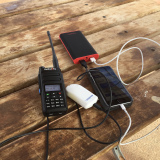
 The Radtel P8 PoC radio is a Push-to-Talk over Cellular…
 With digital radio changing so quickly, below is a bit…
 The thing with digital communications, it can be extremely complicated.…
 I have spoken to a few people who have felt…
 One of the most underutilised by very cool feature that…
 The new OpenSpot3 has come out with an internal battery.…
 I found it hard to find useful information on how to run the OpenGD-77 hotpot mode with Windows 10. At the time of writing this, there is a lot about this topic using a pistar and even android or ISO, but not much with Windows 10. This is my experence with BlueDV and Open GD-77 using a Windows 10 PC.…
 Starting in digital can be a little overwhelming to start with, no matter how many years you have had your licence.…


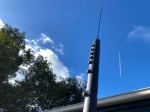

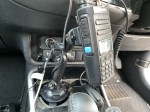
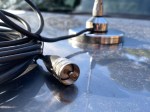








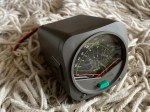


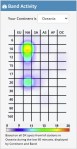


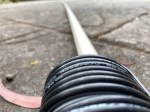


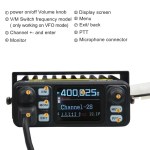


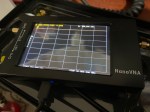
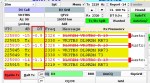
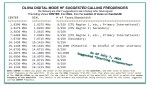


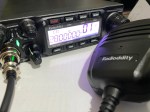

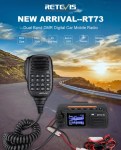

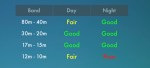
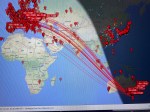
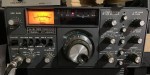


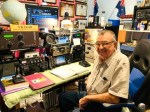


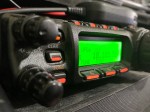



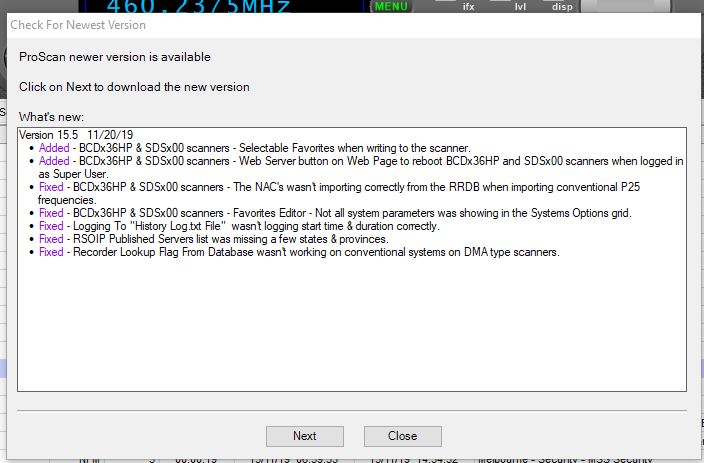

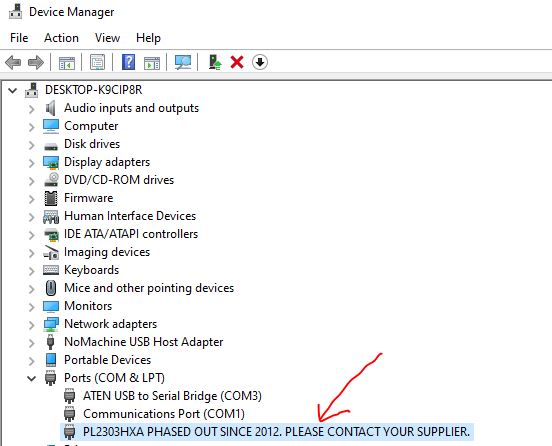
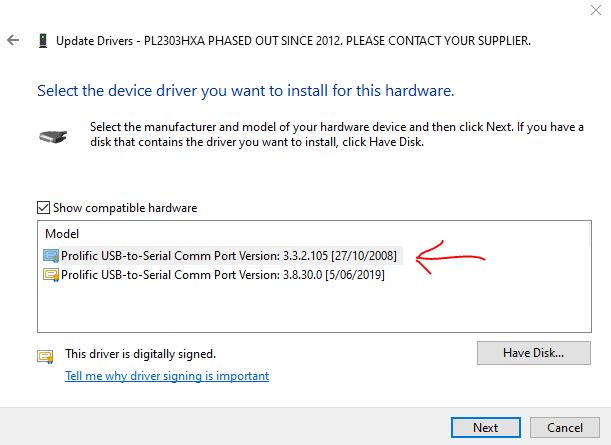


 VK3TBS