
I’ve been using EchoLink well before smartphones where the only way I knew how to connect to a different station was via the radio. The internet wasn’t as extensive as it is now and you had to dial the node you wanted via the radio. You can still do this today but I don’t think anywhere near as many do it.
I always felt EchoLink was well ahead of its time. Started well before any digital radio was thought of. Connecting the world via the internet.
It was great to be able to talk to the UK or States while mobile on the way to work just using a small whip antenna on the car.
Given I’m in Australia, it can be difficult to remember when overseas nets are on, or what part of the world is awake and up for a chat and which ones are not. But EchoLink has a CQ feature.
Calling CQ
EchoLink had a CQ feature where you can call CQ and it will automatically connect to someone who is calling CQ also.
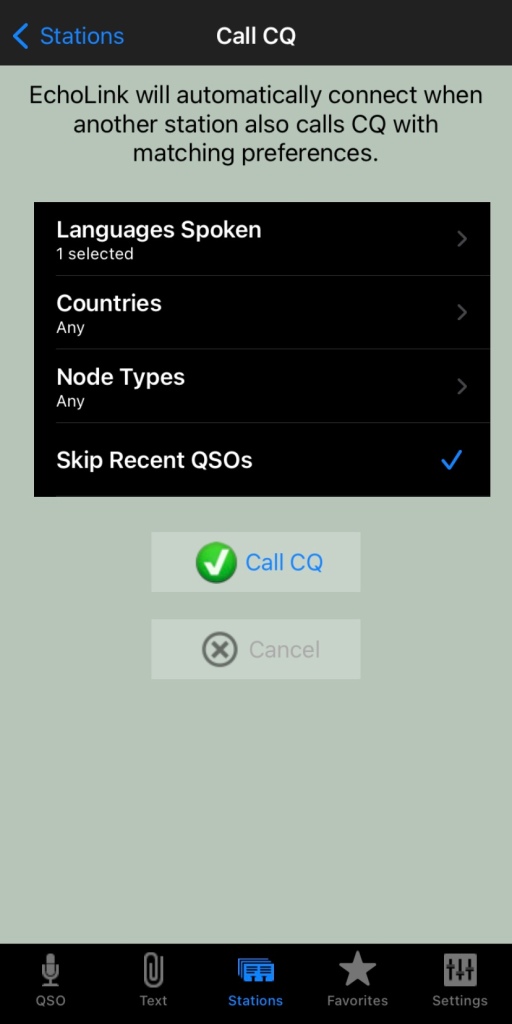
From the Stations screen select call CQ.
- Then select your language.
- Select the country, if you leave it as any, you will not limit your connection options
- Select the node type, again, leave as any to start with
- And you can skip recent if you want to.
Then press Call CQ
It will call CQ for a while searching for a connection that matches your settings. I find that sometimes it tries to connect to another node but can fail. This is perhaps because the connection drops out for whatever reason. Just try again.
The good thing about this option is you will get someone who is wanting to talk to someone just like you do!
What is your experience with EchoLink? What is your favourite nodes? Why don’t you put it in the comments below so we can all learn from your experiences.
Some similar reading
- Baofeng UV-5R Mini
 The Baofeng UV-5R Mini handheld radio is a popular and affordable dual-band amateur radio transceiver widely used by beginners and experienced ham radio operators. Designed as a compact version of the original UV-5R, this small…
 - Lightning Storm & HF Radio
 HF radio and lightning storms are closely connected because lightning creates strong radio frequency interference that affects HF radio communication (3–30 MHz). High Frequency radio is commonly used for amateur radio (ham radio), marine radio,…
 - OpenHamClock
 OpenHamClock is an open-source amateur radio dashboard designed as a modern successor to the original HamClock used by radio amateurs worldwide. It provides a real-time visual display of essential ham radio propagation data, world clocks,…
 - Radtel P8 PoC radio
 The Radtel P8 PoC radio is a Push-to-Talk over Cellular (PoC) device that looks like a traditional walkie-talkie but communicates using 4G/LTE mobile networks instead of UHF/VHF radio frequencies. This means its effective range is…
 - What is an Antenna Coupler
 An antenna coupler (also called an antenna tuner or matching network) is a device used in radio systems to ensure impedance matching between a transmitter and an antenna. Most transmitters are designed for a specific…
 - Antennas
 Amateur radio operators use many different antenna types, each designed for specific bands, space limits, and operating goals. Here’s a clear overview of the most common ones and why hams choose them. Wire Antennas These…
 - Dipole Antenna for Portable Use – Make your own!
 A dipole antenna is a basic radio antenna made of two conductive elements fed at the center. It is typically a half-wavelength long and is widely used as a reference antenna in antenna theory and…
 - Interference
 Interference in Amateur Radio refers to unwanted signals that disrupt radio communication. This interference can reduce signal clarity, make contacts difficult, or completely block communication between amateur radio operators. Radio Frequency Interference (RFI) is one…
 - 6m and TV Channel 0
 Prior to 1989, it was illegal to operate between 50 MHz and 52 MHz in Australia. It was a real pain as that was where all the action was when the band opened up. However,…
 - Dipole Antennas Vs Long Wire Antennas
 I’ve heard a lot about dipole antennas, and I’ve heard a lot about long wire antennas also. I would say I’ve seen more dipoles than long wire antennas. So why is that? What is the…






 VK3TBS