Band Stacking

Have you ever tried Band Stacking before? This is where you have three options per band every time you go to that band. For example, you may have one set up on SSB, one on CW and another on Data, all on the same band. You can easily switch between them all.

For example, if you are on 20 metres, press band and 14 again, and if band stacking is on, it will keep you on 20 metres but to the different stack. This different stack could have a different mode. You usually have three per band.

Have a look at the video for more on how to use it and turn it on:

If you enjoyed that, below are some more interesting reads you may enjoy:

  • DNR – Digital Noise Reduction
    As per the Yaesu FT-710 manual, the Digital Noise Reduction (DNR) system is designed to reduce the level of ambient noise found on the HF and 50 MHz bands. The (DNR) system is especially effective during SSB operation. Any of 15 different noise-reduction algorithms can be selected; each of these algorithms was created to deal…
  • Band Stacking
    Have you ever tried Band Stacking before? This is where you have three options per band every time you go to that band. For example, you may have one set up on SSB, one on CW and another on Data, all on the same band. You can easily switch between them all. For example, if…
  • The History Of Yaesu
    As licensed Amateur Radio operators, we have all heard about Yaesu. We have all seen a Yaesu radio and most of us have used and even own one. I’ve had and have several Yaesu radios. From extremely old ones full of valves and extremely heavy. One can only assume they were transported to where we…

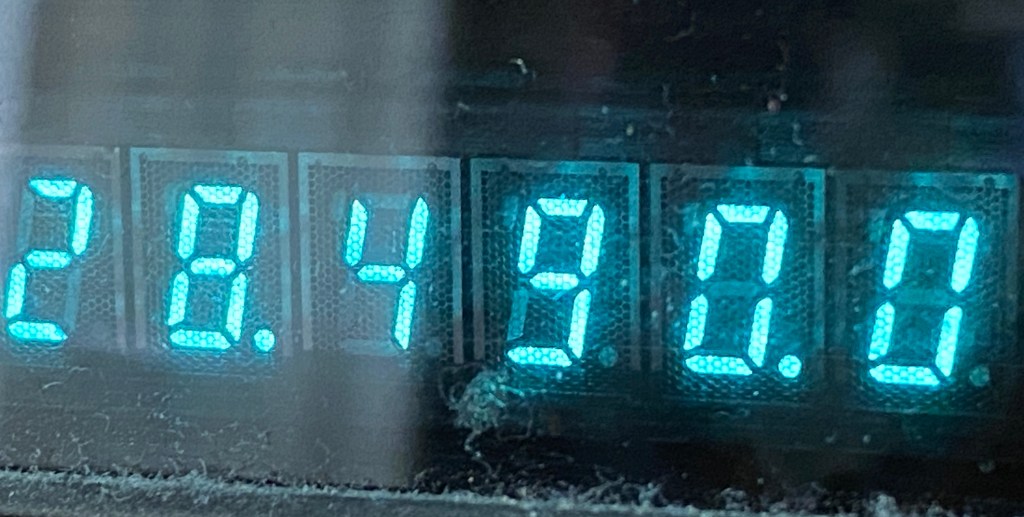
10 metres 28.490

On the 10-metre band, 28.490 is the unofficial calling frequency for Australia and New Zealand. This is interesting as the Band plans state it is 28.390 as the recommended intra-VK calling frequency.

That said, 28.490 is more recognised as the unofficial calling frequency down under.

Most amateurs down under will listen to 28.490 on ten metres and put out a call there, but then QSY to another frequency 10 or 20 kHz away either after making contact, or before contacting another station by announcing where you plan to go.


  • Using an Android TV Box for Ham Radio
    If you want to get onto Digital Radio for less (way less) than $100, then you may be interested in this. I have Apple equipment, and therefore miss out on a lot of the testing…
  • Orion Push to Talk
    Orion is an app that isn’t really known in my world, perhaps because it isn’t available on all platforms, or because it does transmit your exact location to everyone on the channel. However there are…
  • WizNet DMR
    The WizNet DMR app is still in beta testing, and at the time of writing this, you have to not only have a currently have a licence as an Amateur Radio Operator, but approved to…
  • The Radio Box
    How do you stop a hand held radio from falling and being damaged? Do you sometimes put the radio down on a bench or desk between overs or while you are waiting for someone to…
  • Amateur Radio Nets
    A list of Radio nets we have gathered from web pages around the world, as well as friends etc.…
  • USB Device Error PL2303HXA
    I went into the device manager and found the error, my cable no longer worked. This same issue happened to a USB Card reader also.…
  • The History of Ham Radio
    A good friend of mine, Mike VK5ZC, put the information below together and asked me to put it on my web site. He has spent a lot of time putting it together with pictures and videos, so I encourage you to have a good read.…
  • Basic Antenna Fundamentals
    A good friend of mine, Mike VK5ZC, put the information below together and asked me to put it on my web site. He has spent a lot of time putting it together with pictures and videos, so I encourage you to have a good read.…
  • Australian DMR Repeaters
    There are several DMR networks around the world, and more and more start all the time. The Australian DMR network currently covers the entire country and is for Australian residents only. It can often be…
  • BlueDV Windows 10 GD-77
    I found it hard to find useful information on how to run the OpenGD-77 hotpot mode with Windows 10. At the time of writing this, there is a lot about this topic using a pistar and even android or ISO, but not much with Windows 10. This is my experence with BlueDV and Open GD-77 using a Windows 10 PC.…

DNR – Digital Noise Reduction

As per the Yaesu FT-710 manual, the Digital Noise Reduction (DNR) system is designed to reduce the level of ambient noise found on the HF and 50 MHz bands. The (DNR) system is especially effective during SSB operation. Any of 15 different noise-reduction algorithms can be selected; each of these algorithms was created to deal with a different noise profile. You will want to experiment with the DNR system to find the best setting corresponding to the noise currently being experienced.

The DNR function can be operated individually for VFO-A band and VFO-B.

But have you ever tried this trick with the RF-Gain. Have a look at this video to see more:

Press the [DNR] key to enable the DNR operation. To disable DNR operation, press the [DNR] key once more. If you turn your RF gain back to 12 o’clock, it will sound super.

I would love to hear your views on this, and how you have used it. Please like or comment below.

If you enjoyed this read, here are some others you may like:

  • The History Of Yaesu
    As licensed Amateur Radio operators, we have all heard about Yaesu. We have all seen a Yaesu radio and most of us have used and even own one. I’ve had and have several Yaesu radios. From extremely…
  • Band Stacking
    Have you ever tried Band Stacking before? This is where you have three options per band every time you go to that band. For example, you may have one set up on SSB, one on CW and…
  • DNR – Digital Noise Reduction
    As per the Yaesu FT-710 manual, the Digital Noise Reduction (DNR) system is designed to reduce the level of ambient noise found on the HF and 50 MHz bands. The (DNR) system is especially effective during SSB…
  • Antennas
    Amateur radio operators use many different antenna types, each designed for specific bands, space limits, and operating goals. Here’s a clear overview of the most common ones and why hams choose them. Wire Antennas These are some…
  • Dipole Antenna for Portable Use – Make your own!
    A dipole antenna is a basic radio antenna made of two conductive elements fed at the center. It is typically a half-wavelength long and is widely used as a reference antenna in antenna theory and practice. Dipole…
  • Interference
    Interference in Amateur Radio refers to unwanted signals that disrupt radio communication. This interference can reduce signal clarity, make contacts difficult, or completely block communication between amateur radio operators. Radio Frequency Interference (RFI) is one of the…
  • 6m and TV Channel 0
    Prior to 1989, it was illegal to operate between 50 MHz and 52 MHz in Australia. It was a real pain as that was where all the action was when the band opened up. However, after many…
  • Dipole Antennas Vs Long Wire Antennas
    I’ve heard a lot about dipole antennas, and I’ve heard a lot about long wire antennas also. I would say I’ve seen more dipoles than long wire antennas. So why is that? What is the difference between…
  • The 6-Meter Amateur Radio Band
    What Is the 6m Band? The 6-meter band, spanning roughly 50–54 MHz, is a section of the VHF spectrum assigned to amateur radio operators. Its wavelength is six meters, and its position between HF and VHF makes…
  • 160 Meters Band
    160 meters band is known as the “Gentlemen’s band”. It is right next to the AM commercial band, known as medium wave. The 160-meter band is the radio frequencies between 1.8 and 2 MHz. For many decades…
  • Olivia Digital Mode MFSK
    Yes, this popular girl name is actually an Amateur Radio term. Christian, DK8EW, put me onto Olivia after we chatted on VARA HF. I had heard about Olivia before, but he encouraged me to give it ago.…
  • Yaesu FT-620
    The Yaesu FT-620 (and its updated version, the FT-620B) is a vintage amateur radio transceiver designed specifically for the 6-meter band (50–54 MHz). Produced in the 1970s, it offers support for AM, CW, and SSB (USB/LSB) modes, making it a versatile rig for its…
  • FreeDV
    I came across something different, FreeDV. The name FreeDV insinuates it is free, but is it? What is it? And what does it do? They say it will be the new SSB of radio. They say it…

Baofeng UV-17R Plus Series Review

I recently got my hands on a new Baofeng UV-17R Plus Series radio. It didn’t take long at all to arrive and was not expensive at all. People these days pay more for a UHF CB radio than a radio that does all this can do.

You can purchase it via this link: https://www.radioddity.com/products/baofeng-uv-17r-plus However, if you go via this link, you will get a discount: https://radioddity.refr.cc/bensangster

My last Baofeng radio is a GT-3TP which you can still purchase new.  It also works well and have always received good reports from it.

The UV-17R Plus is an upgraded version of the UV-17R handheld with the following: extras

  • an expanded receiving frequency band (encompassing aviation and police bands in the US),
  • an extended battery boost from 1800mAh to 2500mAh (that works out to about 40% more charge),
  • a quick USB-C charging plug and cord, and
  • it also has a new voice scrambler function.

Some of the things I liked with the new UV-17R Plus Series includes:

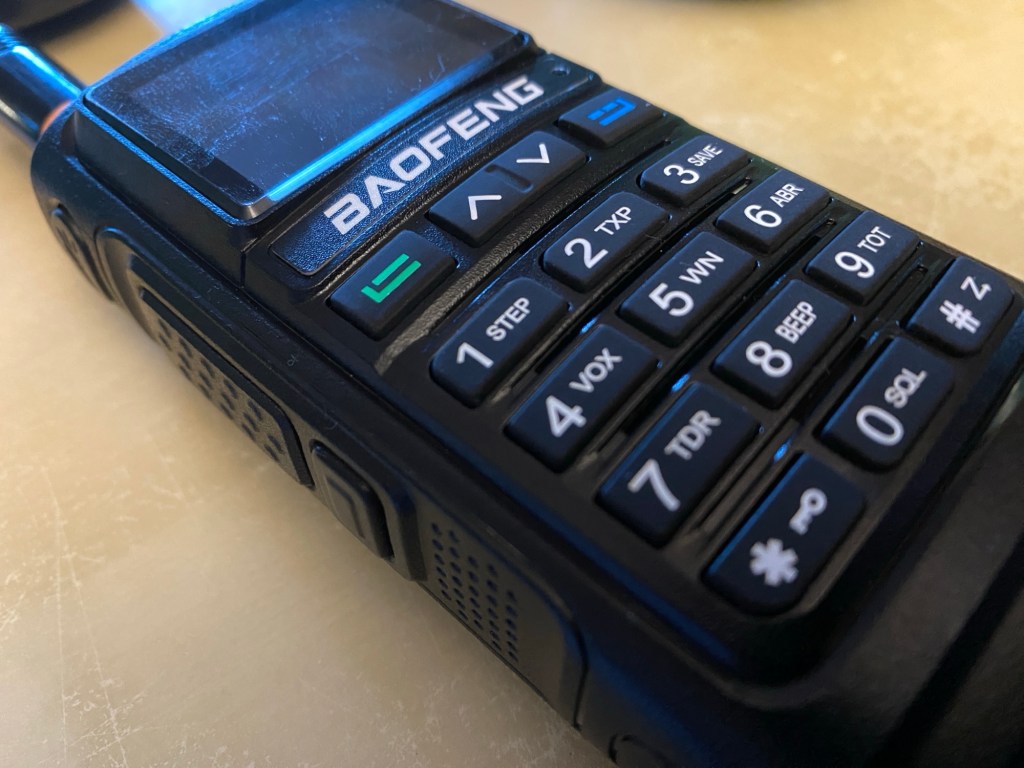
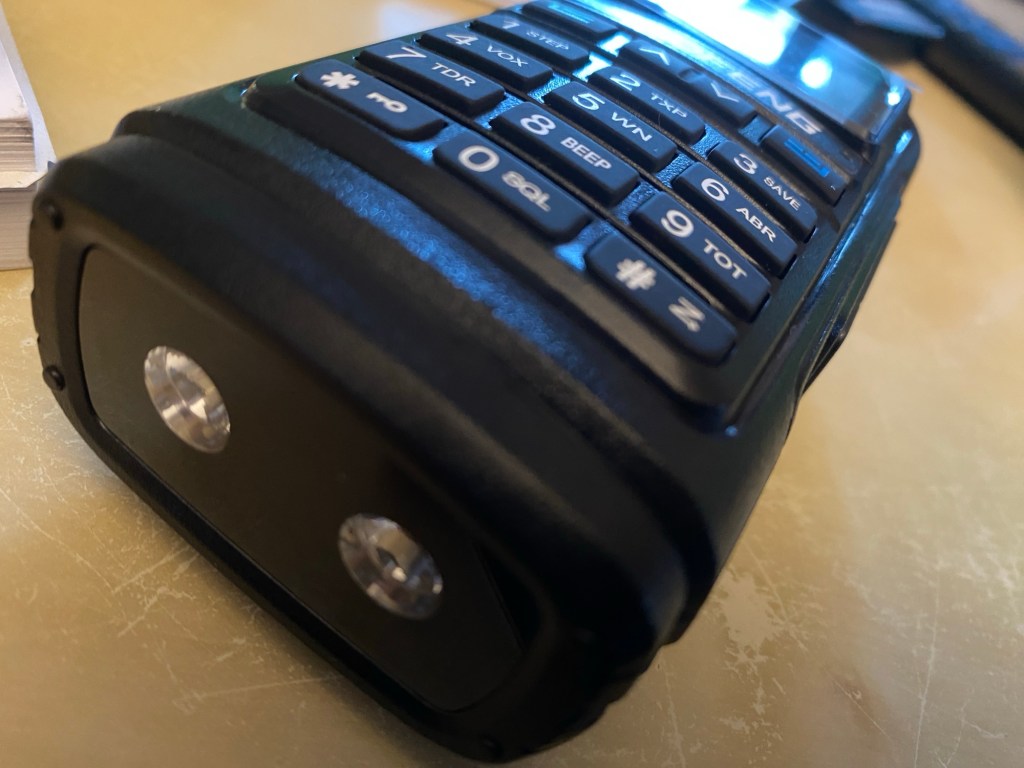
  • The look and feel of the radio.  This includes the bright display, feel and position of the buttons, large LED lights, and easy antenna swapping as the area is wide. I also like the speaker behind the keypad, this saves room and is an area you never cover with your hand either. The text on the display is far easier to read than older models inside and in the sunshine.
  • The new USB-C charging is so much better.  You don’t have to bring a charging cradle anymore when you leave the house, and can even charge it in the car easily.
  • Customising DTMF is easy via the # key. It will also search for a used frequency then will display what CTCSS or DTMF is used. This can quickly be saved as a channel also.
  • Secure conversations – I couldn’t test this as I only have one radio, but agree this is a good feature. However, I did talk on it myself and my digital scanner couldn’t decode it.
  • The weather feature would be good if you are in a country that uses it.  Australia does not. I could see this being a great radio in an emergency with the LED lights.
  • The user manual is well put together and entirely in English.  A PDF version is available online also.
  • The radio can be programmed directly, or your PC via several different software options. I have done a video on this below if you want to see this.
  • It comes with an 18-month warranty.

Here is a video where I unbox the radio and show what is included in the package. If it is helpful to you, please press the like button.

The video below is an overview summary of this radio. I’d recommend watching it as it has more details than posted here.

Below is another video showing some of the features that the radio has. While I don’t show you them all in action, it will at least give you an idea of how the radio works.

If you want to get connected into the Baofeng community, have a look at this groups id where others comment and are there to help. https://groups.io/g/BaufangRadios

This is a great radio for the price. It does far more than I thought it would and I am sure will get a lot of use out of it. I was initially concerned it may be hard to use because of the price, however, was pleasantly surprised how easy it was to program.

Below is a video I did showing you how to program the radio via a PC using Chirp-Next.

Programming Tip

Did you know you can program this radio via chirp? Here is a tip you may like.

Hope you have got something from this to help you in the hobby. If you go via this link, you will get a discount: for this radio and anything else on their website https://radioddity.refr.cc/bensangster

There is also a new group io you can join if you want https://groups.io/g/BaofengRadios

If this has been helpful, please let me know. Perhaps you have one of these radios and have thoughts of your own, I would value your commitments below.

Other reads

If you enjoyed this review, please see below some of my other articles.

  • Using an Android TV Box for Ham Radio
    If you want to get onto Digital Radio for less (way less) than $100, then you may be interested in this. I have Apple equipment, and therefore miss…
  • Orion Push to Talk
    Orion is an app that isn’t really known in my world, perhaps because it isn’t available on all platforms, or because it does transmit your exact location to…
  • WizNet DMR
    The WizNet DMR app is still in beta testing, and at the time of writing this, you have to not only have a currently have a licence as…
  • The Radio Box
    How do you stop a hand held radio from falling and being damaged? Do you sometimes put the radio down on a bench or desk between overs or…
  • Amateur Radio Nets
    A list of Radio nets we have gathered from web pages around the world, as well as friends etc.…
  • USB Device Error PL2303HXA
    I went into the device manager and found the error, my cable no longer worked. This same issue happened to a USB Card reader also.…
  • The History of Ham Radio
    A good friend of mine, Mike VK5ZC, put the information below together and asked me to put it on my web site. He has spent a lot of time putting it together with pictures and videos, so I encourage you to have a good read.…
  • Basic Antenna Fundamentals
    A good friend of mine, Mike VK5ZC, put the information below together and asked me to put it on my web site. He has spent a lot of time putting it together with pictures and videos, so I encourage you to have a good read.…
  • Australian DMR Repeaters
    There are several DMR networks around the world, and more and more start all the time. The Australian DMR network currently covers the entire country and is for…
  • BlueDV Windows 10 GD-77
    I found it hard to find useful information on how to run the OpenGD-77 hotpot mode with Windows 10. At the time of writing this, there is a lot about this topic using a pistar and even android or ISO, but not much with Windows 10. This is my experence with BlueDV and Open GD-77 using a Windows 10 PC.…

Radioddity GD77

After using this radio for years, this is my summary on how I find it.

While I want to replace it to a base station that puts out more power, I don’t want to lose the OpenGD77 firmware. Can you suggest a radio that would work for me where you can manually type in any talk group? It would be a base station radio that puts out 10 or more watts.

If you enjoyed this, here are some other things I have posted:

Retevis RT73 – Kydera CDR300UV

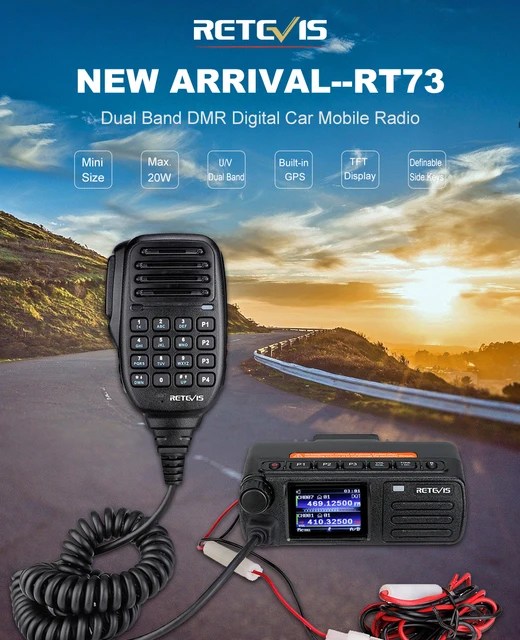
The Retevis RT73 and Kydera CDR300UV are identical radios. They are a DMR/FM duel band radio for Amateur radio use. This is great, as most of the early DMR radios available were commercial radios that were used for Amateur operations.

At time of writing this, the radio is one of the smallest dual band DMR mobile I’ve seen, about the size of a handheld.

Some of the features include:

  • DMR / Analog
  • Dual Timeslot (MotoTRBO compatible)
  • VHF / UHF Dual Band
  • Size: 121 x 76 x 43mm, 4.75 x 3.0 x 1.7″
  • Weight: 329g, 11.6oz
  • 136-174 400-480 MHz
  • 5W-20W transmit
  • FM radio receive
  • 300,000 DMR DB IDs (w/ Latest FW/SW)
  • 20,000 call groups
  • 4000 channels
  • Analog APRS
  • 16 zones (250 Chan / zone)
  • Built in GPS
  • DMR roaming

Included with the radio in the box are:

  • Microphone (DTMF currently doesn’t work but may be fixed with a future update)
  • Mounting bracket and screws
  • 2m 12V power cord
  • 60-page user guide – 6 languages
  • GPS antenna
  • Programming cable (optional – but you may already have one)

There are three programable keys along the top along with other buttons. These buttons respond differently to long and short presses. The speaker is on the front making it easy to mount, however the speaker microphone can also be a speaker if you want it to be. There are two power levels, 5W and 20W.

The display is small, but it is a small radio. However, the 2″ screen is bright and colourful. It is easy to navigate also with icons on the main menu.

Programming can be a bit tricky if you use the normal software, however there are a few alternatives. The good news is the software is free. Some do not allow you to export or import, and when you want to add a channel, it has to be added to the end, not between.

I would recomend Codeplug Editor by David MM7DBT as it has an easy tabulated menu system that guides you through each step of programming this radio.

Some other things you should know:

  • Listen in single channel or dual channel mode
  • Has promiscuous mode for DMR, however it is only on the one timeslot even in dual mode which is a pain.
  • You will need to make sure you are on the latest firmware for everything to work correctly (eg APRS).
  • You can adjust the TX audio for DMR and analog. This may need adjusting when you first get it.
  • Colour display that is easy to use, but can be hard to see from a distance or in a car.
  • You can program in zones, which is great. So you can turn them on or off.
  • Small design so easy to mount in the car

It is clear from other reviews that this radio had and has some bugs. But as more firmware updates gets pushed out, the better the radio becomes. This is mainly about GPS and APRS making the radio slow or even take over. However, most reviews admit with the latest firmware, the problem has been fixed.

If you enjoyed this read, please subscribe so you do not miss out on any other posts we put here. There are some other articles you may find of interest below:

  • Antennas
    Amateur radio operators use many different antenna types, each designed for specific bands, space limits, and operating goals. Here’s a clear overview of the most common ones and why…
  • Dipole Antenna for Portable Use – Make your own!
    A dipole antenna is a basic radio antenna made of two conductive elements fed at the center. It is typically a half-wavelength long and is widely used as a…
  • Interference
    Interference in Amateur Radio refers to unwanted signals that disrupt radio communication. This interference can reduce signal clarity, make contacts difficult, or completely block communication between amateur radio operators.…
  • 6m and TV Channel 0
    Prior to 1989, it was illegal to operate between 50 MHz and 52 MHz in Australia. It was a real pain as that was where all the action was…
  • Dipole Antennas Vs Long Wire Antennas
    I’ve heard a lot about dipole antennas, and I’ve heard a lot about long wire antennas also. I would say I’ve seen more dipoles than long wire antennas. So…
  • Repeater-START
    Repeater-START is a multi-platform app designed for ham radio and radio-operator enthusiasts who need fast access to repeater information. The app provides a detailed repeater map as well as…
  • The 6-Meter Amateur Radio Band
    What Is the 6m Band? The 6-meter band, spanning roughly 50–54 MHz, is a section of the VHF spectrum assigned to amateur radio operators. Its wavelength is six meters,…
  • Anytone AT-778UV
    Overview The Anytone AT-778UV is a dual-band VHF/UHF mobile transceiver designed for amateur radio operators. It operates on the 136–174 MHz (VHF) and 400–490 MHz (UHF) bands, offering reliable…
  • 160 Meters Band
    160 meters band is known as the “Gentlemen’s band”. It is right next to the AM commercial band, known as medium wave. The 160-meter band is the radio frequencies…
  • What does this Antenna do?
    Have you ever had an antenna and forgotten what it is for? Maybe you have been given one and wasn’t told exactly what it was used for. I got…

Converting dB to S-metre

The S-meter is an instrument on most radio receivers that measures the strength of the signal being received. It uses a unit: the S-point. HF radios usually have a needle scale, whereas other bands often have LEDs displaying the S-Points.

S-Points is the common method of measuring signal strength between operators, however many programs like WSJTX use dB. So how do you convert between dB and S?

S-points go from S1 to S9, and each S-point is defined as a 6 dB change in signal strength. Therefore, each time the voltage is halved (–6 dB) the signal strength decreases by one point. S9 is already a very strong signal, but to describe larger signals, steps of 10 dB are used instead of 6 dB, noted “S9+20” meaning 20 dB above S9.

S-points for frequencies below 30 MHz

Signal strengthRelative intensity
S1–48 dB
S2–42 dB
S3–36 dB
S4–30 dB
S5–24 dB
S6–18 dB
S7–12 dB
S8–6 dB
S90 dB
S9+1010 dB
S9+2020 dB
S9+3030 dB
S9+4040 dB
S9+5050 dB
S9+6060 dB

S-points for frequencies above 30 MHz:

Signal strengthRelative intensity
S1–48 dB
S2–42 dB
S3–36 dB
S4–30 dB
S5–24 dB
S6–18 dB
S7–12 dB
S8–6 dB
S90 dB
S9+1010 dB
S9+2020 dB
S9+3030 dB
S9+4040 dB
S9+5050 dB
S9+6060 dB

Hopefully, this helps answer the question how to convert a dB signal strength to a S1 to S9 signal strength.

If you enjoyed this read, there are some others below you may enjoy. Please put your email address in the subscribe area if you want to keep updated with all the updates.

  • Antennas
    Amateur radio operators use many different antenna types, each designed for specific bands, space limits, and operating goals. Here’s a clear overview of the most common ones and why hams…
  • Dipole Antenna for Portable Use – Make your own!
    A dipole antenna is a basic radio antenna made of two conductive elements fed at the center. It is typically a half-wavelength long and is widely used as a reference…
  • Interference
    Interference in Amateur Radio refers to unwanted signals that disrupt radio communication. This interference can reduce signal clarity, make contacts difficult, or completely block communication between amateur radio operators. Radio…
  • 6m and TV Channel 0
    Prior to 1989, it was illegal to operate between 50 MHz and 52 MHz in Australia. It was a real pain as that was where all the action was when…
  • Dipole Antennas Vs Long Wire Antennas
    I’ve heard a lot about dipole antennas, and I’ve heard a lot about long wire antennas also. I would say I’ve seen more dipoles than long wire antennas. So why…
  • Repeater-START
    Repeater-START is a multi-platform app designed for ham radio and radio-operator enthusiasts who need fast access to repeater information. The app provides a detailed repeater map as well as a…
  • The 6-Meter Amateur Radio Band
    What Is the 6m Band? The 6-meter band, spanning roughly 50–54 MHz, is a section of the VHF spectrum assigned to amateur radio operators. Its wavelength is six meters, and…
  • Anytone AT-778UV
    Overview The Anytone AT-778UV is a dual-band VHF/UHF mobile transceiver designed for amateur radio operators. It operates on the 136–174 MHz (VHF) and 400–490 MHz (UHF) bands, offering reliable two-way…
VARA – VARAC

Ever heard this sound on HF / VHF / UHF? I know I have more and more recently.

Listen to the strange data sounds you can hear

After a bit of research, someone told me it was VARAC. https://www.varac-hamradio.com/ As I understand it, the project started with Irad Deutsch 4Z1AC. It is free of charge for amateur radio operators.

This software provides text base communications over HF / VHF / UHF bands (and a few more also!). It is a bit different to FT8 FT4 JT8 etc as this not only gives you a signal report, but you can do a lot of cool things and really make some good friends in the process. I know I have in just the first 2 days. You can type in real time via your radio, and even see when the other person is typing. You can send files, and emails also and send out a beacon every 15 minutes to let people know you are there or see who can hear you on PSK. The software will also let people know when you hear them automatically.

You need the software VARA HF to decode it. VARA HF is essentially a software modem. Whereas VARAC is the chat-based software.

Downloading

Simply go to the address https://www.varac-hamradio.com/download and download the appropriate version. You can download HF or FM depending on what mode you will be using. Down the bottom of this page you can put in your email address and they will send you instructions.

Setting Up VARA HF

VARA FM is also available to be used with UHF and VHF. There is also VARA SAT for geostationary Sat.

VARA HF (as well as VARA FM and VARA SAT) is essentially a software modem that connects your radio to the VARA AC software. VARA HF is for HF only and this is the one I am using and talking about here. Though I understand the others are the same concept, just different radios.

Once installed, select settings, then sound card and update to the settings you use. If you are not sure what device to add, then have a look at windows device manager. Then put in your call sign and registration Key. If you don’t have one, you can just use your call sign for a period. This part of the software you will have to buy at some point, but you get a while to try it before you have to and it really isn’t expensive. There are updates all the time by the look of what is posted on Facebook.

Setting Up VARAC

Go to settings then Rig Control and VARA configurations. Here we need to set the PTT configuration up the top left of this screen. This will be how the software connects to your radio. You also need to setup the frequency control section. Once setup, press the save and exit button.

Using VARAC

Each band has a calling frequency, which you can select up the top left of the default screen via the drop-down box. On the calling frequency, you can receive calls which will be shown on the top blue box. While on the calling frequency, other users can get an automatic signal report from you, or even ping you to see if you are there.

The above picture is the main screen in advanced mode (you can see I have it ticked up the top right). The lower blue box shows that I have sent a beacon, and about to send another one. Prior to that I had a 15min conversation with VK3FFB.

The box up the top right shows anyone currently calling CQ (currently none in the above example, but the band was a bit dead), and the box next to that is the two beacons I can pick up with their signal strength. You can see on the top left I am on the calling frequency of 28.105 Mhz.

If you click on someone calling CQ, VARAC will attempt to connect with that station via the same slot that they are on. The slots are just a different frequency to the main calling frequency.

When calling CQ yourself, you press the purple CALL CQ button then check which slots are available. Select a slot then press the sniffer button and listen to your radio to check no one is there. Remember to turn the volume up for this! If there is traffic on that selected slot, select another slot and sniff that one. Once you have found one, you can press CALL CQ on that box.

VARA AC will now call CQ on the calling frequency then receive on the chosen slot. Should someone join you, you will see it on the bottom blue screen. You can type whatever you want in the bottom new message box and press send, and you can do it for as long as you want, it is not like FT8 with just a signal report. You can also see when the other person is typing a message (if enabled).

You can also send files to each other should you want to. I like to send a QSL card. On the right you can see Send VMail, or you can set yourself to away.

Just above the new message box to the far right, are some canned messages. You can edit these via the settings menu. These will send pre-populated information about yourself to the other person, like your name, QTH, Location and your power. This information will then auto populate on their screen in the boxes just above the New Message box. If they send you one back, it will auto populate on yours so you can either auto log or press log to log the contact with all the information received. This logged information can then be used for a variety of logging programs.

If you are logging on QRZ, you will find VARAC under Dynamic mode.

PSK

One extra feature is you can go to https://pskreporter.info/pskmap.html and put in your call sign and then select VARA. Every 15 minutes VARAC will send out a ping and on PSK you can see who heard you around the world on the map. This 15-minute time can be adjusted in the settings window down the bottom right.

VarAC Do’s and Don’ts

Here is a copy of the code of conduct that should get emailed to you if you put in your email address. Make sure you have a good read as you don’t want to be the one everyone talks about for the wrong reason!

The Don’t: Don’t jam the Calling Frequency (CF). Don’t hold it for more then a few minutes or more then necessary.

The Do: Started a QSO on the CF? It’s OK, but QSY as soon as possible. You have QSY UP/Down buttons or a free-form QSY button where you can select your desired QSY frequency.

The Don’t: Don’t use the PING feature for DXCC/Grid hunting. Pings are not registered as QSOs as only one side sends an SNR report.

The Do: Use PING only as tool to check the link quality with your desired destination.

The Don’t: Don’t use 2300Hz BW on the VarAC CF or on any of the slots.

The Do: Use Only 500Hz on VarAC CF and slots to avoid QRM-ing nearby VarAC QSOs. Use 2300Hz only outside of the slot frequencies.

The Don’t: Don’t QSY to a frequency without checking if it is free.

The Do: VarAC provides you with Sniffers. Right-click on the QSY Up/Down buttons will temporarily QSY to the destination frequency (without keying your PTT) so you can listen before QSY-ing. Same goes for calling CQs: Use the CQ slot sniffer.

The Don’t: Don’t try to send large files over HF. And if the link is slow – don’t send files at all. It will never end. And PLEASE don’t send files over the CF.

The Do:  Send files up to 5-10K in high speed and no more than 1-2K in low speed and always on non CF frequencies.

Other information

There is a lot more to learn about VARC, but hopefully this helps as a starting point. Please let me know in the comments if it helped you. I do hope to do a video on it soon.

Special thanks to Irad Deutsch 4Z1AC who helped me in answering questions for this review.

Below are some other interesting reads you may enjoy also.

DXHeat.com

DXHeat.com is a great website that can update you the current conditions on each band. The website has filtering of incoming DX Spots which can be displayed instantly using great graphical tools.

From the main landing page dxheat.com you can do a search by call sign or open DX Cluster. You can also scroll down to see more information.

Callsign Search

By typing in a call sign, you will see a lot of information instantly about that person. Some of the graphs are interesting as it shows how often the selected user does DX Spots by date, by band and what Continent they have been heard in.

It then shows what DX spots this user as submitted by time, band, and Continent.

DX Cluster

This is the best part of the website.

In the middle you can see live data. You can apply filters as required on the left side. On the right is the current UTC time and a lot of other interesting things.

On the right is a Propagation box which is helpful.

Also on the right is a Band Activity box which is great and perhaps the best part of the website.

This graph is powerful and shows you instantly where the bands are open.

Select your area via the drop-down box. I have selected Oceania in the example shown. You can see the band is open on 10 metres to NA, which is North America, and slightly open to NA on 20 metres also.

10 minutes before I took this screen dump, 10 metres was in the red to North America, so it changes live. 10 minutes after this screen dump, 20 metres was in the purple meaning conditions were getting harder, however 10 metres became a solid red.

20 minute later after the above screen dump, I took the following one on the right.

Now you can see 10 metres to North America is strong, and 20 metres is not even showing anymore. 15 metres is also on the graph now potentially growing in strength.

Asia is also starting to show signs of colour on 17 metres which it wasn’t before.

While these graphs are powerful, they are limited to the amount of activity on the band. For example, if no one picks up a microphone, then there is still no one to listen to.

It is a great starting point though and displayed very well. I would love to embed this on my QRZ page if anyone knows how.

The main text in the screen, you can hover over the green boxes and filter according to that box. Up towards the top, there is a mode section on the left side with green boxes, you can filter by them also. You can filter via region and band also.

Login

At the top of the screen is a login/sign up option. I would encourage you to create an account. Simply put in your email and password, then confirm it and you will be able to update your profile. You will then have an opportunity to adjust your display DX-Cluster settings as you like.

Other websites

There are other websites that show similar information in a different format that include:

Other interesting reads:

Did you enjoy this read, below are some other interesting topics you may enjoy also:

  • Antennas
    Amateur radio operators use many different antenna types, each designed for specific bands, space limits, and operating goals. Here’s a clear overview of the most common ones and why hams…
  • Dipole Antenna for Portable Use – Make your own!
    A dipole antenna is a basic radio antenna made of two conductive elements fed at the center. It is typically a half-wavelength long and is widely used as a reference…
  • Interference
    Interference in Amateur Radio refers to unwanted signals that disrupt radio communication. This interference can reduce signal clarity, make contacts difficult, or completely block communication between amateur radio operators. Radio…
  • 6m and TV Channel 0
    Prior to 1989, it was illegal to operate between 50 MHz and 52 MHz in Australia. It was a real pain as that was where all the action was when…
  • Dipole Antennas Vs Long Wire Antennas
    I’ve heard a lot about dipole antennas, and I’ve heard a lot about long wire antennas also. I would say I’ve seen more dipoles than long wire antennas. So why…
  • Repeater-START
    Repeater-START is a multi-platform app designed for ham radio and radio-operator enthusiasts who need fast access to repeater information. The app provides a detailed repeater map as well as a…
  • The 6-Meter Amateur Radio Band
    What Is the 6m Band? The 6-meter band, spanning roughly 50–54 MHz, is a section of the VHF spectrum assigned to amateur radio operators. Its wavelength is six meters, and…
  • Anytone AT-778UV
    Overview The Anytone AT-778UV is a dual-band VHF/UHF mobile transceiver designed for amateur radio operators. It operates on the 136–174 MHz (VHF) and 400–490 MHz (UHF) bands, offering reliable two-way…
  • 160 Meters Band
    160 meters band is known as the “Gentlemen’s band”. It is right next to the AM commercial band, known as medium wave. The 160-meter band is the radio frequencies between…
  • What does this Antenna do?
    Have you ever had an antenna and forgotten what it is for? Maybe you have been given one and wasn’t told exactly what it was used for. I got given…

NanoVNA-H 4 Antenna Analyser

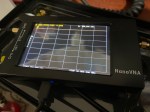
The Nano VNA-H 4 is my new toy that has just arrived after purchasing via Banggood. This Antenna Analyser is a complicated device, but doesn’t have to be, and can be a powerful tool for the Amateur Radio hobbyist.

My NanoVNA H-4

Charging the device

Your NanoVNA should come with a USB cord. To charge it, simply plug one end into the NanoVNA box and the other end into a USB charger. A blue light should come on near the charging port.

Analysing an Antenna

The main thing we mostly want it to do is to analyse our antennas. So, let’s start off by looking at how we do that.

To analysing an antenna, we need to understand what the three SMA connectors are. There are three of them.

If you look at the bottom of each connector, you can see they are all different.

  • Open – this one is open and is like an open hole. I remember this one with the route hole which looks like an O for Open.
  • Short – this one has a short stick sticking out and a shiny surface around it. The shiny service reminds me of short. As in S for shiny and S for short.
  • Load – this one is usually grey where the others are golden. It has a stick like the short one, but has plastic around it. It should measure as a 50 ohm load.

On your NanoVNA device, there are two SMA connectors. One that says CH0 and one that says CH1. For this experiment, we will only use CH0. The three connectors can be fitted as needed onto the CH0 SMA connection. Make sure you only put it on finger tight so you can get it off.

Turn on the NanoVNA device by sliding the switch away from the SMA connectors.

The display will look very confusing showing you heaps of information. So to simply the display, touch the screen up the top right corner and a menu will appear. If you don’t have a stylis, then you can use the blunt end of a pencil, or on the wrist band holder that comes with the device, is what looks like a guitar pluck, you can use that.

Press DISPLAY, then TRACE, and now you will see TRACE 0, TRACE 1, TRACE 2, TRACE 3 with colours on them. These colours reflect the colours of the graph currently on display. We currently have all four on, so lets turn most of them off. Press TRACE 1 twice to turn that off. If you press it to many times, it will turn on again, so press it again to turn it off. Do the same with TRACE 2 and Trace 3 so there is only TRACE 0 with one yellow line on. Now the display should look a lot more simple.

Now press the BACK menu option to return to the first menu. You can click anywhere else on the screen away from the menu to remove the menu.

Calibrate the NanoVNA

The first thing we must do is calibrate the NanoVNA. We need to calibrate the device to make sure it is right. If we are analysing between a set of frequencies, it will do one hundred calculations between them when analysing your antenna, so we need to calibrate it first between the set frequencies.

Setting up the frequency range

We first need to set up the frequency range we want to calibrate our antenna on.

Select the STIMULUS menu item. If you cannot see it, then press BACK first. Once in the STIMULUS menu, you will see START and STOP at the top of the menu. Select START and put in the start frequency via the numbers, then press either G = gigahertz, M = megahertz, k = kilohertz. The screen down the bottom left should now say START and the frequency you just entered.

Now press on the upper right of the screen and press STOP and enter the upper frequency. You should now see the frequency range you just set down the bottom of the screen.

Now we can calibrate between these frequencies.

Click up the top right to display the menu. You will not see Calibrate on the displayed menu, so press the BACK option. Now you see CAL which is calibrate.

Press CAL, then RESET to clear the device. Then press CALIBRATE to go into the calibrate menu which is listed in the order in which you want to calibrate in.

Attach the open connector (as shown above) and attach it to CH0 (hand tight only). Then press OPEN. It will only take a second and once done, OPEN will go black, and SHORT will go blue.

Now put the Short SMA connector on, then press SHORT.

Now put the Load SMA connector on, then press LOAD.

As we are doing a SWR test only, just click ISOLN then THRU and DONE while the load SMA connector is on.

You can now press SAVE 0 so next time you turn on your device, it will load this settings as you saved it in SAVE 0.

Up the top left of the screen will probably now say CH0 LOGMAG. This is not what we want to test.

Press the screen up the top right to display the menu, press DISPLAY then FORMAT, and then we get a few choices on what we want to display. For this example, we want to display SWR so press that. It should now say SWR at the top left of the screen. If we still have our load SMA connector on, you will see the yellow line is 1 right across the graph.

Take the load SMA connector off and plug in your antenna. You may need a SMA connector converter.

Looking at your screen now, the top left in yellow will tell you how many each vertical line is. For example if it says SWR 10 in yellow then each line is 10. So we need to change the scale. Press the top right of the screen to get the menu, press BACK several times until you see DISPLAY, then press it, then SCALE. In there is SCALE/DIV which is scale per division line. By pressing that we can change the value which in turn will update the graph.

If you change the SALE/DIV to .25 then press x1, it will mean each horizontal line is a quarter of a SWA. The bottom line will be 1, the next line will be 1.25, the next will be 1.5, then 1.75 and the middle line will be 2. So anything above the centre line is bad, but above it is good.

The graph will clearly show you the frequencies that the antenna is tuned for. You should now change the frequency range to these areas to get a better reading for that area and see if you can improve it further.

You can do this by bring up the menu again, pressing BACK until you see STIMULUS, press it, then change the START and the STOP to the new range you want. We do not need to calibrate again as this new frequency range is within the original calibration.

Using the Marking

There is a little marker on the graph. If you move the marker across the screen by either clicking it and dragging it or using the paddle near the on/off switch, you can move the marker across your graph. As you move the marker, the actual SWA will update up the top of the screen.

Just remember the above is the simplest option to use the NanoVNA, there are lots more you can do with it and if you subscribe to my page, you will get them as I learn them also.

See the video

Below are some related articles

  • Antennas
    Amateur radio operators use many different antenna types, each designed for specific bands, space limits, and operating goals. Here’s a clear overview of the most common ones and why hams choose them. Wire Antennas These are some…
  • What does this Antenna do?
    Have you ever had an antenna and forgotten what it is for? Maybe you have been given one and wasn’t told exactly what it was used for. I got given an antenna at at ham fest because…
  • Daiwa CN-460M Meter
    The Daiwa CN-460M is a small cross-needle meter displays both forward and reflected power for 2m and 70cm. It measures in ranges of 15/150 watts forward and 5/50 watts reflected. SO-239 jacks. It includes a mobile mounting bracket and…
  • Do you cut or lengthen the antenna?
    When measuring SWR, I always forget if I should lengthen or shorten the antenna. So rather than jump around the bush, I will get to the answer straight away. The graph below will help you always remember.…
  • NanoVNA H4 USB Control to PC
    If you haven’t seen my previous blog on the NanoVNA Analyser, then I suggest you look at that first before reading this blog. This one will talk about how to connect your NanoVNA to your PC via…
  • My Radio Diddity GD-77
    Starting in digital can be a little overwhelming to start with, no matter how many years you have had your licence.…
  • Updating GD-77 Firmware
    Updating the firmware on the GD-77 can be daunting, as you can easily “brick” your radio. So be extremely careful. Make sure you understand why you are updating your firmware first. Since there is the option of…
  • Chirp
    CHIRP is a free, open-source tool for programming your amateur radio. It supports a large number of manufacturers and models, as well as provides a way to interface with multiple data sources and formats. Supported Radios Supported…
  • Power without Power
    In 2019 my family and I went on a five week trip through outback Australia to some of the remotest parts. We had no access to power, reception, food or water for days. We took what we…
  • Welcome to the site
    Hi there from Down Under, Melbourne Australia. Thank you for visiting my radio web site. Below is what items by category is available on this web site. Thanks again for visiting. This web site is still being…
  • Using an Android TV Box for Ham Radio
    If you want to get onto Digital Radio for less (way less) than $100, then you may be interested in this. I have Apple equipment, and therefore miss out on a lot of the testing apps that…
  • Orion Push to Talk
    Orion is an app that isn’t really known in my world, perhaps because it isn’t available on all platforms, or because it does transmit your exact location to everyone on the channel. However there are some benefits…
  • Mini Keyboard Options
    I bought this wireless keyboard/mouse which was very cheap. It does not come with batteries, but come with a USB dongle. It has a fantastic range since it is 2.4GHz RF. The back also has good grip which apparently isn’t common on all models. You can select what colour you want the plastic to be also.…