Baofeng UV-17R Plus Series Review

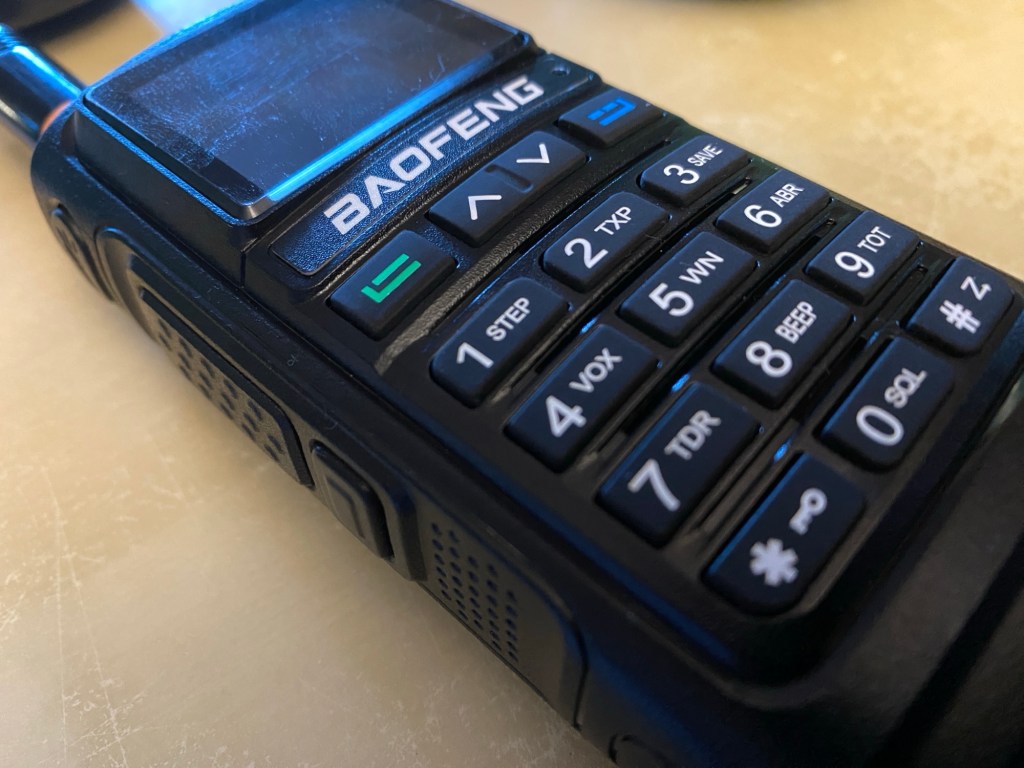
I recently got my hands on a new Baofeng UV-17R Plus Series radio. It didn’t take long at all to arrive and was not expensive at all. People these days pay more for a UHF CB radio than a radio that does all this can do.

You can purchase it via this link: https://www.radioddity.com/products/baofeng-uv-17r-plus However, if you go via this link, you will get a discount: https://radioddity.refr.cc/bensangster

My last Baofeng radio is a GT-3TP which you can still purchase new.  It also works well and have always received good reports from it.

The UV-17R Plus is an upgraded version of the UV-17R handheld with the following: extras

  • an expanded receiving frequency band (encompassing aviation and police bands in the US),
  • an extended battery boost from 1800mAh to 2500mAh (that works out to about 40% more charge),
  • a quick USB-C charging plug and cord, and
  • it also has a new voice scrambler function.

Some of the things I liked with the new UV-17R Plus Series includes:

  • The look and feel of the radio.  This includes the bright display, feel and position of the buttons, large LED lights, and easy antenna swapping as the area is wide. I also like the speaker behind the keypad, this saves room and is an area you never cover with your hand either. The text on the display is far easier to read than older models inside and in the sunshine.
  • The new USB-C charging is so much better.  You don’t have to bring a charging cradle anymore when you leave the house, and can even charge it in the car easily.
  • Customising DTMF is easy via the # key. It will also search for a used frequency then will display what CTCSS or DTMF is used. This can quickly be saved as a channel also.
  • Secure conversations – I couldn’t test this as I only have one radio, but agree this is a good feature. However, I did talk on it myself and my digital scanner couldn’t decode it.
  • The weather feature would be good if you are in a country that uses it.  Australia does not. I could see this being a great radio in an emergency with the LED lights.
  • The user manual is well put together and entirely in English.  A PDF version is available online also.
  • The radio can be programmed directly, or your PC via several different software options. I have done a video on this below if you want to see this.
  • It comes with an 18-month warranty.

Here is a video where I unbox the radio and show what is included in the package. If it is helpful to you, please press the like button.

The video below is an overview summary of this radio. I’d recommend watching it as it has more details than posted here.

Below is another video showing some of the features that the radio has. While I don’t show you them all in action, it will at least give you an idea of how the radio works.

If you want to get connected into the Baofeng community, have a look at this groups id where others comment and are there to help. https://groups.io/g/BaufangRadios
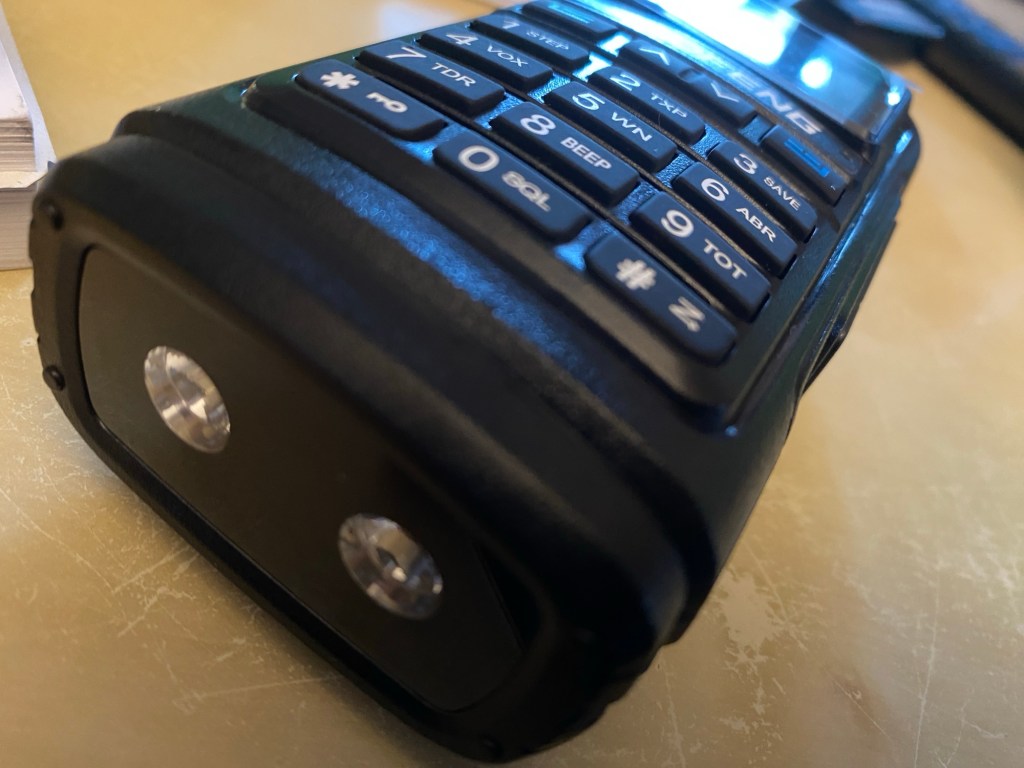
This is a great radio for the price. It does far more than I thought it would and I am sure will get a lot of use out of it. I was initially concerned it may be hard to use because of the price, however, was pleasantly surprised how easy it was to program.

Below is a video I did showing you how to program the radio via a PC using Chirp-Next.

Programming Tip

Did you know you can program this radio via chirp? Here is a tip you may like.

Hope you have got something from this to help you in the hobby. If you go via this link, you will get a discount: for this radio and anything else on their website https://radioddity.refr.cc/bensangster

There is also a new group io you can join if you want https://groups.io/g/BaofengRadios

If this has been helpful, please let me know. Perhaps you have one of these radios and have thoughts of your own, I would value your commitments below.

Other reads

If you enjoyed this review, please see below some of my other articles.

  • Using an Android TV Box for Ham Radio
    If you want to get onto Digital Radio for less (way less) than $100, then you may be interested in this. I have Apple equipment, and therefore miss…
  • Orion Push to Talk
    Orion is an app that isn’t really known in my world, perhaps because it isn’t available on all platforms, or because it does transmit your exact location to…
  • WizNet DMR
    The WizNet DMR app is still in beta testing, and at the time of writing this, you have to not only have a currently have a licence as…
  • The Radio Box
    How do you stop a hand held radio from falling and being damaged? Do you sometimes put the radio down on a bench or desk between overs or…
  • Amateur Radio Nets
    A list of Radio nets we have gathered from web pages around the world, as well as friends etc.…
  • USB Device Error PL2303HXA
    I went into the device manager and found the error, my cable no longer worked. This same issue happened to a USB Card reader also.…
  • The History of Ham Radio
    A good friend of mine, Mike VK5ZC, put the information below together and asked me to put it on my web site. He has spent a lot of time putting it together with pictures and videos, so I encourage you to have a good read.…
  • Basic Antenna Fundamentals
    A good friend of mine, Mike VK5ZC, put the information below together and asked me to put it on my web site. He has spent a lot of time putting it together with pictures and videos, so I encourage you to have a good read.…
  • Australian DMR Repeaters
    There are several DMR networks around the world, and more and more start all the time. The Australian DMR network currently covers the entire country and is for…
  • BlueDV Windows 10 GD-77
    I found it hard to find useful information on how to run the OpenGD-77 hotpot mode with Windows 10. At the time of writing this, there is a lot about this topic using a pistar and even android or ISO, but not much with Windows 10. This is my experence with BlueDV and Open GD-77 using a Windows 10 PC.…
USB Device Error PL2303HXA

I like to program my radio or scanner via the computer. You can see more, import more and adjust things quickly. One thing you can do on the PC is adjust which channels are in the scan or not, something unfortunatley you can not do on the radio (bit funny).

This all worked fine, however after a windows update, I could no longer connect. Something happened.

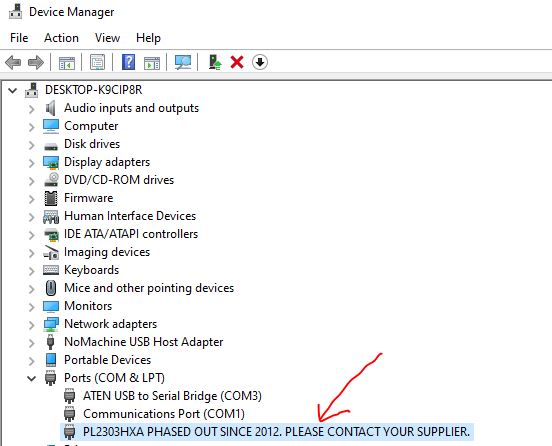
I went into the device manager and found the error, my cable no longer worked. This same issue happened to a USB Card reader also.

PL2303HXA PHASED OUT SINCE 2012. PLEASE CONTACT YOUR SUPPLIER.
PL2303HXA PHASED OUT SINCE 2012. PLEASE CONTACT YOUR SUPPLIER. Error

While this is all very informative, it really didn’t help me. However I found a solution.

What windows have done, is for the older chips, Window’s has dropped driver support for them. However you go to http://wp.brodzinski.net/hardware/fake-pl2303-how-to-install/ you can download an old driver version, then install the old driver version.

Once downloaded, open the zip file and run the exe file and install. Unplug the USB cable, and plug it in again.

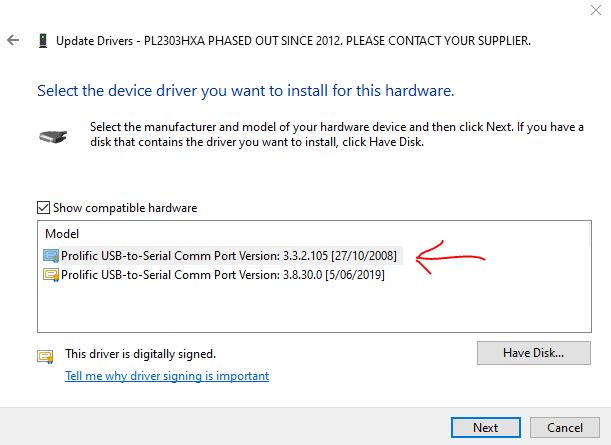
Then, go back to the Device Manager, right click on the above line, select properties, go to Driver tab, select Update Driver, select Browse my computer for driver software, then navigate to the downloaded file, then select Let Me Pick, then you get a selection as per the picture below.  Select the older 2008 version as shown below.

Driver Update

Press Next and let it install. Once complete, click on Close, and Close again, and the Device Manager should now be changed to:

Prolific USB-to-Serial Comm Port (COM?)

You should be able to communicate with the radio fine now.  You many have to re-do the above steps if you re-boot the PC or do a windows update.

Option 2

I came acrross this other way to do it also, using a different driver. Both options work for me, however it depends on which cord I am using. So if the first option doesn’t work, you may want to try option two below.

I hope this helps you. This took a while to put together, so please let me know what you thought by adding a comment below. Don’t forget to follow our page also for more updates. There are more hints on this web site also.

  • BlueDV Windows 10 GD-77
    I found it hard to find useful information on how to run the OpenGD-77 hotpot mode with Windows 10. At the time of writing this, there is a lot about this topic using a pistar and even android or ISO, but not much with Windows 10. This is my experence with BlueDV and Open GD-77 using a Windows 10 PC.…
  • DudeStar
    Here is a free windows program that will connect your PC to: DMR Yaesu Fusion DStar M17 P25 NXDN You can do all this without…
  • EchoLink CQ
    I’ve been using EchoLink well before smartphones where the only way I knew how to connect to a different station was via the radio. The…
  • Flrig
    Flrig is a transceiver control program designed to be used either stand alone or as an adjunct to fldigi (see my review on this). The…
  • GD-77 Won’t connect to PC
    I have been using my Radioddity now for some years and love it.  Though upgrading this to the OpenGD77 opened a whole new world and…
  • HamClock
    HamClock has always fascinated me, as it seems such an amazing program specifically set up for Amateur Radio. I have seen countless videos on it…
  • Iphone won’t download photos
    I get the “Device is unreachable” Error message when trying to import media from iPhone to Windows 10 PC. …
  • NanoVNA H4 USB Control to PC
    If you haven’t seen my previous blog on the NanoVNA Analyser, then I suggest you look at that first before reading this blog. This one…
  • NetTime
    When using digital over the radio, it is particularly important you have the correct time. Even a second out will stop you from making contacts.…
  • ProScan and ProScan Client
    I recently started using ProScan after years of using FreeScan. I have always enjoyed using FreeScan as it is easy to setup, I can download outputs from the software, and the main reason “it works”. However ProScan seems to be more graphical and has different features also.…
  • ProScan and ProScan Client Update
    I recently started using ProScan after years of using FreeScan. I have always enjoyed using FreeScan as it is easy to setup, I can download outputs from the software, and the main reason “it works”. However ProScan seems to be more graphical and has different features also.…
  • Software Defined Radio (SDR)
    If you don’t have one of the latest and greatest expensive scanners, you will struggle to listen to a lot of transmissions. While there is…
  • Treehouse
    An unusual name, but a catchy name no less, just like Peanut that was written by the same person, David PA7LIM. If you like Peanut, then you will like this project also. This project, like Peanut, includes some amazing coding and thinking.…
  • USB Device Error PL2303HXA
    I went into the device manager and found the error, my cable no longer worked. This same issue happened to a USB Card reader also.…
  • VARA – VARAC
    Ever heard this sound on HF / VHF / UHF? I know I have more and more recently. After a bit of research, someone told…
  • Welle.io
    Welle.io is a DAB and DAB+ software defined radio (SDR). It runs on Windows, Linux and embedded devices like the Raspberry Pi 2 and 3.…

Chirp

CHIRP is a free, open-source tool for programming your amateur radio. It supports a large number of manufacturers and models, as well as provides a way to interface with multiple data sources and formats.

Supported Radios

Supported radios can be found on their web site at https://chirp.danplanet.com/projects/chirp/wiki/Home. This list is updated as the software is updated.

Download Chirp

Chirp can be downloaded from the following web site. Should things stop to work or connect to outside web sites, it probably is because you don’t have the latest version. You do NOT need to uninstall an existing version of CHIRP before installing a newer one. Just install the new one and it will replace the existing copy. If you already have an old copy on your PC, make sure you close it first, otherwise you will get an error while installing.

https://trac.chirp.danplanet.com/chirp_daily/LATEST/

Update Chirp

On opening Chirp, it will tell you if an update is available. Simply click on the link, download the latest version that is appropriate to your platform, and then once the file has downloaded, run the file. It will update your software. No need to un-install the old one, and it seems all the settings, such as file locations, stay in the new version.

Connecting Tip

Chirp can easily connect to your radio without needing to look at the device manager anymore. Have a look at this:

Known Issues

Chirp list all their known issues online which is great. You can see the current list here:

Download from Radio

I think the first step is to first download what is currently on the radio. This will give you a starting point which can be saved should your upload not work. At the very least doing this will allow you to check communication between your PC and radio works, and you will have a file that you can look at to see how it was programmed.

To do this, go to the Radio menu and click on Download from Radio or Ctrl-D. This will give you a small dialog box where you can select the Com Port, radio and model. Your model of radio may not exactly be on the list, so you may need to do some work to see which one to select as an alternative. For example, I have a Baofeng GT-3TP, but it is not on the list, so I have to select the BF-F8HP model.

You can then either edit what you have and then upload it back to the radio, or start from scratch. If you want to start from scratch, you may want to see what Query Data sources are available first.

If you have trouble connecting your computer to your radio, then first make sure it is connected correctly and all the way into the radio. If this doesn’t fix it, go to Windows Device Manager then right click and select properties. If error code 43 comes up, then right click on it and uninstall. Then from the Action menu, scan for updated devices.

Query Data Source

Chirp can can sync your radio with the repeaters listed on several different sites. This will save you a lot of time getting the latest frequencies, offsets, and tone squelches etc. These sites can be found on the Radio menu, Query Data Source, then you can see a list of them.

I usually use the RepeaterBook option and then from this you can select political or proximity depending on what you want to do. If you select proximity it will put the repeaters in distance and band order, not frequency, however you can change this prior to uploading to your radio.

For me, once I have selected proximity, I sort the list in order of frequency, however this doesn’t change their location channel.

Then select the Frequencies you don’t want in your radio, for example, the ones on bands your radio does not use. Right click and select delete, and move all memories up. You may need to sort again in order of frequency; however, this doesn’t change their location channel.

I then export the tab to a csv file.

I then open the CSV file in Excel and sort in the order I want, frequency. Be sure to re-number the location numbers once in the correct order. MAKE SURE COLUMN K = FM. Make sure you remove any comments in column O & R. You can also add any additional frequencies you want to.

Open the CSV exported file, now you will see the locations are in order of Frequency as set above. You can still make any changes required and save or save as which will update the CSV file.

I will add notes here on how to program your radio soon.

Other Reads

Here are some other posts I have done on similar topics