
If you want to get onto Digital Radio for less (way less) than $100, then you may be interested in this.
I have Apple equipment, and therefore miss out on a lot of the testing apps that are only available on Android. There seem to be more and more there all the time! I don’t want to purchase another phone, just to get a few apps, but I did hear of an alternative.
A friend of mine in Canada, Martin VE3KLR, gave me the idea of using an Android TV box and actually using it as a radio! He had already done it and believes it could end up doing a lot more than what I have posted below. With the amount of apps now available, you can talk on almost all networks now via Android. You sure get some funny replies when you say your on a TV box.
I had to do it as more and more people were talking about Android apps.
Not knowing much about Android at all, this project started to quickly become overwhelming, so I ended up putting it on hold for some time.
However I later decided to get back on this project. It just seemed to easy. So this is what I did.
The Box
I purchased a cheap Android TV Box, mine was worth $40.99 including postage. You could almost purchase any Android box, but I decided to get one with at least two USB ports, and blue tooth. Blue tooth will allow me to connect other things like keyboards, microphones and mouses as I want to. It also has wifi, which means less cords.
At first, I was using this TV Box with out old CRT TV, and it worked well, the writing was a little hard to read, but it still worked. I then plugged it into a HDMI monitor, and it worked very well, very clear and easy to use.
As this little box plugs into a nice TV screen, you could easily use this as a small computer by installing a word processor. Social media, YouTube and web browsing are easy also.
Once connected, I connected it to my Wifi. On my box, you can plug in a Ethernet cable which is handy if your shack is far from your router, but I chose not to at this stage.
When you get one, make sure yours comes with the correct AC plug for your country. You may want to think about if you want HDMI, Blue tooth and how many USB ports does it have. Remember, these boxes are meant to store and play video, so they usually come with a lot of hard drive space and grunt for what we are going to us it for.
Below are some pictures of the one I got, however I am not necessarily recommending it. There are heaps of options available, so do a bit or research first, but remember most reviews will be about how well they play movies, which is not why I got mine.

As I mentioned earlier, there are heaps of Amateur Radio apps now available, and new ones all the time, so you could install these on the same device.

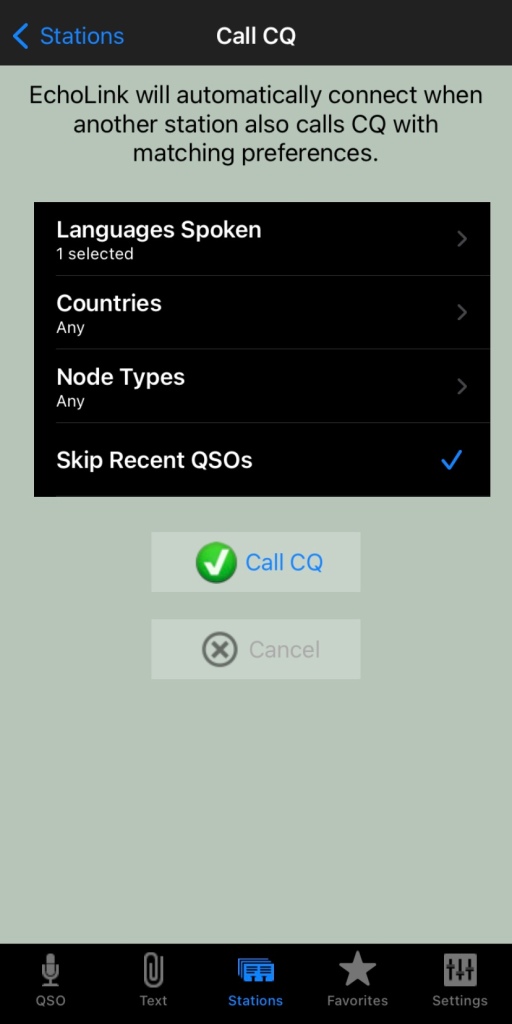
I started with some of the basic apps, like Echolink, Peanut, Teamspeak and Zello. These also have the echo function where you can test sound also.
The Monitor
You probably don’t need to get a monitor, but you may want to when you see what I got. I purchased a small 9 inch monitor that runs off 12 volts. I was going to get a 5 inch one, but it ran of 8 volts, and the one I got is just that little bit bigger for my eyes. This monitor has several different input options so I could future proof this handy little monitor. It also had speakers inbuilt, so when using HDMI, everything sound and video is taken care of.
You can get larger monitors ones, or smaller ones, but I thought this one would sit well on my desk. It also came with a nice stand. You can see in the video how well it sits on my desk in front of my PC monitors.


What other things do you need?
For me, I found a mouse most useful. You can use the remote, but if you plug in a mouse, you almost don’t need a remote anymore.
A microphone is something else you should invest in. You can purchase these for almost $1 delivered, but I often think you get what you pay for, and the microphone is very important. Having said that, as you are going to use the microphone on digital talk groups only, some would argue it isn’t as important as analog.
A keyboard would be great. You could plug it in via USB, or connect in via Bluetooth. I haven’t done this as yet, but plan to.
You can plug in a USB Bluetooth dongle also should you not need to.
Other Uses
Another use for this is to put your electronic QSL cards on it. It makes a great slideshow for the radio shack! They usually come with large hard drives so lots of space for these.
As I mentioned earlier, it could be used for gaming, watching videos,
Mobile
The screen is 12 volts, so this could easily go in the car also, and the Android TV Box could be secured on the back of it. The box runs off 5 volts, so this could easily be also run in the car if your cleaver enough to drop 12 volts to 5 volts.
The TV box can uses wifi, so you should be able to connect it to your mobile phone.
I hope that helps get a few more onto the digital bands. It is a lot of fun on digital. I have made good friends all over the world over digital. Having this Android TV Box not only allows me access to Android Apps, but pretty much gives me a new radio so I can now receive and transmit on a different talk groups while using my current setup to work other talk groups at the same time.

Update: since writing this post, I have updated and changed my android TV box as I suddenly had sound issues. The one I ended up getting had a later version on android and more memory etc.
Other Reads
Below are some other posts I have done on similar topics
- Lightning Storm & HF Radio
 HF radio and lightning storms are closely connected because lightning…
 - OpenHamClock
 OpenHamClock is an open-source amateur radio dashboard designed as a…
 - What is an Antenna Coupler
 An antenna coupler (also called an antenna tuner or matching…
 - Antennas
 Amateur radio operators use many different antenna types, each designed…
 - Dipole Antenna for Portable Use – Make your own!
 A dipole antenna is a basic radio antenna made of…
 - Interference
 Interference in Amateur Radio refers to unwanted signals that disrupt…
 - 6m and TV Channel 0
 Prior to 1989, it was illegal to operate between 50…
 - Dipole Antennas Vs Long Wire Antennas
 I’ve heard a lot about dipole antennas, and I’ve heard…
 - Repeater-START
 Repeater-START is a multi-platform app designed for ham radio and…
 - The 6-Meter Amateur Radio Band
 What Is the 6m Band? The 6-meter band, spanning roughly…














 VK3TBS